
Useful links – I hope you might like it too..
https://websitesetup.org/sql-cheat-sheet-2/
PS:\>$ENV:PROCESSOR_ARCHITECTURE
Method 2: Using Win32_OperatingSystem
ps:\>$computername=’abcd’
ps:\>(Get-WmiObject Win32_OperatingSystem -computername $computername).OSArchitecture
Method 3: Using Win32_Processor
ps:\>$computername=’abcd’
ps:\>Get-WmiObject -Class Win32_Processor -ComputerName $ComputerName| Select-Object AddressWidth
Method 4:[IntPtr]::Size – Gets the size of this instance. The value of this property is 4 in a 32-bit process, and 8 in a 64-bit process
ps:\>[IntPtr]::Size
I got a request to monitor multiple services and send an email to intended recipients. This post explains how to monitor multiple services on a group of servers. The function Get-ServiceStatusReport comprises of various cmdLets and function to monitor services on a list of servers.
The Function Get-ServiceStatusReport contains five parameters
Function call –
Get-ServiceStatusReport -ComputerList C:\server.txt -includeService "MySQL","MpsSvc","W32Time" -To pjayaram@app.com -From pjayaram@ app.com -SMTPMail app01. app.com
Get-ServiceStatusReport -ComputerList C:\server.txt -includeService MySQL,MpsSvc,W32Time -To pjayaram@app.com -From pjayaram@ app.com -SMTPMail app01. app.com
You can download the code :- MonitorMultiple Services
Output:-

Code:-
Function Get-ServiceStatusReport
{
param(
[String]$ComputerList,[String[]]$includeService,[String]$To,[String]$From,[string]$SMTPMail
)
$script:list = $ComputerList
$ServiceFileName= "c:\ServiceFileName.htm"
New-Item -ItemType file $ServiceFilename -Force
# Function to write the HTML Header to the file
Function writeHtmlHeader
{
param($fileName)
$date = ( get-date ).ToString('yyyy/MM/dd')
Add-Content $fileName "<html>"
Add-Content $fileName "<head>"
Add-Content $fileName "<meta http-equiv='Content-Type' content='text/html; charset=iso-8859-1'>"
Add-Content $fileName '<title>Service Status Report </title>'
add-content $fileName '<STYLE TYPE="text/css">'
add-content $fileName  "<!--"
add-content $fileName  "td {"
add-content $fileName  "font-family: Tahoma;"
add-content $fileName  "font-size: 11px;"
add-content $fileName  "border-top: 1px solid #999999;"
add-content $fileName  "border-right: 1px solid #999999;"
add-content $fileName  "border-bottom: 1px solid #999999;"
add-content $fileName  "border-left: 1px solid #999999;"
add-content $fileName  "padding-top: 0px;"
add-content $fileName  "padding-right: 0px;"
add-content $fileName  "padding-bottom: 0px;"
add-content $fileName  "padding-left: 0px;"
add-content $fileName  "}"
add-content $fileName  "body {"
add-content $fileName  "margin-left: 5px;"
add-content $fileName  "margin-top: 5px;"
add-content $fileName  "margin-right: 0px;"
add-content $fileName  "margin-bottom: 10px;"
add-content $fileName  ""
add-content $fileName  "table {"
add-content $fileName  "border: thin solid #000000;"
add-content $fileName  "}"
add-content $fileName  "-->"
add-content $fileName  "</style>"
Add-Content $fileName "</head>"
Add-Content $fileName "<body>"

add-content $fileName  "<table width='100%'>"
add-content $fileName  "<tr bgcolor='#CCCCCC'>"
add-content $fileName  "<td colspan='4' height='25' align='center'>"
add-content $fileName  "<font face='tahoma' color='#003399' size='4'><strong>Service Stauts Report - $date</strong></font>"
add-content $fileName  "</td>"
add-content $fileName  "</tr>"
add-content $fileName  "</table>"

}

# Function to write the HTML Header to the file
Function writeTableHeader
{
param($fileName)

Add-Content $fileName "<tr bgcolor=#CCCCCC>"
Add-Content $fileName "<td width='10%' align='center'>ServerName</td>"
Add-Content $fileName "<td width='50%' align='center'>Service Name</td>"
Add-Content $fileName "<td width='10%' align='center'>status</td>"
Add-Content $fileName "</tr>"
}

Function writeHtmlFooter
{
param($fileName)

Add-Content $fileName "</body>"
Add-Content $fileName "</html>"
}

Function writeDiskInfo
{
param($filename,$Servername,$name,$Status)
if( $status -eq "Stopped")
{
 Add-Content $fileName "<tr>"
 Add-Content $fileName "<td bgcolor='#FF0000' align=left ><b>$servername</td>"
 Add-Content $fileName "<td bgcolor='#FF0000' align=left ><b>$name</td>"
 Add-Content $fileName "<td bgcolor='#FF0000' align=left ><b>$Status</td>"
 Add-Content $fileName "</tr>"
}
else
{
Add-Content $fileName "<tr>"
 Add-Content $fileName "<td >$servername</td>"
 Add-Content $fileName "<td >$name</td>"
 Add-Content $fileName "<td >$Status</td>"
Add-Content $fileName "</tr>"
}

}

writeHtmlHeader $ServiceFileName
 Add-Content $ServiceFileName "<table width='100%'><tbody>"
 Add-Content $ServiceFileName "<tr bgcolor='#CCCCCC'>"
 Add-Content $ServiceFileName "<td width='100%' align='center' colSpan=3><font face='tahoma' color='#003399' size='2'><strong> Service Details</strong></font></td>"
 Add-Content $ServiceFileName "</tr>"

 writeTableHeader $ServiceFileName

#Change value of the following parameter as needed

$InlcudeArray=@()

#List of programs to exclude
#$InlcudeArray = $inlcudeService

Foreach($ServerName in (Get-Content $script:list))
{
if(Test-Connection -ComputerName $ServerName -Count 1 -ea 0) {
$service = Get-Service -ComputerName $servername
if ($Service -ne $NULL)
{
foreach ($item in $service)
 {
 #$item.DisplayName
 Foreach($include in $includeService)
     {
 write-host $inlcude
 if(($item.serviceName).Contains($include) -eq $TRUE)
    {
    Write-Host  $item.MachineName $item.name $item.Status
    writeDiskInfo $ServiceFileName $item.MachineName $item.name $item.Status
    }
}
    }
 }
}
}

Add-Content $ServiceFileName "</table>"

writeHtmlFooter $ServiceFileName

function Validate-IsEmail ([string]$Email)
{

                return $Email -match "^(?("")("".+?""@)|(([0-9a-zA-Z]((\.(?!\.))|[-!#\$%&'\*\+/=\?\^`\{\}\|~\w])*)(?<=[0-9a-zA-Z])@))(?(\[)(\[(\d{1,3}\.){3}\d{1,3}\])|(([0-9a-zA-Z][-\w]*[0-9a-zA-Z]\.)+[a-zA-Z]{2,6}))$"
}

Function sendEmail
{
param($from,$to,$subject,$smtphost,$htmlFileName)
[string]$receipients="$to"
$body = Get-Content $htmlFileName
$body = New-Object System.Net.Mail.MailMessage $from, $receipients, $subject, $body
$body.isBodyhtml = $true
$smtpServer = $MailServer
$smtp = new-object Net.Mail.SmtpClient($smtphost)
$validfrom= Validate-IsEmail $from
if($validfrom -eq $TRUE)
{
$validTo= Validate-IsEmail $to
if($validTo -eq $TRUE)
{
$smtp.Send($body)
write-output "Email Sent!!"

}
}
else
{
write-output "Invalid entries, Try again!!"
}
}

$date = ( get-date ).ToString('yyyy/MM/dd')

sendEmail -from $From -to $to -subject "Service Status - $Date" -smtphost $SMTPMail -htmlfilename $ServiceFilename

}
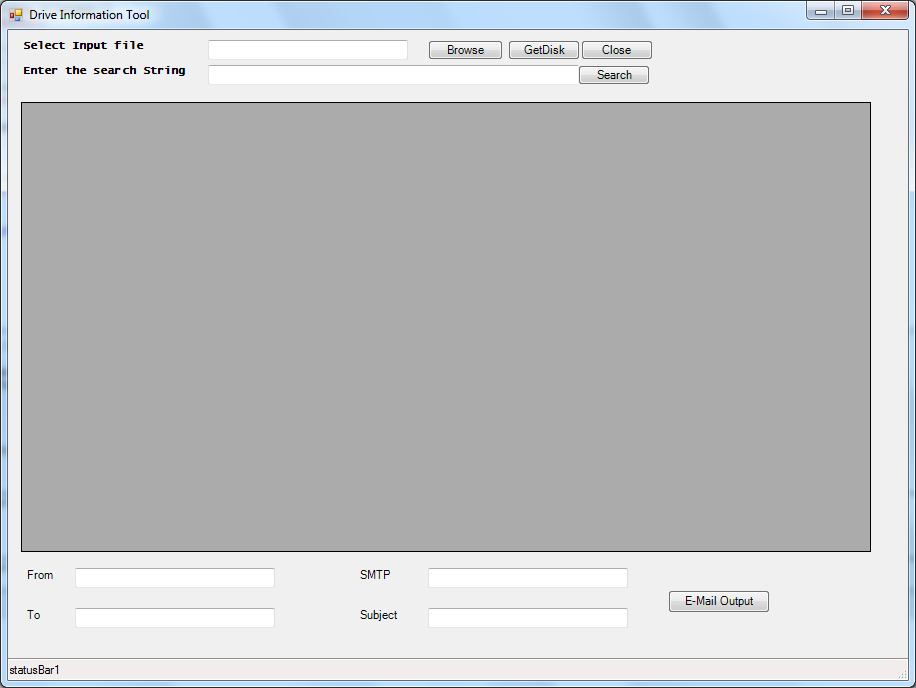
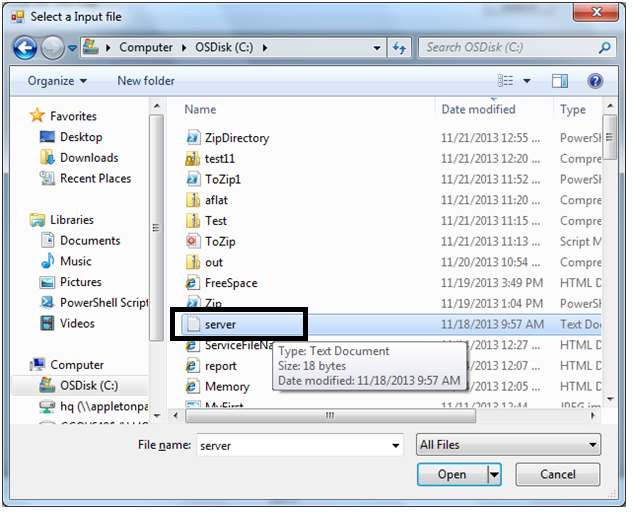
This tool helps you get the disk space information on the computers of your choice. Either you can type the path of an input file or hit ‘Browse Button’ to select the file using dialog option.
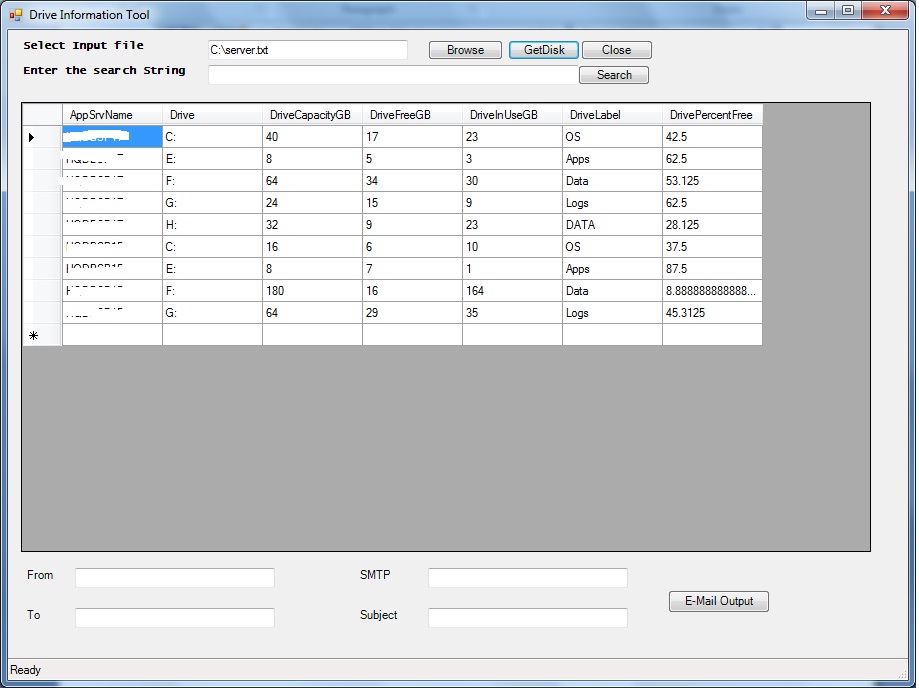
Put the select input file and hit ‘GetDisk’. It will query the disk space information from the computer and present it to you in tabular formats.The Grid view output can be sorted on any selected columns shows the amount of memory in use, the name of the server, the volume name, the total size of the disk, the available free space, the partition identifier and the percentage of free space.
You can do a search by placing a right keyword and hit ‘Search’ button.
Also, Email can be sent to an intended users by making an entry in the corresponding fields in a below portion of the tool and hit ‘E-Mail Output’ button.
The different layouts are
Download the script here :- PowerShellGUI – DiskSpace – Tool – MultipleComputers
Code:-
********************************************************************************
function Get-DiskSpace
{
function OnApplicationLoad {
return $true
}

function OnApplicationExit {
#Note: This function runs after the form is closed
#TODO: Add custom code to clean up and unload snapins when the application exits
}

#endregion Application Functions

#----------------------------------------------
# Generated Form Function
#----------------------------------------------
function Call-SystemInformation_pff {

    #----------------------------------------------
    #region Import the Assemblies
    #----------------------------------------------
    [void][reflection.assembly]::Load("System.Windows.Forms, Version=2.0.0.0, Culture=neutral, PublicKeyToken=b77a5c561934e089")
    [void][reflection.assembly]::Load("System.Drawing, Version=2.0.0.0, Culture=neutral, PublicKeyToken=b03f5f7f11d50a3a")
    [void][reflection.assembly]::Load("mscorlib, Version=2.0.0.0, Culture=neutral, PublicKeyToken=b77a5c561934e089")
     [void][Reflection.Assembly]::LoadWithPartialName("System.Windows.Forms")
    [void][Reflection.Assembly]::LoadWithPartialName("System.Windows.Forms.DataVisualization")
    #get-pssnapin -Registered -ErrorAction silentlycontinue

    #endregion Import Assemblies

    #----------------------------------------------
    #region Generated Form Objects
    #----------------------------------------------
    [System.Windows.Forms.Application]::EnableVisualStyles()
    $form1 = New-Object System.Windows.Forms.Form
    $btnRefresh = New-Object System.Windows.Forms.Button

    $btnsearch = New-Object System.Windows.Forms.Button
    $btngetdata=New-Object System.Windows.Forms.Button
    $rtbPerfData = New-Object System.Windows.Forms.RichTextBox
    #$pictureBox1 = New-Object System.Windows.Forms.PictureBox
    $lblServicePack = New-Object System.Windows.Forms.Label
    $lblDBName= New-Object System.Windows.Forms.Label
    $lblOS = New-Object System.Windows.Forms.Label
    $lblExpire = New-Object System.Windows.Forms.Label
    $statusBar1 = New-Object System.Windows.Forms.StatusBar
    $btnClose = New-Object System.Windows.Forms.Button
    #$comboServers = New-Object System.Windows.Forms.ComboBox
    $InitialFormWindowState = New-Object System.Windows.Forms.FormWindowState
    $txtComputerName1 = New-Object System.Windows.Forms.TextBox
    $txtComputerName2 = New-Object System.Windows.Forms.TextBox
    $datagridviewResults = New-Object System.Windows.Forms.DataGridview
    $Chart = New-object System.Windows.Forms.DataVisualization.Charting.Chart
    $labelSubject = New-Object 'System.Windows.Forms.Label'
    $labelFrom = New-Object 'System.Windows.Forms.Label'
    $labelSMTPServer = New-Object 'System.Windows.Forms.Label'
    $labelTo = New-Object 'System.Windows.Forms.Label'
    $txtSubject = New-Object System.Windows.Forms.TextBox
    $txtFrom = New-Object System.Windows.Forms.TextBox
    $txtSMTPServer = New-Object System.Windows.Forms.TextBox
    $txtTo = New-Object System.Windows.Forms.TextBox
    $buttonEMailOutput = New-Object System.Windows.Forms.Button

   #$dataGrid1 = new-object System.windows.forms.DataGridView

    #endregion Generated Form Objects

    #----------------------------------------------
    # User Generated Script
    #----------------------------------------------
function Sort-ListViewColumn
{
    <#
    .SYNOPSIS
        Sort the ListView's item using the specified column.

    .DESCRIPTION
        Sort the ListView's item using the specified column.
        This function uses Add-Type to define a class that sort the items.
        The ListView's Tag property is used to keep track of the sorting.

    .PARAMETER ListView
        The ListView control to sort.

    .PARAMETER ColumnIndex
        The index of the column to use for sorting.

    .PARAMETER  SortOrder
        The direction to sort the items. If not specified or set to None, it will toggle.

    .EXAMPLE
        Sort-ListViewColumn -ListView $listview1 -ColumnIndex 0
#>
    param(
            [ValidateNotNull()]
            [Parameter(Mandatory=$true)]
            [System.Windows.Forms.ListView]$ListView,
            [Parameter(Mandatory=$true)]
            [int]$ColumnIndex,
            [System.Windows.Forms.SortOrder]$SortOrder = 'None')

    if(($ListView.Items.Count -eq 0) -or ($ColumnIndex -lt 0) -or ($ColumnIndex -ge $ListView.Columns.Count))
    {
        return;
    }

    #region Define ListViewItemComparer
        try{
        $local:type = [ListViewItemComparer]
    }
    catch{
    Add-Type -ReferencedAssemblies ('System.Windows.Forms') -TypeDefinition  @"
    using System;
    using System.Windows.Forms;
    using System.Collections;
    public class ListViewItemComparer : IComparer
    {
        public int column;
        public SortOrder sortOrder;
        public ListViewItemComparer()
        {
            column = 0;
            sortOrder = SortOrder.Ascending;
        }
        public ListViewItemComparer(int column, SortOrder sort)
        {
            this.column = column;
            sortOrder = sort;
        }
        public int Compare(object x, object y)
        {
            if(column >= ((ListViewItem)x).SubItems.Count)
                return  sortOrder == SortOrder.Ascending ? -1 : 1;

            if(column >= ((ListViewItem)y).SubItems.Count)
                return sortOrder == SortOrder.Ascending ? 1 : -1;

            if(sortOrder == SortOrder.Ascending)
                return String.Compare(((ListViewItem)x).SubItems[column].Text, ((ListViewItem)y).SubItems[column].Text);
            else
                return String.Compare(((ListViewItem)y).SubItems[column].Text, ((ListViewItem)x).SubItems[column].Text);
        }
    }
"@  | Out-Null
    }
    #endregion

    if($ListView.Tag -is [ListViewItemComparer])
    {
        #Toggle the Sort Order
        if($SortOrder -eq [System.Windows.Forms.SortOrder]::None)
        {
            if($ListView.Tag.column -eq $ColumnIndex -and $ListView.Tag.sortOrder -eq 'Ascending')
            {
                $ListView.Tag.sortOrder = 'Descending'
            }
            else
            {
                $ListView.Tag.sortOrder = 'Ascending'
            }
        }
        else
        {
            $ListView.Tag.sortOrder = $SortOrder
        }

        $ListView.Tag.column = $ColumnIndex
        $ListView.Sort()#Sort the items
    }
    else
    {
        if($Sort -eq [System.Windows.Forms.SortOrder]::None)
        {
            $Sort = [System.Windows.Forms.SortOrder]::Ascending
        }

        #Set to Tag because for some reason in PowerShell ListViewItemSorter prop returns null
        $ListView.Tag = New-Object ListViewItemComparer ($ColumnIndex, $SortOrder)
        $ListView.ListViewItemSorter = $ListView.Tag #Automatically sorts
    }
}

function Add-ListViewItem
{
<#
    .SYNOPSIS
        Adds the item(s) to the ListView and stores the object in the ListViewItem's Tag property.

    .DESCRIPTION
        Adds the item(s) to the ListView and stores the object in the ListViewItem's Tag property.

    .PARAMETER ListView
        The ListView control to add the items to.

    .PARAMETER Items
        The object or objects you wish to load into the ListView's Items collection.

    .PARAMETER  ImageIndex
        The index of a predefined image in the ListView's ImageList.

    .PARAMETER  SubItems
        List of strings to add as Subitems.

    .PARAMETER Group
        The group to place the item(s) in.

    .PARAMETER Clear
        This switch clears the ListView's Items before adding the new item(s).

    .EXAMPLE
        Add-ListViewItem -ListView $listview1 -Items "Test" -Group $listview1.Groups[0] -ImageIndex 0 -SubItems "Installed"
#>

    Param(
    [ValidateNotNull()]
    [Parameter(Mandatory=$true)]
    [System.Windows.Forms.ListView]$ListView,
    [ValidateNotNull()]
    [Parameter(Mandatory=$true)]
    $Items,
    [int]$ImageIndex = -1,
    [string[]]$SubItems,
    [System.Windows.Forms.ListViewGroup]$Group,
    [switch]$Clear)

    if($Clear)
    {
        $ListView.Items.Clear();
    }

    if($Items -is [Array])
    {
        $ListView.BeginUpdate()
        foreach ($item in $Items)
        {
            $listitem  = $ListView.Items.Add($item.ToString(), $ImageIndex)
            #Store the object in the Tag
            $listitem.Tag = $item

            if($SubItems -ne $null)
            {
                $listitem.SubItems.AddRange($SubItems)
            }

            if($Group -ne $null)
            {
                $listitem.Group = $Group
            }
        }
        $ListView.EndUpdate()
    }
    else
    {
        #Add a new item to the ListView
        $listitem  = $ListView.Items.Add($Items.ToString(), $ImageIndex)
        #Store the object in the Tag
        $listitem.Tag = $Items

        if($SubItems -ne $null)
        {
            $listitem.SubItems.AddRange($SubItems)
        }

        if($Group -ne $null)
        {
            $listitem.Group = $Group
        }
    }
}

function Load-DataGridView
{
    <#
    .SYNOPSIS
        This functions helps you load items into a DataGridView.

    .DESCRIPTION
        Use this function to dynamically load items into the DataGridView control.

    .PARAMETER  DataGridView
        The ComboBox control you want to add items to.

    .PARAMETER  Item
        The object or objects you wish to load into the ComboBox's items collection.

    .PARAMETER  DataMember
        Sets the name of the list or table in the data source for which the DataGridView is displaying data.

    #>
    Param (
        [ValidateNotNull()]
        [Parameter(Mandatory=$true)]
        [System.Windows.Forms.DataGridView]$DataGridView,
        [ValidateNotNull()]
        [Parameter(Mandatory=$true)]
        $Item,
        [Parameter(Mandatory=$false)]
        [string]$DataMember
    )
    $DataGridView.SuspendLayout()
    $DataGridView.DataMember = $DataMember

    if ($Item -is [System.ComponentModel.IListSource]`
    -or $Item -is [System.ComponentModel.IBindingList] -or $Item -is [System.ComponentModel.IBindingListView] )
    {
        $DataGridView.DataSource = $Item
    }
    else
    {
        $array = New-Object System.Collections.ArrayList

        if ($Item -is [System.Collections.IList])
        {
            $array.AddRange($Item)
        }
        else
        {
            $array.Add($Item)
        }
        $DataGridView.DataSource = $array
    }

    $DataGridView.ResumeLayout()
}

function Convert-ToDataTable
{
    <#
        .SYNOPSIS
            Converts objects into a DataTable.

        .DESCRIPTION
            Converts objects into a DataTable, which are used for DataBinding.

        .PARAMETER  InputObject
            The input to convert into a DataTable.

        .PARAMETER  Table
            The DataTable you wish to load the input into.

        .PARAMETER RetainColumns
            This switch tells the function to keep the DataTable's existing columns.

        .PARAMETER FilterWMIProperties
            This switch removes WMI properties that start with an underline.

        .EXAMPLE
            Convert-ToDataTable -InputObject (Get-Process) -Table $DataTable
    #>

    param(
    $InputObject,
    [ValidateNotNull()]
    [System.Data.DataTable]$Table,
    [switch]$RetainColumns,
    [switch]$FilterWMIProperties)

    if($InputObject -is [System.Data.DataTable])
    {
        $Table = $InputObject
        return
    }

    if(-not $RetainColumns -or $Table.Columns.Count -eq 0)
    {
        #Clear out the Table Contents
        $Table.Clear()

        if($InputObject -eq $null){ return } #Empty Data

        $object = $null
        #find the first non null value
        foreach($item in $InputObject)
        {
            if($item -ne $null)
            {
                $object = $item
                break
            }
        }

        if($object -eq $null) { return } #All null then empty

        #Get all the properties in order to create the columns
        $properties = Get-Member -MemberType 'Properties' -InputObject $object
        foreach ($prop in $properties)
        {
            if(-not $FilterWMIProperties -or -not $prop.Name.StartsWith('__'))#filter out WMI properties
            {
                #Get the type from the Definition string
                $index = $prop.Definition.IndexOf(' ')
                $type = $null
                if($index -ne -1)
                {
                    $typeName = $prop.Definition.SubString(0, $index)
                    try{ $type = [System.Type]::GetType($typeName) } catch {}
                }

                if($type -ne $null -and [System.Type]::GetTypeCode($type) -ne 'Object')
                {
                      [void]$table.Columns.Add($prop.Name, $type)
                }
                else #Type info not found
                {
                    [void]$table.Columns.Add($prop.Name)
                }
            }
        }
    }
    else
    {
        $Table.Rows.Clear()
    }

    $count = $table.Columns.Count
    foreach($item in $InputObject)
    {
        $row = $table.NewRow()

        for ($i = 0; $i -lt $count;$i++)
        {
            $column = $table.Columns[$i]
            $prop = $column.ColumnName

            $value = Invoke-Expression ('$item.{0}' -f $prop)
            if($value -ne $null)
            {
                $row[$i] = $value
            }
        }

        [void]$table.Rows.Add($row)
    }
}
#endregion

#region Search Function
function SearchGrid()
{
    $RowIndex = 0
    $ColumnIndex = 0
    $seachString = $txtComputerName2.Text

    if($seachString -eq "")
    {
        return
    }

    if($datagridviewResults.SelectedCells.Count -ne 0)
    {
        $startCell = $datagridviewResults.SelectedCells[0];
        $RowIndex = $startCell.RowIndex
        $ColumnIndex = $startCell.ColumnIndex + 1
    }

    $columnCount = $datagridviewResults.ColumnCount
    $rowCount = $datagridviewResults.RowCount
    for(;$RowIndex -lt $rowCount; $RowIndex++)
    {
        $Row = $datagridviewResults.Rows[$RowIndex]

        for(;$ColumnIndex -lt $columnCount; $ColumnIndex++)
        {
            $cell = $Row.Cells[$ColumnIndex]

            if($cell.Value -ne $null -and $cell.Value.ToString().IndexOf($seachString, [StringComparison]::OrdinalIgnoreCase) -ne -1)
            {
                $datagridviewResults.CurrentCell = $cell
                return
            }
        }

        $ColumnIndex = 0
    }

    $datagridviewResults.CurrentCell = $null
    [void][System.Windows.Forms.MessageBox]::Show("The search has reached the end of the grid.","String not Found")

}
#endregion

Function Get-DiskSpaceReport
{
param([String]$list,[string]$SMTPMail,[String]$To,[String]$From
)

$freeSpaceFileName = "C:\FreeSpace.htm"

$warning = 15
$critical = 10

New-Item -ItemType file $freeSpaceFileName -Force

# Getting the freespace info using WMI
#Get-WmiObject win32_logicaldisk  | Where-Object {$_.drivetype -eq 3 -OR $_.drivetype -eq 2 } | format-table DeviceID, VolumeName,status,Size,FreeSpace | Out-File FreeSpace.txt
# Function to write the HTML Header to the file
Function writeHtmlHeader
{
param($fileName)
$date = ( get-date ).ToString('yyyy/MM/dd')
Add-Content $fileName "<html>"
Add-Content $fileName "<head>"
Add-Content $fileName "<meta http-equiv='Content-Type' content='text/html; charset=iso-8859-1'>"
Add-Content $fileName '<title>DiskSpace Report</title>'
add-content $fileName '<STYLE TYPE="text/css">'
add-content $fileName  "<!--"
add-content $fileName  "td {"
add-content $fileName  "font-family: Tahoma;"
add-content $fileName  "font-size: 11px;"
add-content $fileName  "border-top: 1px solid #999999;"
add-content $fileName  "border-right: 1px solid #999999;"
add-content $fileName  "border-bottom: 1px solid #999999;"
add-content $fileName  "border-left: 1px solid #999999;"
add-content $fileName  "padding-top: 0px;"
add-content $fileName  "padding-right: 0px;"
add-content $fileName  "padding-bottom: 0px;"
add-content $fileName  "padding-left: 0px;"
add-content $fileName  "}"
add-content $fileName  "body {"
add-content $fileName  "margin-left: 5px;"
add-content $fileName  "margin-top: 5px;"
add-content $fileName  "margin-right: 0px;"
add-content $fileName  "margin-bottom: 10px;"
add-content $fileName  ""
add-content $fileName  "table {"
add-content $fileName  "border: thin solid #000000;"
add-content $fileName  "}"
add-content $fileName  "-->"
add-content $fileName  "</style>"
Add-Content $fileName "</head>"
Add-Content $fileName "<body>"

add-content $fileName  "<table width='100%'>"
add-content $fileName  "<tr bgcolor='#CCCCCC'>"
add-content $fileName  "<td colspan='7' height='25' align='center'>"
add-content $fileName  "<font face='tahoma' color='#003399' size='4'><strong>DiskSpace Report - $date</strong></font>"
add-content $fileName  "</td>"
add-content $fileName  "</tr>"
add-content $fileName  "</table>"

}

# Function to write the HTML Header to the file
Function writeTableHeader
{
param($fileName)

Add-Content $fileName "<tr bgcolor=#CCCCCC>"
Add-Content $fileName "<td width='10%' align='center'>Drive</td>"
Add-Content $fileName "<td width= 10%' align='center'>Drive Label</td>"
Add-Content $fileName "<td width='10%' align='center'>Total Capacity(GB)</td>"
Add-Content $fileName "<td width='10%' align='center'>Used Capacity(GB)</td>"
Add-Content $fileName "<td width='10%' align='center'>Free Space(GB)</td>"
Add-Content $fileName "<td width='10%' align='center'>Freespace %</td>"
Add-Content $fileName "</tr>"
}

Function writeHtmlFooter
{
param($fileName)

Add-Content $fileName "</body>"
Add-Content $fileName "</html>"
}

Function writeDiskInfo
{
param($fileName,$devId,$volName,$frSpace,$totSpace)
$totSpace=[math]::Round(($totSpace/1073741824),2)
$frSpace=[Math]::Round(($frSpace/1073741824),2)
$usedSpace = $totSpace - $frspace
$usedSpace=[Math]::Round($usedSpace,2)
$freePercent = ($frspace/$totSpace)*100
$freePercent = [Math]::Round($freePercent,0)
if ($freePercent -gt $warning)
{
Add-Content $fileName "<tr>"
Add-Content $fileName "<td>$devid</td>"
Add-Content $fileName "<td>$volName</td>"
Add-Content $fileName "<td>$totSpace</td>"
Add-Content $fileName "<td>$usedSpace</td>"
Add-Content $fileName "<td>$frSpace</td>"
Add-Content $fileName "<td>$freePercent</td>"
Add-Content $fileName "</tr>"
}
elseif ($freePercent -le $critical)
{
Add-Content $fileName "<tr>"
Add-Content $fileName "<td>$devid</td>"
Add-Content $fileName "<td>$volName</td>"
Add-Content $fileName "<td>$totSpace</td>"
Add-Content $fileName "<td>$usedSpace</td>"
Add-Content $fileName "<td>$frSpace</td>"
Add-Content $fileName "<td bgcolor='#FF0000' align=center>$freePercent</td>"
#<td bgcolor='#FF0000' align=center>
Add-Content $fileName "</tr>"
}
else
{
Add-Content $fileName "<tr>"
Add-Content $fileName "<td>$devid</td>"
Add-Content $fileName "<td>$volName</td>"
Add-Content $fileName "<td>$totSpace</td>"
Add-Content $fileName "<td>$usedSpace</td>"
Add-Content $fileName "<td>$frSpace</td>"
Add-Content $fileName "<td bgcolor='#FBB917' align=center>$freePercent</td>"
# #FBB917
Add-Content $fileName "</tr>"
}
}

writeHtmlHeader $freeSpaceFileName

foreach ($server in Get-Content $list)
{
Add-Content $freeSpaceFileName "<table width='100%'><tbody>"
Add-Content $freeSpaceFileName "<tr bgcolor='#CCCCCC'>"
Add-Content $freeSpaceFileName "<td width='100%' align='center' colSpan=6><font face='tahoma' color='#003399' size='2'><strong> $server </strong></font></td>"
Add-Content $freeSpaceFileName "</tr>"

writeTableHeader $freeSpaceFileName

$dp = Get-WmiObject win32_logicaldisk -ComputerName $server |  Where-Object {$_.drivetype -eq 3 }
foreach ($item in $dp)
{
Write-Host  $item.DeviceID  $item.VolumeName $item.FreeSpace $item.Size
writeDiskInfo $freeSpaceFileName $item.DeviceID $item.VolumeName $item.FreeSpace $item.Size

}
  Add-Content $freeSpaceFileName "</table>"
}

writeHtmlFooter $freeSpaceFileName

Function sendEmail
{
param($from,$to,$subject,$smtphost,$htmlFileName)
[string]$receipients="$to"
$body = Get-Content $htmlFileName
$body = New-Object System.Net.Mail.MailMessage $from, $receipients, $subject, $body
$body.isBodyhtml = $true
$smtpServer = $MailServer
$smtp = new-object Net.Mail.SmtpClient($smtphost)
$validfrom= Validate-IsEmail $from
if($validfrom -eq $TRUE)
{
$validTo= Validate-IsEmail $to
if($validTo -eq $TRUE)
{
$smtp.Send($body)
write-output "Email Sent!!"

}
}
else
{
write-output "Invalid entries, Try again!!"
}
}

# Email our report out

function Validate-IsEmail ([string]$Email)
{

                return $Email -match "^(?("")("".+?""@)|(([0-9a-zA-Z]((\.(?!\.))|[-!#\$%&'\*\+/=\?\^`\{\}\|~\w])*)(?<=[0-9a-zA-Z])@))(?(\[)(\[(\d{1,3}\.){3}\d{1,3}\])|(([0-9a-zA-Z][-\w]*[0-9a-zA-Z]\.)+[a-zA-Z]{2,6}))$"
}

$date = ( get-date ).ToString('yyyy/MM/dd')

sendEmail -from $From -to $to -subject "Disk Space Report - $Date" -smtphost $SMTPMail -htmlfilename $freeSpaceFileName

}
function Validate-IsEmail ([string]$Email)
{

                return $Email -match "^(?("")("".+?""@)|(([0-9a-zA-Z]((\.(?!\.))|[-!#\$%&'\*\+/=\?\^`\{\}\|~\w])*)(?<=[0-9a-zA-Z])@))(?(\[)(\[(\d{1,3}\.){3}\d{1,3}\])|(([0-9a-zA-Z][-\w]*[0-9a-zA-Z]\.)+[a-zA-Z]{2,6}))$"
}

$FormEvent_Load={
    #TODO: Initialize Form Controls here

}

$buttonExit_Click={
    #TODO: Place custom script here
    $formMain.Close()
}

$buttonQuery_Click={
    #TODO: Place custom script here
#    ---------------------------------
#    Sample Code to Load Grid
#    ---------------------------------
#    $processes = Get-WmiObject Win32_Process -Namespace "Root\CIMV2"
#    Load-DataGridView -DataGridView $datagridviewResults -Item $processes
#    ---------------------------------
#    Sample Code to Load Sortable Data
#    ---------------------------------

if ($txtComputerName1.text -eq '')
{
$statusBar1.text="Select Input file or Enter Input file path...Try Again!!!"
}
else
{
#>
$Object1 = @()
foreach ($computer in (get-content $txtComputerName1.text))
{
write-host $computer
 if(Test-Connection -ComputerName $computer -Count 1 -ea 0) {
$statusBar1.text="Getting  $computer Information...Please wait"
$D=Get-WmiObject win32_logicalDisk -ComputerName $computer -ErrorAction silentlycontinue|where {$_.DriveType -eq 3}|
select __SERVER,DeviceID,VolumeName,
@{Expression={$_.Size /1Gb -as [int]};Label=”TotalSize”},
@{Expression={($_.Size /1Gb -as [int]) – ($_.Freespace / 1Gb -as [int])};Label=”InUse”} ,
@{Expression={$_.Freespace / 1Gb -as [int]};Label=”FreeSize”},
@{Expression={(($_.Freespace /1Gb -as [int]) / ($_.Size / 1Gb -as [int]))*100};Label=”PerFreeSpace”}
foreach($disk in $D)
{
$Object1 += New-Object PSObject -Property @{
AppSrvName= $Disk.__Server;
Drive= $Disk.DeviceID;
DriveLabel=$Disk.VolumeName;
DriveCapacityGB=$Disk.TotalSize;
DriveInUseGB=$Disk.InUse;
DriveFreeGB=$Disk.FreeSize;
DrivePercentFree=$Disk.PerFreeSpace
}
}

}
 else
    {
    $statusBar1.text="Could not connect to $computer ...Try Again!!!"
    }

$statusBar1.text="Ready"

}

    $table = New-Object System.Data.DataTable
    Convert-ToDataTable -InputObject ($object1) -Table $table
    Load-DataGridView -DataGridView $datagridviewResults -Item $table

}
}

$buttonSearch_Click={
    #TODO: Place custom script here
    SearchGrid
}

$datagridviewResults_ColumnHeaderMouseClick=[System.Windows.Forms.DataGridViewCellMouseEventHandler]{
#Event Argument: $_ = [System.Windows.Forms.DataGridViewCellMouseEventArgs]
    if($datagridviewResults.DataSource -is [System.Data.DataTable])
    {
        $column = $datagridviewResults.Columns[$_.ColumnIndex]
        $direction = [System.ComponentModel.ListSortDirection]::Ascending

        if($column.HeaderCell.SortGlyphDirection -eq 'Descending')
        {
            $direction = [System.ComponentModel.ListSortDirection]::Descending
        }

        $datagridviewResults.Sort($datagridviewResults.Columns[$_.ColumnIndex], $direction)
    }
}

$listviewSort_ColumnClick=[System.Windows.Forms.ColumnClickEventHandler]{
#Event Argument: $_ = [System.Windows.Forms.ColumnClickEventArgs]
    Sort-ListViewColumn -ListView $this -ColumnIndex $_.Column
}

$listviewSort_ColumnClick2=[System.Windows.Forms.ColumnClickEventHandler]{
#Event Argument: $_ = [System.Windows.Forms.ColumnClickEventArgs]
    Sort-ListViewColumn -ListView $this -ColumnIndex $_.Column
}

    $Close={
        $form1.close()

    }

    $GetData={
        $statusBar1.text=" Checking Email Entries ...Please wait"
            if ($txtfrom.Text -ne '' -and $txtto.Text -ne '' -and $txtSMTPServer.Text -ne '')
           {
           $status1=Validate-IsEmail $txtfrom.Text
           #write-host $status1
           $status2=Validate-IsEmail $txtto.Text
           #write-host $status1
           if($status1 -eq $FALSE)
           {
           [void][System.Windows.Forms.MessageBox]::Show("Check From Email Entries")
           if($status2 -eq $FALSE)
           {
           [void][System.Windows.Forms.MessageBox]::Show(" Check To Email Entries")
           }
           }
           ELSE
           {
           $statusBar1.Text="Sending Email...Please wait"
           $data=Get-DiskSpaceReport -list $txtComputerName1.text -From $txtfrom.text -To $txtTo.text -SMTPMail $txtSMTPServer.text| Out-String
           $statusBar1.Text="email sent"
           }
           }

      $statusBar1.Text="Ready"
     }

    #>

    # --End User Generated Script--
    #----------------------------------------------
    # Generated Events
    #----------------------------------------------

    $Form_StateCorrection_Load=
    {
        #Correct the initial state of the form to prevent the .Net maximized form issue
        $form1.WindowState = $InitialFormWindowState
    }

    #----------------------------------------------
    #region Generated Form Code
    #----------------------------------------------
    #
    # form1
    #
    $saveFileDialog1 = New-Object System.Windows.Forms.SaveFileDialog
    $form1.Controls.Add($btnRefresh)
    $form1.Controls.Add($btnsearch)
    #$form1.Controls.Add($rtbPerfData)
    #$form1.Controls.Add($pictureBox1)
    $form1.Controls.Add($lblServicePack)
    $form1.Controls.Add($lblOS)
    $form1.Controls.Add($lblDBName)
    $form1.Controls.Add($statusBar1)
    $form1.Controls.Add($btnClose)
    $form1.Controls.Add($txtComputerName1)
    $Form1.controls.add($Chart)
    $Form1.controls.add($txtComputerName2)
    $Form1.controls.add($labelSubject)
    $Form1.controls.add($labelFrom)
    $Form1.controls.add($labelSMTPServer)
    $Form1.controls.add($labelTo)
    $Form1.controls.add($lblExpire)
    $Form1.controls.add($txtFrom)
    $Form1.controls.add($txtTo)
    $Form1.controls.add($txtSubject)
    $Form1.controls.add($txtSMTPServer)
    $Form1.controls.add($buttonEMailOutput)
    $form1.ClientSize = New-Object System.Drawing.Size(900,650)
    $form1.DataBindings.DefaultDataSourceUpdateMode = [System.Windows.Forms.DataSourceUpdateMode]::OnValidation
    #$form1.FormBorderStyle = [System.Windows.Forms.FormBorderStyle]::SizableToolWindow
    $form1.Name = "form1"
    $form1.Text = "Drive Information Tool "
    $form1.add_Load($PopulateList)

# create chart object

$System_Drawing_Size = New-Object System.Drawing.Size
$System_Drawing_Size.Width = 850
$System_Drawing_Size.Height = 450
$datagridviewResults.Size = $System_Drawing_Size
$datagridviewResults.DataBindings.DefaultDataSourceUpdateMode = 0
#$datagridviewResults.HeaderForeColor = [System.Drawing.Color]::FromArgb(255,0,0,0)
$datagridviewResults.Name = "dataGrid1"
$datagridviewResults.DataMember = ""
$datagridviewResults.TabIndex = 0
$System_Drawing_Point = New-Object System.Drawing.Point
$System_Drawing_Point.X =13
$System_Drawing_Point.Y = 72
$datagridviewResults.Location = $System_Drawing_Point
$Chart.visible=$FALSE
$form1.Controls.Add($datagridviewResults)

#$datagridviewResults.CaptionText='Service Comparison'

    #
    # btnRefresh
    #
    $btnRefresh.DataBindings.DefaultDataSourceUpdateMode = [System.Windows.Forms.DataSourceUpdateMode]::OnValidation
    $btnRefresh.Enabled = $TRUE
    $btnRefresh.Location = New-Object System.Drawing.Point(500,10)
    $btnRefresh.Name = "btnRefresh"
    $btnRefresh.Size = New-Object System.Drawing.Size(72,20)
    $btnRefresh.TabIndex = 3
    $btnRefresh.Text = "GetDisk"
    $btnRefresh.UseVisualStyleBackColor = $True
    $btnRefresh.add_Click($buttonQuery_Click)
    #
    #
    #
    # btnsearch
    #
    #$btnsearch.DataBindings.DefaultDataSourceUpdateMode = [System.Windows.Forms.DataSourceUpdateMode]::OnValidation
    $btnsearch.Enabled = $TRUE
    $btnsearch.Location = New-Object System.Drawing.Point(570,35)
    $btnsearch.Name = "btnsearch"
    $btnsearch.Size = New-Object System.Drawing.Size(72,20)
    $btnsearch.TabIndex = 6
    $btnsearch.Text = "Search"
    $btnsearch.UseVisualStyleBackColor = $True
    $btnsearch.add_Click($buttonSearch_Click)
    #

    # btnClose
    #

    $btnClose.DataBindings.DefaultDataSourceUpdateMode = [System.Windows.Forms.DataSourceUpdateMode]::OnValidation
    $btngetdata.Enabled = $TRUE
    $btnClose.Location = New-Object System.Drawing.Point(573,10)
    $btnClose.Name = "btnClose"
    $btnClose.Size = New-Object System.Drawing.Size(72,20)
    $btnClose.TabIndex = 4
    $btnClose.Text = "Close"
    $btnClose.UseVisualStyleBackColor = $True
    $btnClose.add_Click($Close)
    #

    # lblDBName
    #
    $lblDBName.DataBindings.DefaultDataSourceUpdateMode = [System.Windows.Forms.DataSourceUpdateMode]::OnValidation
    $lblDBName.Font = New-Object System.Drawing.Font("Lucida Console",8.25,1,3,1)
    $lblDBName.Location = New-Object System.Drawing.Point(13,10)
    $lblDBName.Name = "lblDBName"
    $lblDBName.Size = New-Object System.Drawing.Size(178,23)
    $lblDBName.TabIndex = 0
    $lblDBName.Text = "Select Input file  "
    $lblDBName.Visible = $TRUE
    #

    #$txtComputerName1.text
    #txtComputerName1
    $txtComputerName1.DataBindings.DefaultDataSourceUpdateMode = [System.Windows.Forms.DataSourceUpdateMode]::OnValidation
    $txtComputerName1.Location = New-Object System.Drawing.Point(200, 10)
    $txtComputerName1.Name = "txtComputerName1"
    $txtComputerName1.TabIndex = 1
    $txtComputerName1.Size = New-Object System.Drawing.Size(200,70)
    $txtComputerName1.visible=$TRUE
    #

    #
    # lblExpire
    #
    $lblExpire.DataBindings.DefaultDataSourceUpdateMode = [System.Windows.Forms.DataSourceUpdateMode]::OnValidation
    $lblExpire.Font = New-Object System.Drawing.Font("Lucida Console",8.25,1,3,1)
    $lblExpire.Location = New-Object System.Drawing.Point(13,35)
    $lblExpire.Name = "lblExpire"
    $lblExpire.Size = New-Object System.Drawing.Size(178,23)
    $lblExpire.TabIndex = 0
    $lblExpire.Text = "Enter the search String"
    $lblExpire.Visible = $TRUE
    #
    #$txtComputerName2.text
    #txtComputerName2
    $txtComputerName2.DataBindings.DefaultDataSourceUpdateMode = [System.Windows.Forms.DataSourceUpdateMode]::OnValidation
    $txtComputerName2.Location = New-Object System.Drawing.Point(200,35)
    $txtComputerName2.Name = "txtComputerName2"
    $txtComputerName2.TabIndex = 5
    $txtComputerName2.Size = New-Object System.Drawing.Size(400,70)
    $txtComputerName2.visible=$TRUE
    #
    # lblServicePack
    #
    $lblServicePack.DataBindings.DefaultDataSourceUpdateMode = [System.Windows.Forms.DataSourceUpdateMode]::OnValidation
    $lblServicePack.Font = New-Object System.Drawing.Font("Lucida Console",8.25,1,3,1)
    $lblServicePack.Location = New-Object System.Drawing.Point(13,100)
    $lblServicePack.Name = "lblServicePack"
    $lblServicePack.Size = New-Object System.Drawing.Size(278,23)
    $lblServicePack.TabIndex = 0
    $lblServicePack.Text = "ServicePack"
    $lblServicePack.Visible = $False
    #
    # lblOS
    #
    $lblOS.DataBindings.DefaultDataSourceUpdateMode = [System.Windows.Forms.DataSourceUpdateMode]::OnValidation
    $lblOS.Font = New-Object System.Drawing.Font("Lucida Console",8.25,1,3,1)
    $lblOS.Location = New-Object System.Drawing.Point(12,77)
    $lblOS.Name = "lblOS"
    $lblOS.Size = New-Object System.Drawing.Size(278,23)
    $lblOS.TabIndex = 2
    $lblOS.Text = "User Information"
    $lblOS.Visible = $False
    #
    # statusBar1
    #
    $statusBar1.DataBindings.DefaultDataSourceUpdateMode = [System.Windows.Forms.DataSourceUpdateMode]::OnValidation
    $statusBar1.Location = New-Object System.Drawing.Point(0,365)
    $statusBar1.Name = "statusBar1"
    $statusBar1.Size = New-Object System.Drawing.Size(390,22)
    $statusBar1.TabIndex = 5
    $statusBar1.Text = "statusBar1"
    #
    #>
    # labelSubject
    #
    $labelSubject.Location = '350, 578'
    $labelSubject.Name = "labelSubject"
    $labelSubject.Size = '50, 19'
    #$labelSubject.TabIndex = 18
    $labelSubject.Text = "Subject"
    #
    # labelFrom
    #
    $labelFrom.Location = '17, 538'
    $labelFrom.Name = "labelFrom"
    $labelFrom.Size = '50, 19'
    $labelFrom.Text = "From"
    #
    # label1
    #
    $labelTo.Location = '17, 578'
    $labelTo.Name = "labelTo"
    $labelTo.Size = '50, 19'
    #$labelTo.TabIndex = 16
    $labelTo.Text = "To"
    #
    # labelSMTPServer
    #
    $labelSMTPServer.Location = '350, 538'
    $labelSMTPServer.Name = "labelSMTPServer"
    $labelSMTPServer.Size = '50, 19'
    #$labelSMTPServer.TabIndex = 15
    $labelSMTPServer.Text = "SMTP"
    #
    #txtSubject
    #
    $txtSubject.DataBindings.DefaultDataSourceUpdateMode = [System.Windows.Forms.DataSourceUpdateMode]::OnValidation
    $txtSubject.Location = New-Object System.Drawing.Point(420,578)
    $txtSubject.Name = "txtSubject"
    $txtSubject.Size = New-Object System.Drawing.Size(200,70)
    $txtSubject.visible=$TRUE
    #
    #txtFrom
    #
    $txtFrom.DataBindings.DefaultDataSourceUpdateMode = [System.Windows.Forms.DataSourceUpdateMode]::OnValidation
    $txtFrom.Location = New-Object System.Drawing.Point(67,538)
    $txtFrom.Name = "txtFrom"
    #$txtFrom.TabIndex = 1
    $txtFrom.Size = New-Object System.Drawing.Size(200,70)
    $txtFrom.visible=$TRUE

     #
    #txtSMTPServer
    #
    $txtSMTPServer.DataBindings.DefaultDataSourceUpdateMode = [System.Windows.Forms.DataSourceUpdateMode]::OnValidation
    $txtSMTPServer.Location = New-Object System.Drawing.Point(420,538)
    $txtSMTPServer.Name = "txtSMTPServer"
    $txtSMTPServer.Size = New-Object System.Drawing.Size(200,70)
    $txtSMTPServer.visible=$TRUE

        #
    #txtTo
    #
    $txtTo.DataBindings.DefaultDataSourceUpdateMode = [System.Windows.Forms.DataSourceUpdateMode]::OnValidation
    $txtTo.Location = New-Object System.Drawing.Point(67,578)
    $txtTo.Name = "txtTo"
    $txtTo.Size = New-Object System.Drawing.Size(200,70)
    $txtTo.visible=$TRUE

    # buttonEMailOutput
    #
    $buttonEMailOutput.Location = '660, 560'
    $buttonEMailOutput.Name = "buttonEMailOutput"
    $buttonEMailOutput.Size = '102, 23'
    #$buttonEMailOutput.TabIndex = 10
    $buttonEMailOutput.Text = "E-Mail Output"
    $buttonEMailOutput.UseVisualStyleBackColor = $True
    $buttonEMailOutput.add_Click($GetData)

$rtbPerfData.BackColor = [System.Drawing.Color]::FromArgb(255,255,255,255)
$rtbPerfData.BorderStyle = [System.Windows.Forms.BorderStyle]::None
$rtbPerfData.DataBindings.DefaultDataSourceUpdateMode = [System.Windows.Forms.DataSourceUpdateMode]::OnValidation
$rtbPerfData.Font = New-Object System.Drawing.Font("Lucida Console",8.25,0,3,1)
$rtbPerfData.Location = New-Object System.Drawing.Point(13,120)
$rtbPerfData.Name = "rtbPerfData"
$rtbPerfData.Size = New-Object System.Drawing.Size(450,200)
$rtbPerfData.TabIndex = 6
$rtbPerfData.Text = ""

$BrowseButton = New-Object System.Windows.Forms.Button
$BrowseButton.Location = New-Object System.Drawing.Size(420,10)
$BrowseButton.Size = New-Object System.Drawing.Size(75,20)
$BrowseButton.TabIndex = 2

$BrowseButton.Text = "Browse"
$BrowseButton.Add_Click({
[System.Reflection.Assembly]::LoadWithPartialName("System.windows.forms") | Out-Null
$dialog = New-Object System.Windows.Forms.OpenFileDialog
$dialog.DefaultExt = '.txt'
$dialog.Filter = 'All Files|*.*'
$dialog.FilterIndex = 0
$dialog.InitialDirectory = $home
$dialog.Multiselect = $false
$dialog.RestoreDirectory = $true
$dialog.Title = "Select a Input file"
$dialog.ValidateNames = $true
$dialog.ShowDialog()
$txtComputerName1.Text = $dialog.FileName;})
$form1.Controls.Add($BrowseButton)

    #Save the initial state of the form
    $InitialFormWindowState = $form1.WindowState

    #Init the OnLoad event to correct the initial state of the form
    $form1.add_Load($Form_StateCorrection_Load)
    #Show the Form
    return $form1.ShowDialog()

} #End Function

#Call OnApplicationLoad to initialize
if(OnApplicationLoad -eq $true)
{
    #Create the form
    Call-SystemInformation_pff | Out-Null
    #Perform cleanup
    OnApplicationExit
}

}

Get-DiskSpace
********************************************************************************
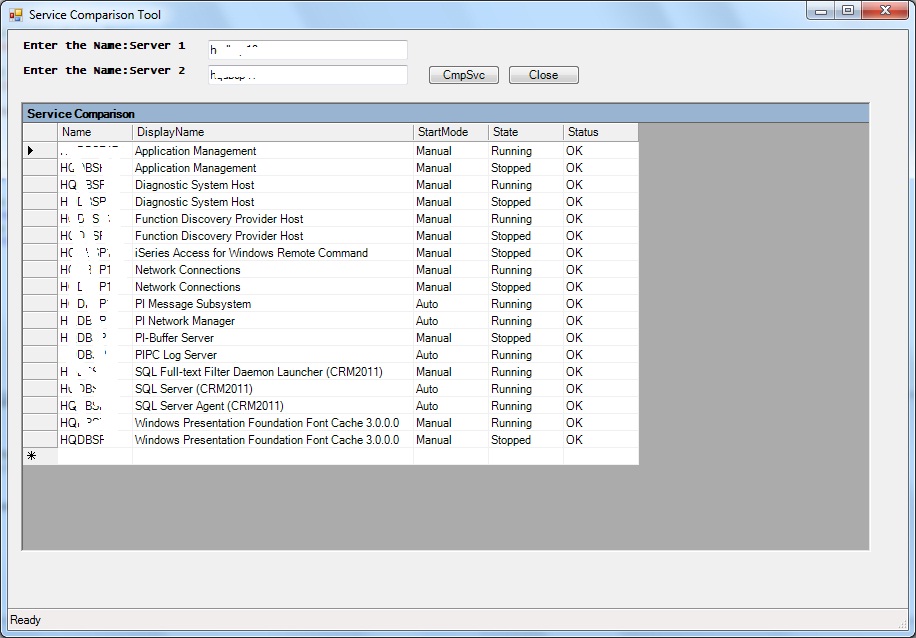
Service Comparison GUI Tool does comparison of all the services of any given two servers. The output is a grid view and sorting can be done on a required columns. The result is a combination of unique services and the same services are of different state.
Copy and paste the below code on Powershell-ISE for better execution.
Tool Details :The layout details are as follows
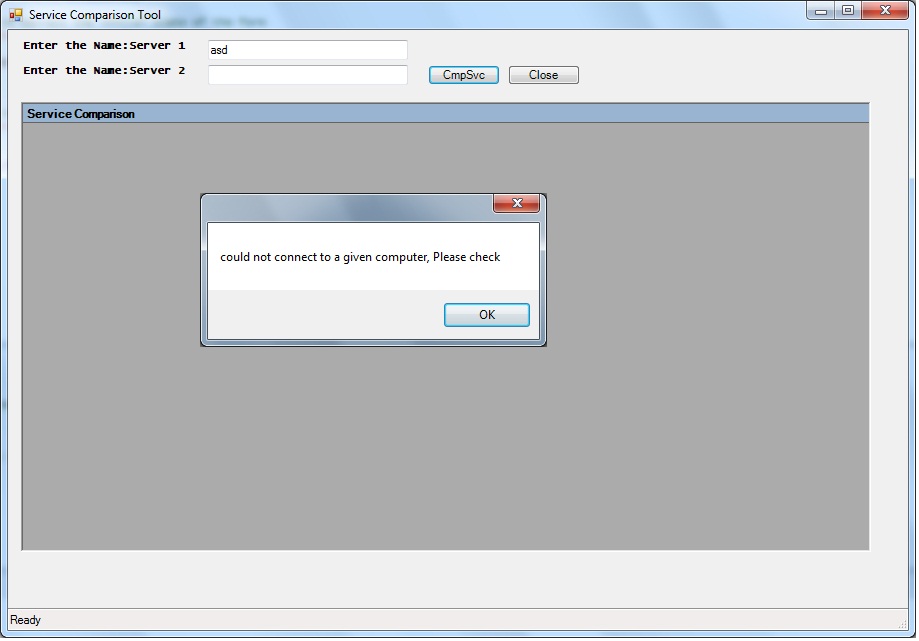
Download the code – ServiceComparisonTool
Code-
function Compare-Service
{
function OnApplicationLoad {
return $true
}

function OnApplicationExit {
#Note: This function runs after the form is closed
#TODO: Add custom code to clean up and unload snapins when the application exits
}

#endregion Application Functions

#----------------------------------------------
# Generated Form Function
#----------------------------------------------
function Call-SystemInformation_pff {

    #----------------------------------------------
    #region Import the Assemblies
    #----------------------------------------------
    [void][reflection.assembly]::Load("System.Windows.Forms, Version=2.0.0.0, Culture=neutral, PublicKeyToken=b77a5c561934e089")
    [void][reflection.assembly]::Load("System.Drawing, Version=2.0.0.0, Culture=neutral, PublicKeyToken=b03f5f7f11d50a3a")
    [void][reflection.assembly]::Load("mscorlib, Version=2.0.0.0, Culture=neutral, PublicKeyToken=b77a5c561934e089")
     [void][Reflection.Assembly]::LoadWithPartialName("System.Windows.Forms")
    [void][Reflection.Assembly]::LoadWithPartialName("System.Windows.Forms.DataVisualization")
    #get-pssnapin -Registered -ErrorAction silentlycontinue

    #endregion Import Assemblies

    #----------------------------------------------
    #region Generated Form Objects
    #----------------------------------------------
    [System.Windows.Forms.Application]::EnableVisualStyles()
    $form1 = New-Object System.Windows.Forms.Form
    $btnRefresh = New-Object System.Windows.Forms.Button
    $btngetdata=New-Object System.Windows.Forms.Button
    $rtbPerfData = New-Object System.Windows.Forms.RichTextBox
    #$pictureBox1 = New-Object System.Windows.Forms.PictureBox
    $lblServicePack = New-Object System.Windows.Forms.Label
    $lblDBName= New-Object System.Windows.Forms.Label
    $lblOS = New-Object System.Windows.Forms.Label
    $lblExpire = New-Object System.Windows.Forms.Label
    $statusBar1 = New-Object System.Windows.Forms.StatusBar
    $btnClose = New-Object System.Windows.Forms.Button
    #$comboServers = New-Object System.Windows.Forms.ComboBox
    $InitialFormWindowState = New-Object System.Windows.Forms.FormWindowState
    $txtComputerName1 = New-Object System.Windows.Forms.TextBox
    $txtComputerName2 = New-Object System.Windows.Forms.TextBox
    $dataGrid1 = New-Object System.Windows.Forms.DataGrid
    $Chart = New-object System.Windows.Forms.DataVisualization.Charting.Chart

   #$dataGrid1 = new-object System.windows.forms.DataGridView

    #endregion Generated Form Objects

    #----------------------------------------------
    # User Generated Script
    #----------------------------------------------
Function Compare-Service

{
param(
    [Parameter(Mandatory=$true)] [string]$Computer1,
    [Parameter(Mandatory=$true)] [string]$Computer2
    )

$Object =@()

try
    {
    $ServicesOnComputer1 = Get-WMIObject -ComputerName $Computer1 -Class Win32_service -ErrorAction Stop
    }
    Catch [Exception]
    {
    [System.Windows.Forms.MessageBox]::Show("The $Computer1 host entered does not exist or cannot be contacted. Please try again!!!!");
    }

try
    {
    $ServicesOnComputer2 = Get-WMIObject -ComputerName $Computer2 -Class Win32_service -ErrorAction Stop
    }
    Catch [Exception]
    {
    [System.Windows.Forms.MessageBox]::Show("The $Computer2 host entered does not exist or cannot be contacted. Please try again");
    }

$d=Compare-Object -ReferenceObject $ServicesOnComputer1 -DifferenceObject $ServicesOnComputer2 -Property Name, StartMode, State, Status -PassThru `
| Sort-Object DisplayName, SystemName | Select-Object SystemName, DisplayName, StartMode, State, Status

foreach($Ser in $D)
{
$SystemName = $Ser.SystemName
$DisplayName = $Ser.DisplayName
$StartMode =$Ser.StartMode
$State = $Ser.State
$Status =$Ser.Status

$Object += New-Object PSObject -Property @{Name= $SystemName.ToUpper();DisplayName= $DisplayName;StartMode=$StartMode;State=$State;Status=$Status;}

}

$dt = new-Object Data.datatable
  $First = $true
  foreach ($item in $Object){
    $DR = $DT.NewRow()
    $Item.PsObject.get_properties() | foreach {
      If ($first) {
        $Col =  new-object Data.DataColumn
        $Col.ColumnName = $_.Name.ToString()
        $DT.Columns.Add($Col)       }
      if ($_.value -eq $null) {
        $DR.Item($_.Name) = "[empty]"
      }
      ElseIf ($_.IsArray) {
        $DR.Item($_.Name) =[string]::Join($_.value ,";")
      }
      Else {
        $DR.Item($_.Name) = $_.value
      }
    }
    $DT.Rows.Add($DR)

   # $array.AddRange($DR)
    $First = $false
  }
     $dataGrid1.DataSource = $dt

 }

    $Close={
        $form1.close()

    }

    $GetData={
        if((Test-Connection -ComputerName $txtComputerName1.text -Count 1 -ea 0) -and (Test-Connection -ComputerName $txtComputerName2.text -Count 1 -ea 0))
        {
        $statusBar1.text="Getting the Service Related Information...Please wait"
         Compare-Service -Computer1 $txtComputerName1.text  -Computer2 $txtComputerName2.text
        }
        ELSE
        {
        [void][System.Windows.Forms.MessageBox]::Show("could not connect to a given computer, Please check")
         $statusBar1.text="Computer Name is Invalid.please check"
        }

       # $rtbPerfData.text=$data.Trim()
        $txtComputerName1.usewaitcursor=$False
         $errorActionPreference="Continue"
        $statusBar1.Text="Ready"
     }

    # --End User Generated Script--
    #----------------------------------------------
    # Generated Events
    #----------------------------------------------

    $Form_StateCorrection_Load=
    {
        #Correct the initial state of the form to prevent the .Net maximized form issue
        $form1.WindowState = $InitialFormWindowState
    }

    #----------------------------------------------
    #region Generated Form Code
    #----------------------------------------------
    #
    # form1
    #

    $form1.Controls.Add($btnRefresh)
    #$form1.Controls.Add($rtbPerfData)
    #$form1.Controls.Add($pictureBox1)
    $form1.Controls.Add($lblServicePack)
    $form1.Controls.Add($lblOS)
    $form1.Controls.Add($lblDBName)
    $form1.Controls.Add($statusBar1)
    $form1.Controls.Add($btnClose)
    $form1.Controls.Add($txtComputerName1)
    $Form1.controls.add($Chart)
    $Form1.controls.add($txtComputerName2)
    $Form1.controls.add($lblExpire)
    $form1.ClientSize = New-Object System.Drawing.Size(900,600)
    $form1.DataBindings.DefaultDataSourceUpdateMode = [System.Windows.Forms.DataSourceUpdateMode]::OnValidation
    #$form1.FormBorderStyle = [System.Windows.Forms.FormBorderStyle]::SizableToolWindow
    $form1.Name = "form1"
    $form1.Text = "Service Comparison Tool "
    $form1.add_Load($PopulateList)
# create chart object

$System_Drawing_Size = New-Object System.Drawing.Size
$System_Drawing_Size.Width = 850
$System_Drawing_Size.Height = 450
$dataGrid1.Size = $System_Drawing_Size
$dataGrid1.DataBindings.DefaultDataSourceUpdateMode = 0
$dataGrid1.HeaderForeColor = [System.Drawing.Color]::FromArgb(255,0,0,0)
$dataGrid1.Name = "dataGrid1"
$dataGrid1.DataMember = ""
$dataGrid1.TabIndex = 0
$System_Drawing_Point = New-Object System.Drawing.Point
$System_Drawing_Point.X =13
$System_Drawing_Point.Y = 72
$dataGrid1.Location = $System_Drawing_Point
$Chart.visible=$FALSE
$form1.Controls.Add($dataGrid1)

$dataGrid1.CaptionText='Service Comparison'

    #
    # btnRefresh
    #
    $btnRefresh.DataBindings.DefaultDataSourceUpdateMode = [System.Windows.Forms.DataSourceUpdateMode]::OnValidation
    $btnRefresh.Enabled = $TRUE
    $btnRefresh.Location = New-Object System.Drawing.Point(420,35)
    $btnRefresh.Name = "btnRefresh"
    $btnRefresh.Size = New-Object System.Drawing.Size(72,20)
    $btnRefresh.TabIndex = 7
    $btnRefresh.Text = "CmpSvc"
    $btnRefresh.UseVisualStyleBackColor = $True
    $btnRefresh.add_Click($GetData)
    #
    #

    # btnClose
    #

    $btnClose.DataBindings.DefaultDataSourceUpdateMode = [System.Windows.Forms.DataSourceUpdateMode]::OnValidation
    $btngetdata.Enabled = $TRUE
    $btnClose.Location = New-Object System.Drawing.Point(500,35)
    $btnClose.Name = "btnClose"
    $btnClose.Size = New-Object System.Drawing.Size(72,20)
    $btnClose.TabIndex = 3
    $btnClose.Text = "Close"
    $btnClose.UseVisualStyleBackColor = $True
    $btnClose.add_Click($Close)
    #

    # lblDBName
    #
    $lblDBName.DataBindings.DefaultDataSourceUpdateMode = [System.Windows.Forms.DataSourceUpdateMode]::OnValidation
    $lblDBName.Font = New-Object System.Drawing.Font("Lucida Console",8.25,1,3,1)
    $lblDBName.Location = New-Object System.Drawing.Point(13,10)
    $lblDBName.Name = "lblDBName"
    $lblDBName.Size = New-Object System.Drawing.Size(178,23)
    $lblDBName.TabIndex = 0
    $lblDBName.Text = "Enter the Name:Server 1 "
    $lblDBName.Visible = $TRUE
    #

    #$txtComputerName1.text
    #txtComputerName1
    $txtComputerName1.DataBindings.DefaultDataSourceUpdateMode = [System.Windows.Forms.DataSourceUpdateMode]::OnValidation
    $txtComputerName1.Location = New-Object System.Drawing.Point(200, 10)
    $txtComputerName1.Name = "txtComputerName1"
    $txtComputerName1.TabIndex = 1
    $txtComputerName1.Size = New-Object System.Drawing.Size(200,70)
    $txtComputerName1.visible=$TRUE
    #

    #
    # lblExpire
    #
    $lblExpire.DataBindings.DefaultDataSourceUpdateMode = [System.Windows.Forms.DataSourceUpdateMode]::OnValidation
    $lblExpire.Font = New-Object System.Drawing.Font("Lucida Console",8.25,1,3,1)
    $lblExpire.Location = New-Object System.Drawing.Point(13,35)
    $lblExpire.Name = "lblExpire"
    $lblExpire.Size = New-Object System.Drawing.Size(178,23)
    $lblExpire.TabIndex = 0
    $lblExpire.Text = "Enter the Name:Server 2 "
    $lblExpire.Visible = $TRUE
    #
    #$txtComputerName2.text
    #txtComputerName2
    $txtComputerName2.DataBindings.DefaultDataSourceUpdateMode = [System.Windows.Forms.DataSourceUpdateMode]::OnValidation
    $txtComputerName2.Location = New-Object System.Drawing.Point(200, 35)
    $txtComputerName2.Name = "txtComputerName2"
    $txtComputerName2.TabIndex = 1
    $txtComputerName2.Size = New-Object System.Drawing.Size(200,70)
    $txtComputerName2.visible=$TRUE
    #
    # lblServicePack
    #
    $lblServicePack.DataBindings.DefaultDataSourceUpdateMode = [System.Windows.Forms.DataSourceUpdateMode]::OnValidation
    $lblServicePack.Font = New-Object System.Drawing.Font("Lucida Console",8.25,1,3,1)
    $lblServicePack.Location = New-Object System.Drawing.Point(13,100)
    $lblServicePack.Name = "lblServicePack"
    $lblServicePack.Size = New-Object System.Drawing.Size(278,23)
    $lblServicePack.TabIndex = 0
    $lblServicePack.Text = "ServicePack"
    $lblServicePack.Visible = $False
    #
    # lblOS
    #
    $lblOS.DataBindings.DefaultDataSourceUpdateMode = [System.Windows.Forms.DataSourceUpdateMode]::OnValidation
    $lblOS.Font = New-Object System.Drawing.Font("Lucida Console",8.25,1,3,1)
    $lblOS.Location = New-Object System.Drawing.Point(12,77)
    $lblOS.Name = "lblOS"
    $lblOS.Size = New-Object System.Drawing.Size(278,23)
    $lblOS.TabIndex = 2
    $lblOS.Text = "User Information"
    $lblOS.Visible = $False
    #
    # statusBar1
    #
    $statusBar1.DataBindings.DefaultDataSourceUpdateMode = [System.Windows.Forms.DataSourceUpdateMode]::OnValidation
    $statusBar1.Location = New-Object System.Drawing.Point(0,365)
    $statusBar1.Name = "statusBar1"
    $statusBar1.Size = New-Object System.Drawing.Size(390,22)
    $statusBar1.TabIndex = 5
    $statusBar1.Text = "statusBar1"
    #
    #>
$rtbPerfData.BackColor = [System.Drawing.Color]::FromArgb(255,255,255,255)
$rtbPerfData.BorderStyle = [System.Windows.Forms.BorderStyle]::None
$rtbPerfData.DataBindings.DefaultDataSourceUpdateMode = [System.Windows.Forms.DataSourceUpdateMode]::OnValidation
$rtbPerfData.Font = New-Object System.Drawing.Font("Lucida Console",8.25,0,3,1)
$rtbPerfData.Location = New-Object System.Drawing.Point(13,120)
$rtbPerfData.Name = "rtbPerfData"
$rtbPerfData.Size = New-Object System.Drawing.Size(450,200)
$rtbPerfData.TabIndex = 6
$rtbPerfData.Text = ""

    #Save the initial state of the form
    $InitialFormWindowState = $form1.WindowState

    #Init the OnLoad event to correct the initial state of the form
    $form1.add_Load($Form_StateCorrection_Load)
    #Show the Form
    return $form1.ShowDialog()

} #End Function

#Call OnApplicationLoad to initialize
if(OnApplicationLoad -eq $true)
{
    #Create the form
    Call-SystemInformation_pff | Out-Null
    #Perform cleanup
    OnApplicationExit
}

}

Compare-Service
PowerShell – Disk Space GUI Tool – Sharing a useful PowerShell GUI script to check disk drive usage along with a graph.
Copy and paste the below code on Powershell-ISE for better execution.
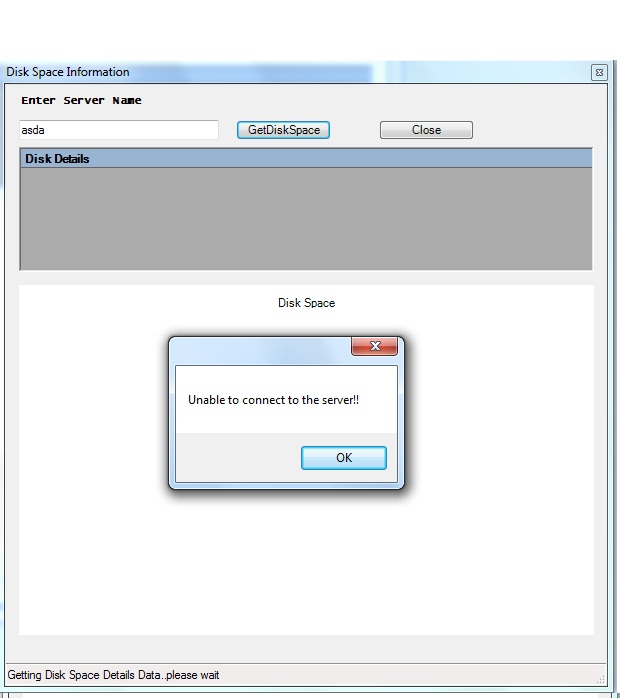
Tool Details :The layout details are as follows
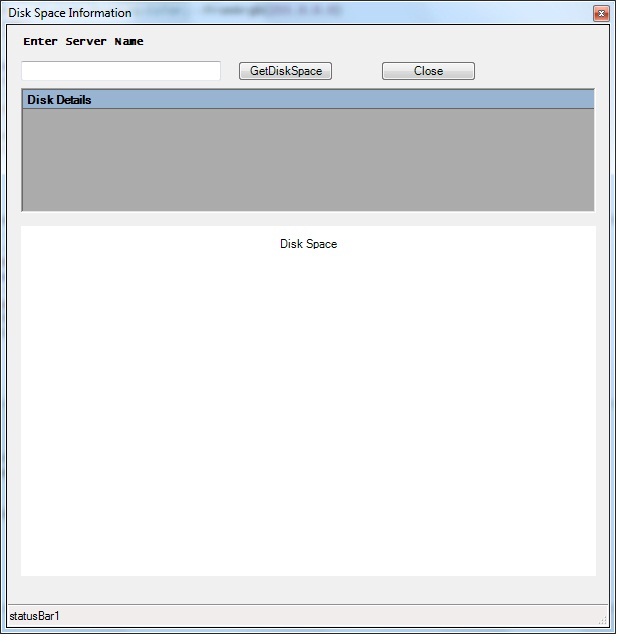
When we made a wrong entries, message box will popup.
Right server will lead to a grid with data populated along with graph which represents its usage

You can also download the code: PowerShellGUI – DiskSpace – Tool
Note:- Works with Powershell 2.0 and above.
*******************************************************************************
Code:- Copy and Paste the below code
*******************************************************************************
function OnApplicationLoad {

 if([Reflection.Assembly]::LoadWithPartialName("System.Windows.Forms.DataVisualization") -eq $null)
 {
  #Microsoft Chart Controls are not installed
  [void][reflection.assembly]::Load("System.Windows.Forms, Version=2.0.0.0, Culture=neutral, PublicKeyToken=b77a5c561934e089")
  [void][System.Windows.Forms.MessageBox]::Show("Microsoft Chart Controls for Microsoft .NET 3.5 Framework is required","Microsoft Chart Controls Required")
  #Open the URL
  [System.Diagnostics.Process]::Start("http://www.microsoft.com/downloads/en/details.aspx?familyid=130F7986-BF49-4FE5-9CA8-910AE6EA442C&displaylang=en");
  return $false
 }

 return $true #return true for success or false for failure
}

function OnApplicationExit {
 $script:ExitCode = 0 #Set the exit code for the Packager
}

#endregion Application Functions

#----------------------------------------------
# Generated Form Function
#----------------------------------------------
function Call-Disk_Space_Chart_pff {

 #----------------------------------------------
 #region Import the Assemblies
 #----------------------------------------------
 [void][reflection.assembly]::Load("System, Version=2.0.0.0, Culture=neutral, PublicKeyToken=b77a5c561934e089")
 [void][reflection.assembly]::Load("System.Windows.Forms, Version=2.0.0.0, Culture=neutral, PublicKeyToken=b77a5c561934e089")
 [void][reflection.assembly]::Load("System.Data, Version=2.0.0.0, Culture=neutral, PublicKeyToken=b77a5c561934e089")
 [void][reflection.assembly]::Load("System.Drawing, Version=2.0.0.0, Culture=neutral, PublicKeyToken=b03f5f7f11d50a3a")
 [void][reflection.assembly]::Load("mscorlib, Version=2.0.0.0, Culture=neutral, PublicKeyToken=b77a5c561934e089")
 [void][reflection.assembly]::Load("System.Windows.Forms.DataVisualization, Version=3.5.0.0, Culture=neutral, PublicKeyToken=31bf3856ad364e35")
 #endregion Import Assemblies

 #----------------------------------------------
 #region Generated Form Objects
 #----------------------------------------------
[System.Windows.Forms.Application]::EnableVisualStyles()
$formDiskSpacePieChart = New-Object System.Windows.Forms.Form
#$buttonSave = New-Object System.Windows.Forms.Button
$dataGrid1 = New-Object System.Windows.Forms.DataGrid
$chart1 = New-Object System.Windows.Forms.DataVisualization.Charting.Chart
#$savefiledialog1 = New-Object System.Windows.Forms.SaveFileDialog
$InitialFormWindowState = New-Object System.Windows.Forms.FormWindowState
#endregion Generated Form Objects
$btnRefresh = New-Object System.Windows.Forms.Button
$btngetdata=New-Object System.Windows.Forms.Button
$rtbPerfData = New-Object System.Windows.Forms.RichTextBox
#$pictureBox1 = New-Object System.Windows.Forms.PictureBox
$lblServicePack = New-Object System.Windows.Forms.Label
$lblDBName= New-Object System.Windows.Forms.Label
$lblOS = New-Object System.Windows.Forms.Label
$statusBar1 = New-Object System.Windows.Forms.StatusBar
$btnClose = New-Object System.Windows.Forms.Button
#$comboServers = New-Object System.Windows.Forms.ComboBox
$InitialFormWindowState = New-Object System.Windows.Forms.FormWindowState
$txtComputerName = New-Object System.Windows.Forms.TextBox
$dataGrid1 = New-Object System.Windows.Forms.DataGrid

 function Load-Chart
 {
  Param( #$XPoints, $YPoints, $XTitle, $YTitle, $Title, $ChartStyle)
   [Parameter(Position=1,Mandatory=$true)]
     [System.Windows.Forms.DataVisualization.Charting.Chart]$ChartControl
   ,
   [Parameter(Position=2,Mandatory=$true)]
     $XPoints
   ,
   [Parameter(Position=3,Mandatory=$true)]
     $YPoints
   ,
   [Parameter(Position=4,Mandatory=$false)]
     [string]$XTitle
   ,
   [Parameter(Position=5,Mandatory=$false)]
     [string]$YTitle
   ,
   [Parameter(Position=6,Mandatory=$false)]
     [string]$Title
   ,
   [Parameter(Position=7,Mandatory=$false)]
     [System.Windows.Forms.DataVisualization.Charting.SeriesChartType]$ChartType
   ,
   [Parameter(Position=8,Mandatory=$false)]
     $SeriesIndex = 0
   ,
   [Parameter(Position=9,Mandatory=$false)]
     $TitleIndex = 0,
   [switch]$Append)

  $ChartAreaIndex = 0
  if($Append)
  {
   $name = "ChartArea " + ($ChartControl.ChartAreas.Count + 1).ToString();
   $ChartArea = $ChartControl.ChartAreas.Add($name)
   $ChartAreaIndex = $ChartControl.ChartAreas.Count - 1

   $name = "Series " + ($ChartControl.Series.Count + 1).ToString();
   $Series = $ChartControl.Series.Add($name)
   $SeriesIndex = $ChartControl.Series.Count - 1

   $Series.ChartArea = $ChartArea.Name

   if($Title)
   {
    $name = "Title " + ($ChartControl.Titles.Count + 1).ToString();
    $TitleObj = $ChartControl.Titles.Add($name)
    $TitleIndex = $ChartControl.Titles.Count - 1
    $TitleObj.DockedToChartArea = $ChartArea.Name
    $TitleObj.IsDockedInsideChartArea = $false
   }
  }
  else
  {
   if($ChartControl.ChartAreas.Count -eq  0)
   {
    $name = "ChartArea " + ($ChartControl.ChartAreas.Count + 1).ToString();
    [void]$ChartControl.ChartAreas.Add($name)
    $ChartAreaIndex = $ChartControl.ChartAreas.Count - 1
   }

   if($ChartControl.Series.Count -eq 0)
   {
    $name = "Series " + ($ChartControl.Series.Count + 1).ToString();
    $Series = $ChartControl.Series.Add($name)
    $SeriesIndex = $ChartControl.Series.Count - 1
    $Series.ChartArea = $ChartControl.ChartAreas[0].Name
   }
  }

  $Series = $ChartControl.Series[$SeriesIndex]
  $ChartArea = $ChartControl.ChartAreas[$Series.ChartArea]

  $Series.Points.Clear()

  if($Title)
  {
   if($ChartControl.Titles.Count -eq 0)
   {
    $name = "Title " + ($ChartControl.Titles.Count + 1).ToString();
    [void]$ChartControl.Titles.Add($name)
    $TitleIndex = $ChartControl.Titles.Count - 1
    $TitleObj.DockedToChartArea = $ChartArea.Name
    $TitleObj.IsDockedInsideChartArea = $false
   }

   $ChartControl.Titles[$TitleIndex].Text = $Title
  }

  if($ChartType)
  {
   $Series.ChartType = $ChartType
  }

  if($XTitle)
  {
   $ChartArea.AxisX.Title = $XTitle
  }

  if($YTitle)
  {
   $ChartArea.AxisY.Title = $YTitle
  }

  if($XPoints -isnot [Array] -or $XPoints -isnot [System.Collections.IEnumerable])
  {
   $array = New-Object System.Collections.ArrayList
   $array.Add($XPoints)
   $XPoints = $array
  }

  if($YPoints -isnot [Array] -or $YPoints -isnot [System.Collections.IEnumerable])
  {
   $array = New-Object System.Collections.ArrayList
   $array.Add($YPoints)
   $YPoints = $array
  }

  $Series.Points.DataBindXY($XPoints, $YPoints)

 }

 function Clear-Chart
 {
  Param (
  [Parameter(Position=1,Mandatory=$true)]
    [System.Windows.Forms.DataVisualization.Charting.Chart]$ChartControl
  ,
  [Parameter(Position=2, Mandatory=$false)]
  [Switch]$LeaveSingleChart
  )

  $count = 0
  if($LeaveSingleChart)
  {
   $count = 1
  }

  while($ChartControl.Series.Count -gt $count)
  {
   $ChartControl.Series.RemoveAt($ChartControl.Series.Count - 1)
  }

  while($ChartControl.ChartAreas.Count -gt $count)
  {
   $ChartControl.ChartAreas.RemoveAt($ChartControl.ChartAreas.Count - 1)
  }

  while($ChartControl.Titles.Count -gt $count)
  {
   $ChartControl.Titles.RemoveAt($ChartControl.Titles.Count - 1)
  }

  if($ChartControl.Series.Count -gt 0)
  {
   $ChartControl.Series[0].Points.Clear()
  }
 }
 #endregion

<#
 $FormEvent_Load={
  #TODO: Initialize Form Controls here
  Load-PieChart
 }
 #>

 function Load-PieChart
 {
param(
[string[]]$servers = "$ENV:COMPUTERNAME"
)
  foreach ($server in $servers) {
  #Get Disk space using WMI and make sure it is an array
  $Disks = @(Get-WMIObject -Namespace "root\cimv2" -class Win32_LogicalDisk -Impersonation 3 -ComputerName $server -filter "DriveType=3" )

  #Remove all the current charts
  Clear-Chart $chart1

  #Loop through each drive
  foreach($disk in $Disks)
  {
   $UsedSpace =(($disk.size - $disk.freespace)/1gb)
   $FreeSpace = ($disk.freespace/1gb)

   #Load a Chart for each Drive
   Load-Chart $chart1 -XPoints ("Used ({0:N1} GB)" -f $UsedSpace), ("Free Space ({0:N1} GB)" -f $FreeSpace) -YPoints $UsedSpace, $FreeSpace -ChartType "Bar" -Title ("Volume: {0} ({1:N1} GB)" -f $disk.deviceID, ($disk.size/1gb) ) -Append
  }

  #Set Custom Style
  foreach ($Series in $chart1.Series)
  {
   $Series.CustomProperties = "PieDrawingStyle=Concave"
  }
 }
 }

function Get-DiskDetails
{
param(
[string[]]$ComputerName = "LocalHost"
)
$Object =@()
$array = New-Object System.Collections.ArrayList
foreach ($Computer in $ComputerName) {
if(Test-Connection -ComputerName $Computer -Count 1 -ea 0) {
Write-Verbose "$Computer online"
$D=Get-WmiObject win32_logicalDisk -ComputerName $Computer |select-object DeviceID, VolumeName,FreeSpace,Size,driveType |?{$_.DriveType -eq 3}
foreach($disk in $D)
{
$TotalSize = $Disk.Size /1Gb -as [int]
$InUseSize = ($Disk.Size /1Gb -as [int]) – ($Disk.Freespace / 1Gb -as [int])
$FreeSpaceGB = $Disk.Freespace / 1Gb -as [int]
$FreeSpacePer = ((($Disk.Freespace /1Gb -as [float]) / ($Disk.Size / 1Gb -as [float]))*100) -as [int]

$Object += New-Object PSObject -Property @{Name= $Computer.ToUpper();DeviceID= $Disk.DeviceID;VolumeName=$Disk.VolumeName;SizeGB=$TotalSize;InUseGB=$InUseSize;FreeSpaceGB=$FreeSpaceGB;PercentageGB=$FreeSpacePer
}

}
}
}

$column1 = @{expression="Name"; width=30; label="Name"; alignment="left"}
$column2 = @{expression="DeviceID"; width=15; label="DeviceID"; alignment="left"}
$column3 = @{expression="VolumeName"; width=15; label="VolumeName"; alignment="left"}
$column4 = @{expression="SizeGB"; width=15; label="SizeGB"; alignment="left"}
$column5 = @{expression="InUseGB"; width=15; label="InUseGB"; alignment="left"}
$column6 = @{expression="FreeSpaceGB"; width=15; label="FreeSpaceGB"; alignment="left"}
$column7 = @{expression="PercentageGB"; width=15; label="PercentageGB"; alignment="left"}

#$Object|format-table $column1, $column2, $column3 ,$column4, $column5, $column6,$column7

#$Object.GetEnumerator()
$object|format-table $column1, $column2, $column3 ,$column4 ,$column5 ,$column6,$column7
$array.AddRange($Object)
$dataGrid1.DataSource = $array

}

 $GetData={
        $statusBar1.text="Getting Disk Space Details Data..please wait"
        if(Test-Connection -ComputerName $txtComputerName.text -Count 1 -ea 0) {
        $data=Get-DiskDetails -ComputerName $txtComputerName.text | Out-String
        Load-PieChart -servers $txtComputerName.text
        }
        else
        {
        [Windows.Forms.MessageBox]::Show(“Unable to connect to the server!!")
        }
        #$rtbPerfData.text=$data.Trim()
        $errorActionPreference="Continue"
        $statusBar1.Text="Ready"

    }

    $Close={
        $formDiskSpacePieChart.close()

    }
 # --End User Generated Script--
 #----------------------------------------------
 # Generated Events
 #----------------------------------------------

 $Form_StateCorrection_Load=
 {
  #Correct the initial state of the form to prevent the .Net maximized form issue
  $formDiskSpacePieChart.WindowState = $InitialFormWindowState
 }

 #----------------------------------------------
 #region Generated Form Code
 #----------------------------------------------
 #
 # formDiskSpacePieChart
 #
 $formDiskSpacePieChart.Controls.Add($buttonSave)
 $formDiskSpacePieChart.Controls.Add($chart1)
 $formDiskSpacePieChart.ClientSize = New-Object System.Drawing.Size(575,575)
 $formDiskSpacePieChart.DataBindings.DefaultDataSourceUpdateMode = [System.Windows.Forms.DataSourceUpdateMode]::OnValidation
 $formDiskSpacePieChart.MinimumSize = New-Object System.Drawing.Size(300,300)
 $formDiskSpacePieChart.Name = "formDiskSpacePieChart"
 $formDiskSpacePieChart.Text = "Disk Space Pie Chart"
 $formDiskSpacePieChart.Controls.Add($btnRefresh)
 $formDiskSpacePieChart.Controls.Add($lblServicePack)
 $formDiskSpacePieChart.Controls.Add($lblOS)
 $formDiskSpacePieChart.Controls.Add($lblDBName)
 $formDiskSpacePieChart.Controls.Add($statusBar1)
 $formDiskSpacePieChart.Controls.Add($btnClose)
 $formDiskSpacePieChart.Controls.Add($txtComputerName)
 $formDiskSpacePieChart.ClientSize = New-Object System.Drawing.Size(600,600)
 $formDiskSpacePieChart.DataBindings.DefaultDataSourceUpdateMode = [System.Windows.Forms.DataSourceUpdateMode]::OnValidation
 $formDiskSpacePieChart.FormBorderStyle = [System.Windows.Forms.FormBorderStyle]::SizableToolWindow
 $formDiskSpacePieChart.Name = "form1"
 $formDiskSpacePieChart.Text = "Disk Space Information"
 $formDiskSpacePieChart.add_Load($PopulateList)
 $formDiskSpacePieChart.add_Load($FormEvent_Load)

$System_Drawing_Size = New-Object System.Drawing.Size
$System_Drawing_Size.Width = 575
$System_Drawing_Size.Height = 125
$dataGrid1.Size = $System_Drawing_Size
$dataGrid1.DataBindings.DefaultDataSourceUpdateMode = 0
$dataGrid1.HeaderForeColor = [System.Drawing.Color]::FromArgb(255,0,0,0)
$dataGrid1.Name = "dataGrid1"
$dataGrid1.DataMember = ""
$dataGrid1.TabIndex = 0
$System_Drawing_Point = New-Object System.Drawing.Point
$System_Drawing_Point.X =13
$System_Drawing_Point.Y = 62
$dataGrid1.Location = $System_Drawing_Point

$formDiskSpacePieChart.Controls.Add($dataGrid1)
$dataGrid1.CaptionText='Disk Details'

    #
    # btnRefresh
    #
    $btnRefresh.DataBindings.DefaultDataSourceUpdateMode = [System.Windows.Forms.DataSourceUpdateMode]::OnValidation
    $btnRefresh.Enabled = $TRUE
    $btnRefresh.Location = New-Object System.Drawing.Point(230,35)
    $btnRefresh.Name = "btnRefresh"
    $btnRefresh.Size = New-Object System.Drawing.Size(95,20)
    $btnRefresh.TabIndex = 7
    $btnRefresh.Text = "GetDiskSpace"
    $btnRefresh.UseVisualStyleBackColor = $True
    $btnRefresh.add_Click($GetData)
    #
    #

    # btnClose
    #

    $btnClose.DataBindings.DefaultDataSourceUpdateMode = [System.Windows.Forms.DataSourceUpdateMode]::OnValidation
    $btngetdata.Enabled = $TRUE
    $btnClose.Location = New-Object System.Drawing.Point(373,35)
    $btnClose.Name = "btnClose"
    $btnClose.Size = New-Object System.Drawing.Size(95,20)
    $btnClose.TabIndex = 3
    $btnClose.Text = "Close"
    $btnClose.UseVisualStyleBackColor = $True
    $btnClose.add_Click($Close)
    #

    # lblDBName
    #
    $lblDBName.DataBindings.DefaultDataSourceUpdateMode = [System.Windows.Forms.DataSourceUpdateMode]::OnValidation
    $lblDBName.Font = New-Object System.Drawing.Font("Lucida Console",8.25,1,3,1)
    $lblDBName.Location = New-Object System.Drawing.Point(13,10)
    $lblDBName.Name = "lblDBName"
    $lblDBName.Size = New-Object System.Drawing.Size(178,23)
    $lblDBName.TabIndex = 0
    $lblDBName.Text = "Enter Server Name "
    $lblDBName.Visible = $TRUE
    #

    #$txtComputerName.text
    #txtComputerName
    $txtComputerName.DataBindings.DefaultDataSourceUpdateMode = [System.Windows.Forms.DataSourceUpdateMode]::OnValidation
    $txtComputerName.Location = New-Object System.Drawing.Point(13, 35)
    $txtComputerName.Name = "txtComputerName"
    $txtComputerName.TabIndex = 1
    $txtComputerName.Size = New-Object System.Drawing.Size(200,70)
    $txtComputerName.visible=$TRUE
    #
    # lblServicePack
    #
    $lblServicePack.DataBindings.DefaultDataSourceUpdateMode = [System.Windows.Forms.DataSourceUpdateMode]::OnValidation
    $lblServicePack.Font = New-Object System.Drawing.Font("Lucida Console",8.25,1,3,1)
    $lblServicePack.Location = New-Object System.Drawing.Point(13,100)
    $lblServicePack.Name = "lblServicePack"
    $lblServicePack.Size = New-Object System.Drawing.Size(278,23)
    $lblServicePack.TabIndex = 0
    $lblServicePack.Text = "ServicePack"
    $lblServicePack.Visible = $False
    #
    # lblOS
    #
    $lblOS.DataBindings.DefaultDataSourceUpdateMode = [System.Windows.Forms.DataSourceUpdateMode]::OnValidation
    $lblOS.Font = New-Object System.Drawing.Font("Lucida Console",8.25,1,3,1)
    $lblOS.Location = New-Object System.Drawing.Point(12,77)
    $lblOS.Name = "lblOS"
    $lblOS.Size = New-Object System.Drawing.Size(278,23)
    $lblOS.TabIndex = 2
    $lblOS.Text = "Service Information"
    $lblOS.Visible = $False
    #
    # statusBar1
    #
    $statusBar1.DataBindings.DefaultDataSourceUpdateMode = [System.Windows.Forms.DataSourceUpdateMode]::OnValidation
    $statusBar1.Location = New-Object System.Drawing.Point(0,365)
    $statusBar1.Name = "statusBar1"
    $statusBar1.Size = New-Object System.Drawing.Size(390,22)
    $statusBar1.TabIndex = 5
    $statusBar1.Text = "statusBar1"

 #
 # chart1
 #
 $chart1.Anchor = [System.Windows.Forms.AnchorStyles]::Top -bor [System.Windows.Forms.AnchorStyles]::Bottom -bor [System.Windows.Forms.AnchorStyles]::Left -bor [System.Windows.Forms.AnchorStyles]::Right
 $chart1.BackGradientStyle = [System.Windows.Forms.DataVisualization.Charting.GradientStyle]::TopBottom
 $System_Windows_Forms_DataVisualization_Charting_ChartArea_1 = New-Object System.Windows.Forms.DataVisualization.Charting.ChartArea
 $System_Windows_Forms_DataVisualization_Charting_ChartArea_1.Area3DStyle.Enable3D = $True
 $System_Windows_Forms_DataVisualization_Charting_ChartArea_1.AxisX.Title = "Disk"
 $System_Windows_Forms_DataVisualization_Charting_ChartArea_1.AxisY.Title = "Disk Space (MB)"
 $System_Windows_Forms_DataVisualization_Charting_ChartArea_1.Name = "ChartArea1"

 [void]$chart1.ChartAreas.Add($System_Windows_Forms_DataVisualization_Charting_ChartArea_1)
 $chart1.DataBindings.DefaultDataSourceUpdateMode = [System.Windows.Forms.DataSourceUpdateMode]::OnValidation
 $chart1.Location = New-Object System.Drawing.Point(13,200)
 $chart1.Name = "chart1"
 $System_Windows_Forms_DataVisualization_Charting_Series_2 = New-Object System.Windows.Forms.DataVisualization.Charting.Series
 $System_Windows_Forms_DataVisualization_Charting_Series_2.ChartArea = "ChartArea1"
 $System_Windows_Forms_DataVisualization_Charting_Series_2.ChartType = [System.Windows.Forms.DataVisualization.Charting.SeriesChartType]::Pie
 $System_Windows_Forms_DataVisualization_Charting_Series_2.CustomProperties = "DrawingStyle=Cylinder, PieDrawingStyle=Concave"
 $System_Windows_Forms_DataVisualization_Charting_Series_2.IsVisibleInLegend = $False
 $System_Windows_Forms_DataVisualization_Charting_Series_2.Legend = "Legend1"
 $System_Windows_Forms_DataVisualization_Charting_Series_2.Name = "Disk Space"

 [void]$chart1.Series.Add($System_Windows_Forms_DataVisualization_Charting_Series_2)
 $chart1.Size = New-Object System.Drawing.Size(575,350)
 $chart1.TabIndex = 0
 $chart1.Text = "chart1"
 $System_Windows_Forms_DataVisualization_Charting_Title_3 = New-Object System.Windows.Forms.DataVisualization.Charting.Title
 $System_Windows_Forms_DataVisualization_Charting_Title_3.Alignment = [System.Drawing.ContentAlignment]::TopCenter
 $System_Windows_Forms_DataVisualization_Charting_Title_3.DockedToChartArea = "ChartArea1"
 $System_Windows_Forms_DataVisualization_Charting_Title_3.IsDockedInsideChartArea = $False
 $System_Windows_Forms_DataVisualization_Charting_Title_3.Name = "Title1"
 $System_Windows_Forms_DataVisualization_Charting_Title_3.Text = "Disk Space"

 [void]$chart1.Titles.Add($System_Windows_Forms_DataVisualization_Charting_Title_3)
 #

 #Save the initial state of the form
 $InitialFormWindowState = $formDiskSpacePieChart.WindowState
 #Init the OnLoad event to correct the initial state of the form
 $formDiskSpacePieChart.add_Load($Form_StateCorrection_Load)
 #Show the Form
 return $formDiskSpacePieChart.ShowDialog()

} #End Function

#Call OnApplicationLoad to initialize
if(OnApplicationLoad -eq $true)
{
 #Create the form
 Call-Disk_Space_Chart_pff | Out-Null
 #Perform cleanup
 OnApplicationExit
}
This post explains how to monitor DiskSpace of a group of listed servers in a text file.
The function Get-DiskSpaceReport comprises of various cmdLets and function to monitor Disk Drives.
You can customize it as per your requirement.The Function Get-DiskSpaceReport has six input parameters:-
Example 1:- Execute with default threshold values. By default, the threshold are set to 25(Warning) and 15(Critical)
PS:\>Get-DiskSpaceReport -ComputerList c:\computer.txt -To pjayaram@Appvion.com -From pjayaram@appvion.com -SMTPMail qqma01.ppp.com

Example 2:- Customize the default threshold values.
PS:\>Get-DiskSpaceReport -ComputerList c:\computer.txt -warning 15 -critical 10 -To pjayaram@Appvion.com -From pjayaram@appvion.com -SMTPMail qqma01.ppp.com

First create a function Get-DiskSpaceReport using the below code and do a function call. which is shown above
****************************************************************************
Function Get-DiskSpaceReport
{
param(
[String]$ComputerList,[int]$warning,[int]$critical,[String]$To,[String]$From,[string]$SMTPMail
)
$script:list = $ComputerList
$freeSpaceFileName = “C:\FreeSpace.htm”
if ($Warning -eq “$NULL”)
{
$Warning=25
}
if ($critical -eq “$NULL”)
{
$critical=15
}
$critical = $critical
$warning = $warning
New-Item -ItemType file $freeSpaceFileName -Force
# Getting the freespace info using WMI
#Get-WmiObject win32_logicaldisk | Where-Object {$_.drivetype -eq 3 -OR $_.drivetype -eq 2 } | format-table DeviceID, VolumeName,status,Size,FreeSpace | Out-File FreeSpace.txt
# Function to write the HTML Header to the file
Function writeHtmlHeader
{
param($fileName)
$date = ( get-date ).ToString(‘yyyy/MM/dd’)
Add-Content $fileName “<html>”
Add-Content $fileName “<head>”
Add-Content $fileName “<meta http-equiv=’Content-Type’ content=’text/html; charset=iso-8859-1′>”
Add-Content $fileName ‘<title>DiskSpace Report</title>’
add-content $fileName ‘<STYLE TYPE=”text/css”>’
add-content $fileName “<!–”
add-content $fileName “td {”
add-content $fileName “font-family: Tahoma;”
add-content $fileName “font-size: 11px;”
add-content $fileName “border-top: 1px solid #999999;”
add-content $fileName “border-right: 1px solid #999999;”
add-content $fileName “border-bottom: 1px solid #999999;”
add-content $fileName “border-left: 1px solid #999999;”
add-content $fileName “padding-top: 0px;”
add-content $fileName “padding-right: 0px;”
add-content $fileName “padding-bottom: 0px;”
add-content $fileName “padding-left: 0px;”
add-content $fileName “}”
add-content $fileName “body {”
add-content $fileName “margin-left: 5px;”
add-content $fileName “margin-top: 5px;”
add-content $fileName “margin-right: 0px;”
add-content $fileName “margin-bottom: 10px;”
add-content $fileName “”
add-content $fileName “table {”
add-content $fileName “border: thin solid #000000;”
add-content $fileName “}”
add-content $fileName “–>”
add-content $fileName “</style>”
Add-Content $fileName “</head>”
Add-Content $fileName “<body>”
add-content $fileName “<table width=’100%’>”
add-content $fileName “<tr bgcolor=’#CCCCCC’>”
add-content $fileName “<td colspan=’7′ height=’25’ align=’center’>”
add-content $fileName “<font face=’tahoma’ color=’#003399′ size=’4′><strong>DiskSpace Report – $date</strong></font>”
add-content $fileName “</td>”
add-content $fileName “</tr>”
add-content $fileName “</table>”
}
# Function to write the HTML Header to the file
Function writeTableHeader
{
param($fileName)
Add-Content $fileName “<tr bgcolor=#CCCCCC>”
Add-Content $fileName “<td width=’10%’ align=’center’>Drive</td>”
Add-Content $fileName “<td width=’50%’ align=’center’>Drive Label</td>”
Add-Content $fileName “<td width=’10%’ align=’center’>Total Capacity(GB)</td>”
Add-Content $fileName “<td width=’10%’ align=’center’>Used Capacity(GB)</td>”
Add-Content $fileName “<td width=’10%’ align=’center’>Free Space(GB)</td>”
Add-Content $fileName “<td width=’10%’ align=’center’>Freespace %</td>”
Add-Content $fileName “</tr>”
}
Function writeHtmlFooter
{
param($fileName)
Add-Content $fileName “</body>”
Add-Content $fileName “</html>”
}
Function writeDiskInfo
{
param($fileName,$devId,$volName,$frSpace,$totSpace)
$totSpace=[math]::Round(($totSpace/1073741824),2)
$frSpace=[Math]::Round(($frSpace/1073741824),2)
$usedSpace = $totSpace – $frspace
$usedSpace=[Math]::Round($usedSpace,2)
$freePercent = ($frspace/$totSpace)*100
$freePercent = [Math]::Round($freePercent,0)
if ($freePercent -gt $warning)
{
Add-Content $fileName “<tr>”
Add-Content $fileName “<td>$devid</td>”
Add-Content $fileName “<td>$volName</td>”
Add-Content $fileName “<td>$totSpace</td>”
Add-Content $fileName “<td>$usedSpace</td>”
Add-Content $fileName “<td>$frSpace</td>”
Add-Content $fileName “<td>$freePercent</td>”
Add-Content $fileName “</tr>”
}
elseif ($freePercent -le $critical)
{
Add-Content $fileName “<tr>”
Add-Content $fileName “<td>$devid</td>”
Add-Content $fileName “<td>$volName</td>”
Add-Content $fileName “<td>$totSpace</td>”
Add-Content $fileName “<td>$usedSpace</td>”
Add-Content $fileName “<td>$frSpace</td>”
Add-Content $fileName “<td bgcolor=’#FF0000′ align=center>$freePercent</td>”
#<td bgcolor=’#FF0000′ align=center>
Add-Content $fileName “</tr>”
}
else
{
Add-Content $fileName “<tr>”
Add-Content $fileName “<td>$devid</td>”
Add-Content $fileName “<td>$volName</td>”
Add-Content $fileName “<td>$totSpace</td>”
Add-Content $fileName “<td>$usedSpace</td>”
Add-Content $fileName “<td>$frSpace</td>”
Add-Content $fileName “<td bgcolor=’#FBB917′ align=center>$freePercent</td>”
# #FBB917
Add-Content $fileName “</tr>”
}
}
writeHtmlHeader $freeSpaceFileName
foreach ($server in Get-Content $script:list)
{
if(Test-Connection -ComputerName $server -Count 1 -ea 0) {
Add-Content $freeSpaceFileName “<table width=’100%’><tbody>”
Add-Content $freeSpaceFileName “<tr bgcolor=’#CCCCCC’>”
Add-Content $freeSpaceFileName “<td width=’100%’ align=’center’ colSpan=6><font face=’tahoma’ color=’#003399′ size=’2′><strong> $server </strong></font></td>”
Add-Content $freeSpaceFileName “</tr>”
writeTableHeader $freeSpaceFileName
$dp = Get-WmiObject win32_logicaldisk -ComputerName $server | Where-Object {$_.drivetype -eq 3 }
foreach ($item in $dp)
{
Write-Host $item.DeviceID $item.VolumeName $item.FreeSpace $item.Size
writeDiskInfo $freeSpaceFileName $item.DeviceID $item.VolumeName $item.FreeSpace $item.Size
}
}
Add-Content $freeSpaceFileName “</table>”
}
writeHtmlFooter $freeSpaceFileName
Function sendEmail
{
param($from,$to,$subject,$smtphost,$htmlFileName)
[string]$receipients=”$to”
$body = Get-Content $htmlFileName
$body = New-Object System.Net.Mail.MailMessage $from, $receipients, $subject, $body
$body.isBodyhtml = $true
$smtpServer = $MailServer
$smtp = new-object Net.Mail.SmtpClient($smtphost)
$validfrom= Validate-IsEmail $from
if($validfrom -eq $TRUE)
{
$validTo= Validate-IsEmail $to
if($validTo -eq $TRUE)
{
$smtp.Send($body)
write-output “Email Sent!!”
}
}
else
{
write-output “Invalid entries, Try again!!”
}
}
# Email our report out
function Validate-IsEmail ([string]$Email)
{
return $Email -match “^(?(“”)(“”.+?””@)|(([0-9a-zA-Z]((\.(?!\.))|[-!#\$%&’\*\+/=\?\^`\{\}\|~\w])*)(?<=[0-9a-zA-Z])@))(?(\[)(\[(\d{1,3}\.){3}\d{1,3}\])|(([0-9a-zA-Z][-\w]*[0-9a-zA-Z]\.)+[a-zA-Z]{2,6}))$”
}
$date = ( get-date ).ToString(‘yyyy/MM/dd’)
sendEmail -from $From -to $to -subject “Disk Space Report – $Date” -smtphost $SMTPMail -htmlfilename $freeSpaceFileName
}
***************************************************************
Output :-

Download the code here Disk
Thanks for reading my space….
Happy Learning!!!
This post is to start the services of local or remote computers. It also check for all its dependent services. The script works on below logic
The script will stop the dependent services ,stop the main service , start the dependent service and then start the main service.
Start the dependent service and start the main service
I’ve tested this script by executing it on SQL Services(both default and Named instance). Please do a thorough testing before executing it across production. The different ways of executing it is shown below. You can customize this script as per your requirement.
The step by step details are given below
Code Details –
********************************************************************************
Function Restart-Service
{
PARAM([STRING]$SERVERNAME=$ENV:COMPUTERNAME,[STRING]$SERVICENAME)
#Default instance – MSSQLSERVER ,
#Named instance is MSSQL$KAT – Try to retain its value by negating “$” meaning using “`”
#hence you need to pass service name like MSSQL`$KAT
$SERVICE = GET-SERVICE -COMPUTERNAME $SERVERNAME -NAME $SERVICENAME -ERRORACTION SILENTLYCONTINUE
IF( $SERVICE.STATUS -EQ “RUNNING” )
{
$DEPSERVICES = GET-SERVICE -COMPUTERNAME $SERVERNAME -Name $SERVICE.SERVICENAME -DEPENDENTSERVICES | WHERE-OBJECT {$_.STATUS -EQ “RUNNING”}
IF( $DEPSERVICES -NE $NULL )
{
FOREACH($DEPSERVICE IN $DEPSERVICES)
{
Stop-Service -InputObject (Get-Service -ComputerName $SERVERNAME -Name $DEPSERVICES.ServiceName)
}
}
Stop-Service -InputObject (Get-Service -ComputerName $SERVERNAME -Name $SERVICE.SERVICENAME) -Force
if($?)
{
Start-Service -InputObject (Get-Service -ComputerName $SERVERNAME -Name $SERVICE.SERVICENAME)
$DEPSERVICES = GET-SERVICE -COMPUTERNAME $SERVERNAME -NAME $SERVICE.SERVICENAME -DEPENDENTSERVICES | WHERE-OBJECT {$_.STATUS -EQ “STOPPED”}
IF( $DEPSERVICES -NE $NULL )
{
FOREACH($DEPSERVICE IN $DEPSERVICES)
{
Start-Service -InputObject (Get-Service -ComputerName $SERVERNAME -Name $DEPSERVICE.SERVICENAME)
}
}
}
}
ELSEIF ( $SERVICE.STATUS -EQ “STOPPED” )
{
Start-Service -InputObject (Get-Service -ComputerName $SERVERNAME -Name $SERVICE.SERVICENAME)
$DEPSERVICES = GET-SERVICE -COMPUTERNAME $SERVERNAME -NAME $SERVICE.SERVICENAME -DEPENDENTSERVICES | WHERE-OBJECT {$_.STATUS -EQ “STOPPED”}
IF( $DEPSERVICES -NE $NULL )
{
FOREACH($DEPSERVICE IN $DEPSERVICES)
{
Start-Service -InputObject (Get-Service -ComputerName $SERVERNAME -Name $DEPSERVICE.SERVICENAME)
}
}
}
ELSE
{
“THE SPECIFIED SERVICE DOES NOT EXIST”
}
}
*******************************************************************************
Example 1:- Local Machine( Restart SQL Service locally)
PS P:\> Restart-Service -SERVICENAME MSSQLSERVER

Example 2:-
PS P:\>Restart-Service -SERVERNAME HQVD0026 -SERVICENAME MSSQLSERVER
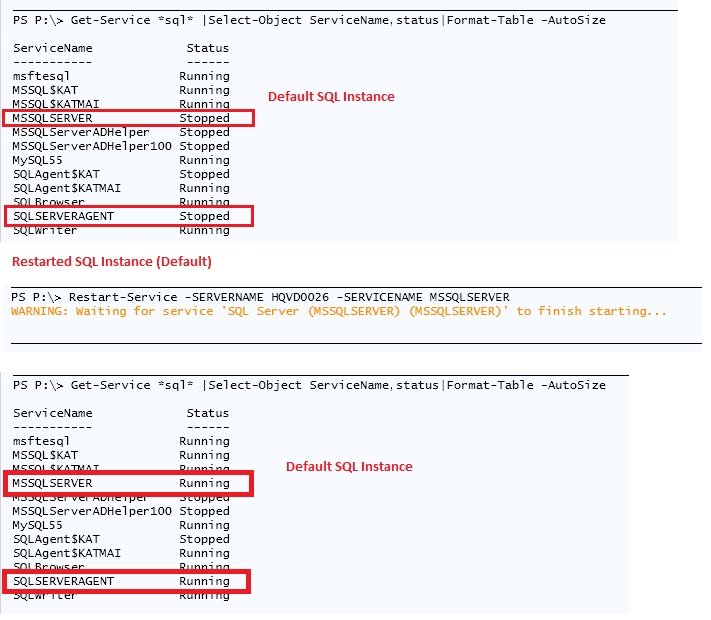
Example 3:-Negate the “$” meaning by using “`” for Named Instance.
PS P:\>Restart-Service -SERVERNAME HQVD0026 -SERVICENAME SQLAgent`$KAT

Download the code here Restart-Service
Thanks for reading my space…
Happy Learning!!
This post explains how to monitor a given service on a group of servers. The function Get-ServiceStatusReport comprises of various cmdLets and function to monitor any given service on a list of servers.
You can customize it as per your requirement.
The Function Get-ServiceStatusReport contains five parameters
First you create the function using the below code and call the function. which is shown below
Example :-
Get-ServiceStatusReport -ComputerList c:\computer.txt -ServiceName SQL -SMTPMail mail01.pa.com -To pjayaram@ap.com -From pjayaram@ap.com

Script – You can also download this script below
*******************************************************************************
Function Get-ServiceStatusReport
{
param(
[String]$ServiceName,[String]$ComputerList,[String]$To,[String]$From,[string]$SMTPMail
)
$script:list = $ComputerList
$ServiceFileName= “c:\ServiceFileName.htm”
New-Item -ItemType file $ServiceFilename -Force
# Function to write the HTML Header to the file
Function writeHtmlHeader
{
param($fileName)
$date = ( get-date ).ToString(‘yyyy/MM/dd’)
Add-Content $fileName “<html>”
Add-Content $fileName “<head>”
Add-Content $fileName “<meta http-equiv=’Content-Type’ content=’text/html; charset=iso-8859-1′>”
Add-Content $fileName ‘<title>Service Status Report </title>’
add-content $fileName ‘<STYLE TYPE=”text/css”>’
add-content $fileName “<!–”
add-content $fileName “td {”
add-content $fileName “font-family: Tahoma;”
add-content $fileName “font-size: 11px;”
add-content $fileName “border-top: 1px solid #999999;”
add-content $fileName “border-right: 1px solid #999999;”
add-content $fileName “border-bottom: 1px solid #999999;”
add-content $fileName “border-left: 1px solid #999999;”
add-content $fileName “padding-top: 0px;”
add-content $fileName “padding-right: 0px;”
add-content $fileName “padding-bottom: 0px;”
add-content $fileName “padding-left: 0px;”
add-content $fileName “}”
add-content $fileName “body {”
add-content $fileName “margin-left: 5px;”
add-content $fileName “margin-top: 5px;”
add-content $fileName “margin-right: 0px;”
add-content $fileName “margin-bottom: 10px;”
add-content $fileName “”
add-content $fileName “table {”
add-content $fileName “border: thin solid #000000;”
add-content $fileName “}”
add-content $fileName “–>”
add-content $fileName “</style>”
Add-Content $fileName “</head>”
Add-Content $fileName “<body>”
add-content $fileName “<table width=’100%’>”
add-content $fileName “<tr bgcolor=’#CCCCCC’>”
add-content $fileName “<td colspan=’4′ height=’25’ align=’center’>”
add-content $fileName “<font face=’tahoma’ color=’#003399′ size=’4′><strong>Service Stauts Report – $date</strong></font>”
add-content $fileName “</td>”
add-content $fileName “</tr>”
add-content $fileName “</table>”
}
# Function to write the HTML Header to the file
Function writeTableHeader
{
param($fileName)
Add-Content $fileName “<tr bgcolor=#CCCCCC>”
Add-Content $fileName “<td width=’10%’ align=’center’>ServerName</td>”
Add-Content $fileName “<td width=’50%’ align=’center’>Service Name</td>”
Add-Content $fileName “<td width=’10%’ align=’center’>status</td>”
Add-Content $fileName “</tr>”
}
Function writeHtmlFooter
{
param($fileName)
Add-Content $fileName “</body>”
Add-Content $fileName “</html>”
}
Function writeDiskInfo
{
param($filename,$Servername,$name,$Status)
if( $status -eq “Stopped”)
{
Add-Content $fileName “<tr>”
Add-Content $fileName “<td bgcolor=’#FF0000′ align=left ><b>$servername</td>”
Add-Content $fileName “<td bgcolor=’#FF0000′ align=left ><b>$name</td>”
Add-Content $fileName “<td bgcolor=’#FF0000′ align=left ><b>$Status</td>”
Add-Content $fileName “</tr>”
}
else
{
Add-Content $fileName “<tr>”
Add-Content $fileName “<td >$servername</td>”
Add-Content $fileName “<td >$name</td>”
Add-Content $fileName “<td >$Status</td>”
Add-Content $fileName “</tr>”
}
}
writeHtmlHeader $ServiceFileName
Add-Content $ServiceFileName “<table width=’100%’><tbody>”
Add-Content $ServiceFileName “<tr bgcolor=’#CCCCCC’>”
Add-Content $ServiceFileName “<td width=’100%’ align=’center’ colSpan=3><font face=’tahoma’ color=’#003399′ size=’2′><strong> Service Details</strong></font></td>”
Add-Content $ServiceFileName “</tr>”
writeTableHeader $ServiceFileName
#Change value of the following parameter as needed
Foreach($ServerName in (Get-Content $script:list))
{
$service = Get-Service -ComputerName $servername| where { $_.displayname -like “*$ServiceName*”}|select MachineName,Name,status
if ($Service -ne $NULL)
{
foreach ($item in $service)
{
Write-Host $item.MachineName $item.name $item.Status
writeDiskInfo $ServiceFileName $item.MachineName $item.name $item.Status
}
}
}
Add-Content $ServiceFileName “</table>”
writeHtmlFooter $ServiceFileName
function Validate-IsEmail ([string]$Email)
{
return $Email -match “^(?(“”)(“”.+?””@)|(([0-9a-zA-Z]((\.(?!\.))|[-!#\$%&’\*\+/=\?\^`\{\}\|~\w])*)(?<=[0-9a-zA-Z])@))(?(\[)(\[(\d{1,3}\.){3}\d{1,3}\])|(([0-9a-zA-Z][-\w]*[0-9a-zA-Z]\.)+[a-zA-Z]{2,6}))$”
}
Function sendEmail
{
param($from,$to,$subject,$smtphost,$htmlFileName)
[string]$receipients=”$to”
$body = Get-Content $htmlFileName
$body = New-Object System.Net.Mail.MailMessage $from, $receipients, $subject, $body
$body.isBodyhtml = $true
$smtpServer = $MailServer
$smtp = new-object Net.Mail.SmtpClient($smtphost)
$validfrom= Validate-IsEmail $from
if($validfrom -eq $TRUE)
{
$validTo= Validate-IsEmail $to
if($validTo -eq $TRUE)
{
$smtp.Send($body)
write-output “Email Sent!!”
}
}
else
{
write-output “Invalid entries, Try again!!”
}
}
$date = ( get-date ).ToString(‘yyyy/MM/dd’)
sendEmail -from $From -to $to -subject “Service Status – $Date” -smtphost $SMTPMail -htmlfilename $ServiceFilename
}
********************************************************************
Output –
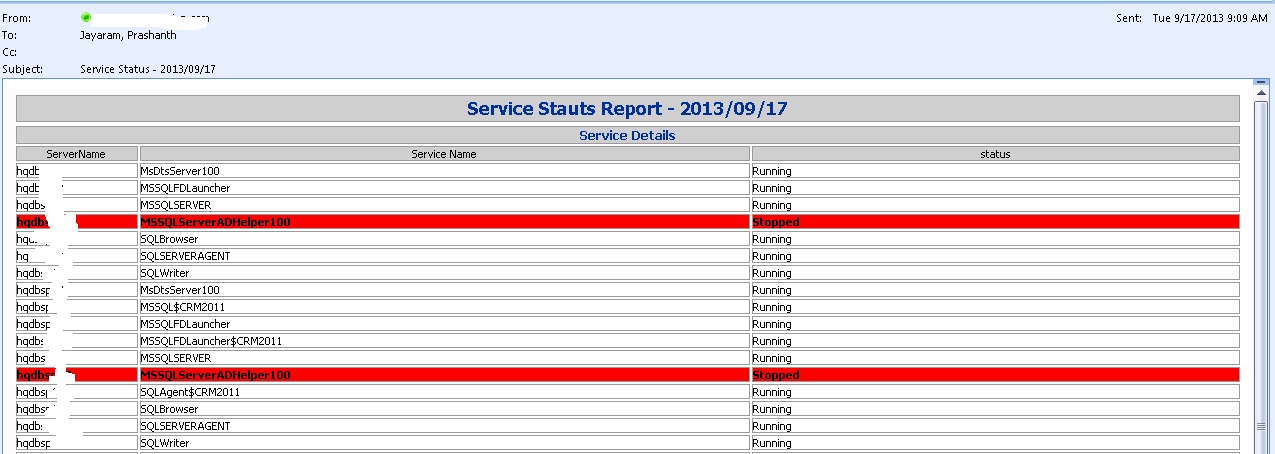
Download the code here ServicesReport
Thanks for reading my space..
Happy Learning!!


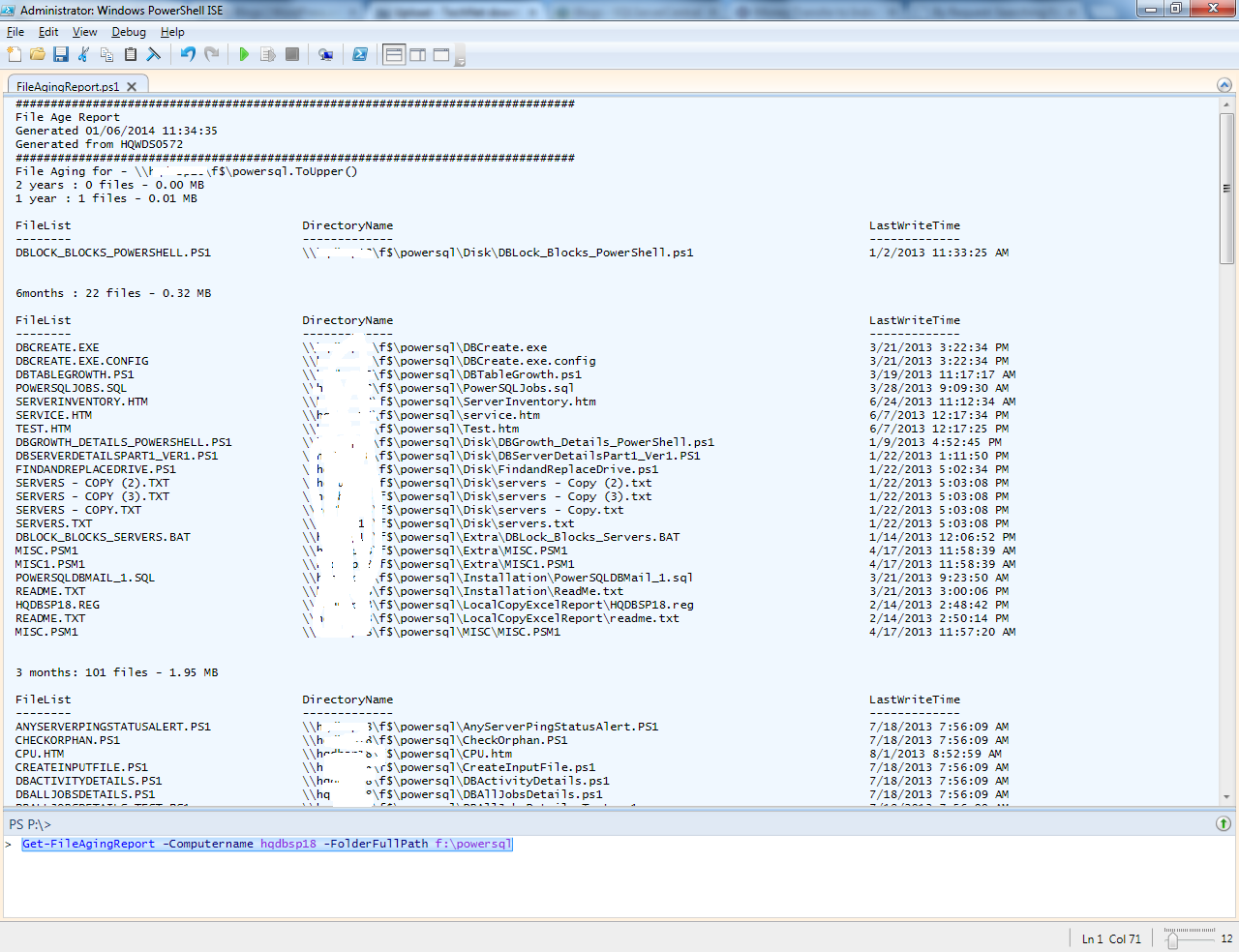


 Prashanth Jayaram