PowerShell – Identify and switch between installed PowerShell Versions

Most of the time we have been used to cmdlets and it’s various features but do not know about the version and hence this post might help some of you to understand in finding different versions of PowerShell and how to switch between versions (provided multiple versions are installed on your Machine). I’m using Where clause syntax to explain version switching.

Code to find version-

PS:\>Get-Host | Select-Object Version

Version
——-
2.0

PS:\>$Host.Version

Major  Minor  Build   Revision
—–    —–    —–    ——–
2        0         -1      -1

PS:\>$PSVersionTable.PSVersion

Major  Minor  Build   Revision
—–    —–    —–    ——–
3        0         -1      -1

Switch between versions –

Goto Cmd Prompt and type the below command

C:\> Powershell -version 2

PS C:\>Get-Host | select Version

#v2 syntax

PS C:\> Get-Service | Where {$_.name -like “*SQL*”}

Status       Name                              DisplayName
——          —-                                 ———–
Stopped   MSSQL$MICROSOFT…  Windows Internal Database (MICROSOF…
Running   SQLWriter                       SQL Server VSS Writer

PS C:\> Get-Service | where name -like “*SQL*”

Error Message –

where : Cannot bind parameter ‘FilterScript’. Cannot convert the “name” value of type “System.String” to type “System.Management.Automation.ScriptBlock”.

C:\> powershell -version 3

PS C:\> Get-Host | Select Version

PS C:\> Get-Service | where {$_.name -like “*SQL*”}

Status       Name                              DisplayName
——          —-                                 ———–
Stopped   MSSQL$MICROSOFT…  Windows Internal Database (MICROSOF…
Running   SQLWriter                       SQL Server VSS Writer

#v3 syntax

PS C:\> Get-Service | Where name -like “*SQL*”

Status       Name                              DisplayName

——          —-                                 ———–
Stopped   MSSQL$MICROSOFT…  Windows Internal Database (MICROSOF…
Running   SQLWriter                       SQL Server VSS Writer

Syntax for Where-Object

V2 Syntax : Where-Object { $_.<property name> }
V3 Syntax : Where-Object <property name> #Supports V2 syntax

PowerShell-Version

Posted in PowerShell | Tagged , , , , | 3 Comments

PowerShell – Get CPU Details and its Usage

This PowerShell script helpful in finding No of Processors, Speed and It’s current usage based on samples being gathered at frequent intervals.

/* Get No of Processors,Speed and its usage*/

Function Get-CPUs {
param ($server)
$processors = get-wmiobject -computername $server win32_processor
$cpuSpeed = ((get-wmiobject -computername $server Win32_Processor).MaxClockSpeed)/1000
$cores=0
if (@($processors)[0].NumberOfCores)
{
$cores = @($processors).count * @($processors)[0].NumberOfCores
}
else
{
$cores = @($processors).count
}
$sockets = @(@($processors) | % {$_.SocketDesignation} |select-object -unique).count;
$Usage=(get-counter -ComputerName $Server -Counter “\Processor(_Total)\% Processor Time” -SampleInterval 2 -MaxSamples 10 | select -ExpandProperty countersamples | select -ExpandProperty cookedvalue | Measure-Object -Average).average
return “Cores: $cores, Sockets: $sockets Speed: $cpuSpeed CPUUsage% : $Usage”;
}

-MaxSamples Int

The number of samples to get from each counter.The default is 1 sample. To get samples continuously (no max sample size), use -Continuous.
-SampleInterval int
The time between samples in seconds. The minimum value and the default value are 1 second.

Get the current “% Processor Time” combined values for all processors on the local computer. Collect data every 2 seconds until 10 sample values are collected. The output will take 20 seconds to give you a result. You can change the sample and MaxSample parameter.

Download the code here Code- CPU Details

Output:-Image

Posted in PowerShell | Tagged , , , , | 2 Comments

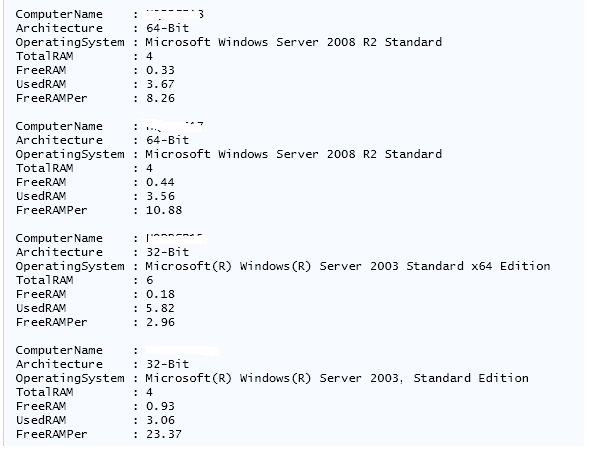
PowerSQL – Find OS and Memory Usage Details – Multi Server Script – No Input files

Multi Server script to find OS and Memory details.  It doesn’t require a text file as its input but you have to pass computer names as its parameters which are separated by comma.

function Get-OSMemory {
param(
[string[]]$ComputerName = “.”
)

foreach ($Computer in $ComputerName) {
if(Test-Connection -ComputerName $Computer -Count 1 -ea 0) {
Write-Verbose “$Computer online”
$OS = (Get-WmiObject -computername $computer -class Win32_OperatingSystem ).Caption
if ((Get-WmiObject -Class Win32_OperatingSystem -ComputerName $Computer -ea 0).OSArchitecture -eq ’64-bit’)
{
$architecture = “64-Bit”
} else {
$architecture = “32-Bit”
}
$SystemInfo = Get-WmiObject -Class Win32_OperatingSystem -computername $Computer | Select-Object Name, TotalVisibleMemorySize, FreePhysicalMemory
$TotalRAM = $SystemInfo.TotalVisibleMemorySize/1MB
$FreeRAM = $SystemInfo.FreePhysicalMemory/1MB
$UsedRAM = $TotalRAM – $FreeRAM
$RAMPercentFree = ($FreeRAM / $TotalRAM) * 100
$TotalRAM = [Math]::Round($TotalRAM, 2)
$FreeRAM = [Math]::Round($FreeRAM, 2)
$UsedRAM = [Math]::Round($UsedRAM, 2)
$RAMPercentFree = [Math]::Round($RAMPercentFree, 2)

$OutputObj = New-Object -Type PSObject
$OutputObj | Add-Member -MemberType NoteProperty -Name ComputerName -Value $Computer.ToUpper()
$OutputObj | Add-Member -MemberType NoteProperty -Name Architecture -Value $architecture
$OutputObj | Add-Member -MemberType NoteProperty -Name OperatingSystem -Value $OS
$OutputObj | Add-Member -MemberType NoteProperty -Name TotalRAM -Value $TotalRAM
$OutputObj | Add-Member -MemberType NoteProperty -Name FreeRAM -Value $FreeRAM
$OutputObj | Add-Member -MemberType NoteProperty -Name UsedRAM -Value $UsedRAM
$OutputObj | Add-Member -MemberType NoteProperty -Name FreeRAMPer -Value $RAMPercentFree
$OutputObj
}
}
}

Execution Details:-

  1. PS:\>Get-OSMemory
  2. PS:\>Get-OSMemory  AQDBSP18
  3. PS:\>Get-OSMemory AQDBSP18,AQDBSP17,AQDBSP1

You can download the code here Code-OSMemory

Output: –

Image

Posted in PowerShell | Tagged , , , | 2 Comments

SQLCMD –Quick Copy of Files – Using Robocopy

The requirement is to move the files to different server programatically and hence I’ve decided to use Robocopy in SQLCMD.

Robocopy is a command line utility. It has been available as part of the windows resource kit and It’s one of the fastest way to copy files across network.

–Robocopy syntax is different from standard copy commands, as it accepts only folder names as its source and destination arguments.

— We can use the wild-card characters (such as “*.*”) as its third parameters(File lists)

–For example, to copy all files which starts UAT from directory g:\MSSQL to G:\MSSQL, one could use the following syntax:

Robocopy G:\MSSQL G:\MSQL1\ UAT*.*

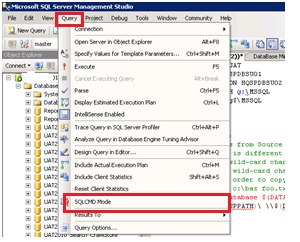
SQLCMD can be enabled in Query Editor. Go to SSMS Menu -> Query ->Select SQLCMD.

Image

copy and paste the below code SSMS

:SETVAR DATABASE UAT

:SETVAR SOURCE HQSPDBSU01

:SETVAR DESTINATION HQSPDBSU02

:SETVAR SOURCEPATH G:\MSSQL

:SETVAR COPYPATH G$\MSSQL

SET NOCOUNT ON

GO

:CONNECT $(SOURCE)

print ‘Files in sourcePath’

!!dir $(SourcePath)\*.*

Go

print ‘Files in Destination Path’

:CONNECT $(DESTINATION)

!!dir $(SOURCEPATH)\*.*

Go

:CONNECT $(SOURCE)

print ‘*** Copy database $(DATABASE) from Source server $(Source) to Destination server $(destination) ***’

!!ROBOCOPY $(SOURCEPATH)\ \\$(DESTINATION)\$(COPYPATH) $(DATABASE)*.*

GO

print ‘Files in Destination Path’

:CONNECT $(DESTINATION)

!!dir $(SOURCEPATH)\*.*

Go

print ‘Files in source Path’

:CONNECT $(SOURCE)

!!dir $(SOURCEPATH)\*.*

Download the code here  Robocopy

Output:

Image

Thanks for reading my space.

Happy Learning

Posted in Robocopy, SETVAR, SQLCMD, T-SQL | Tagged , , | 3 Comments

PowerSQL – SQL Instance Configuration & Installation Information by Reading Registry Keys

Today I got a chance to retrieve configuration information of sql server 2005 instances. PowerShell provide a facility to read the registry information with ease. PowerShell treats the registry like any other location or directory. One critical difference is that every item on a registry-based Windows PowerShell drive is a container, just like a folder on a file system drive.

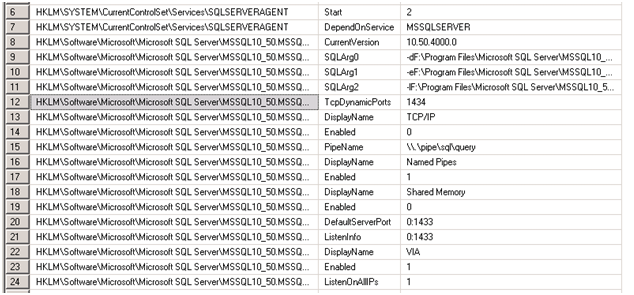
I’m simulating the sys.dm_server_registry DMV using PowerShell by reading registry entries. You can also use extended stored procedure to retrieve the same information.

This code can be run from any machine where PowerShell is installed and you have access to the server.

This code can be enhanced to various levels that meet your requirement and it’s applicable to SQL Server 2005 or its  higher version. You can download the code here RegistryRead

DMV – sys.dm_server_registry

It will display a configuration and installation information that is stored in the Windows registry for the current instance of SQL Server

SELECT * FROM sys.dm_server_registry

Image

PowerShell Script to read Registry data

function Get-RemoteRegistryKeyProperties

{

param(

$computer = $(throw “Please specify a computer name.”),

$path = $(throw “Please specify a registry path”),

$property = “*”

)

## Validate and extract out the registry key

if($path -match “^HKLM:\\(.*)”)

{

$baseKey = [Microsoft.Win32.RegistryKey]::OpenRemoteBaseKey(

“LocalMachine”, $computer)

}

else

{

Write-Error (“Please specify a fully-qualified registry path ” +

“(i.e.: HKLM:\Software) of the registry key to open.”)

return

}

## Open the key

$key = $baseKey.OpenSubKey($matches[1])

$returnObject = New-Object PsObject

## Go through each of the properties in the key

foreach($keyProperty in $key.GetValueNames())

{

## If the property matches the search term, add it as a

## property to the output

if($keyProperty -like $property)

{

$returnObject |

Add-Member NoteProperty $keyProperty $key.GetValue($keyProperty)

}

}

## Return the resulting object

$returnObject

}

Function Get-ReadSQLRegistryEntries ($computer)

{

$OS = (Get-WmiObject Win32_OperatingSystem -computername $computer).caption

$SystemInfo = Get-WmiObject -Class Win32_OperatingSystem -computername $computer | Select-Object Name, TotalVisibleMemorySize, FreePhysicalMemory

$a=Get-RemoteRegistryKeyProperties $COMPUTER ‘HKLM:\Software\Microsoft\Microsoft SQL Server\Instance Names\SQL’ “MSSQLSERVER”

$path=’HKLM:\Software\Microsoft\Microsoft SQL Server\’+$a.MSSQLSERVER+ ‘\MSSQLServer\Parameters’

$Serverstartup=Get-RemoteRegistryKeyProperties  $COMPUTER ‘HKLM:\SYSTEM\CurrentControlSet\SERVICES\MSSQLSERVER’ “START”

$ServerAgentstartup=Get-RemoteRegistryKeyProperties  $COMPUTER ‘HKLM:\SYSTEM\CurrentControlSET\SERVICES\SQLSERVERAGENT’ “START”

$ServerAc=Get-RemoteRegistryKeyProperties  $COMPUTER ‘HKLM:\SYSTEM\CurrentControlSET\SERVICES\MSSQLSERVER’ “ObjectName”

$SAC=$ServerAC.ObjectName

$ServerAgAc=Get-RemoteRegistryKeyProperties  $COMPUTER ‘HKLM:\SYSTEM\CurrentControlSET\SERVICES\SQLSERVERAGENT’ “ObjectName”

$SAG=$ServerAgAC.ObjectName

$ErrorLog=Get-RemoteRegistryKeyProperties $COMPUTER $path “SQLArg1”

$E=$ErrorLog.SQLArg1

$DataPath=Get-RemoteRegistryKeyProperties $COMPUTER $path “SQLArg0”

$DP=$DataPath.SQLArg0

$LogPath=Get-RemoteRegistryKeyProperties $COMPUTER $path “SQLArg2”

$LP=$LogPath.SQLArg2

$Domain=Get-RemoteRegistryKeyProperties  $COMPUTER ‘HKLM:\SYSTEM\ControlSET001\Services\Tcpip\Parameters’ “DOMAIN”

$D=$Domain.Domain

$lib=Get-RemoteRegistryKeyProperties  $COMPUTER ‘HKLM:\SOFTWARE\Microsoft\MSSQLServer\Setup’ “SQLPath”

$SQL=$lib.SQLPath

$Port=Get-RemoteRegistryKeyProperties  $COMPUTER ‘HKLM:\Software\Microsoft\MSSQLServer\MSSQLServer\SuperSocketNetLib\TCP’ “TcpPort”

$P=$Port.TcpPort

$registry_key = ‘HKLM:\Software\Microsoft\Microsoft SQL Server\’ +$a.MSSQLSERVER+ ‘\MSSQLServer’

$AuditLevel=Get-RemoteRegistryKeyProperties  $COMPUTER $registry_key “auditlevel”

$loginMode=Get-RemoteRegistryKeyProperties  $COMPUTER $registry_key “loginmode”

switch ($Serverstartup.start)

{

2 {$ServerStartup = “Automatic”}

3 {$ServerStartup = “Manual”}

4 {$ServerStartup = “Disabled”}

}

switch ($ServerAgentstartup.start)

{

2 {$ServerAgentstartup = “Automatic”}

3 {$ServerAgentstartup = “Manual”}

4 {$ServerAgentstartup =”Disabled”}

}

switch ($auditLevel.auditLevel)

{

0 {$Value=”None.”}

1 {$value=”Successful Logins Only”}

2 {$value=”Failed Logins Only.”}

3 {$value=”Both Failed and Successful Logins Only”}

}

switch($loginMode.loginmode)

{

1 {$Log=”Windows Authentication”}

2 {$Log =”SQL Server Authentication”}

}

$OutputObj  = New-Object -Type PSObject

$OutputObj | Add-Member -MemberType NoteProperty -Name serverName -Value $computer.ToUpper()

$OutputObj | Add-Member -MemberType NoteProperty -Name OS -Value $OS

$OutputObj | Add-Member -MemberType NoteProperty -Name SQLPATH -Value $SQL

$OutputObj | Add-Member -MemberType NoteProperty -Name DataPath -Value $DP

$OutputObj | Add-Member -MemberType NoteProperty -Name LOGPath -Value $LP

$OutputObj | Add-Member -MemberType NoteProperty -Name ERRORLOG -Value $E

$OutputObj | Add-Member -MemberType NoteProperty -Name Domain -Value $d

$OutputObj | Add-Member -MemberType NoteProperty -Name Port -Value $P

$OutputObj | Add-Member -MemberType NoteProperty -Name SERVERSTARTUP -Value $ServerStartup

$OutputObj | Add-Member -MemberType NoteProperty -Name AGENTSTARTUP -Value $ServerAgentstartup

$OutputObj | Add-Member -MemberType NoteProperty -Name STARTUPACCOUNTSERVER -Value $SAC

$OutputObj | Add-Member -MemberType NoteProperty -Name STARTUPACCOUNTAGENT -Value $SAG

$OutputObj | Add-Member -MemberType NoteProperty -Name AUDITDETAIL -Value $Value

$OutputObj | Add-Member -MemberType NoteProperty -Name LOGIN -Value $Log

$OutputObj

}

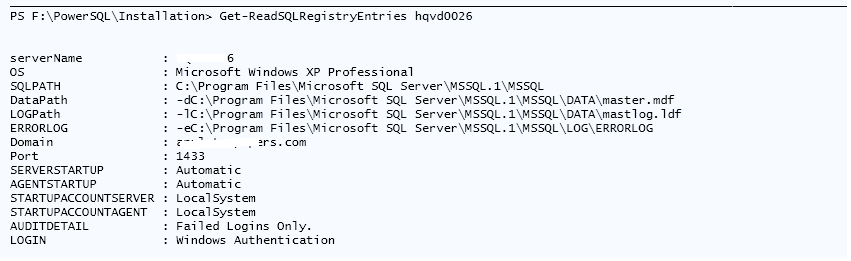
Function Call to  SQL Server 2005 instance

PS F:\PowerSQL\Installation>Get-ReadSQLRegistryEntries hqvd0026

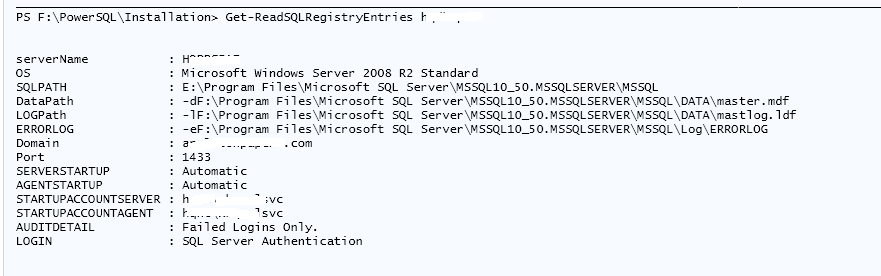
Image

Function Call  to SQL Server 2008 R2 instance

PS F:\PowerSQL\Installation>Get-ReadSQLRegistryEntries aqdbpp16

Image

Posted in PowerShell | Tagged , , | 1 Comment

PowerSQL – Different Approaches to Find Free Space in all disk drives

Different ways to find FreeSpace  in all disk drives of a given server

  • T-SQL
  • Using WMIObject
  • Counters

All three methods are explained below

This post illustrates the simplest way of doing anything with ease using Powershell. I hope everyone agree with it.

Download the code here Code- DiskSpaceUsageDetails

TSQL

TSQL
/* Enable Ole and XP_CMDShell object*/

—- Allow advanced options to be changed.
sp_configure ‘show advanced options’, 1;
GO
— To update the currently configured value for advanced options.
RECONFIGURE;
GO
— To enable the feature.
sp_configure ‘Ole Automation Procedures’, 1;
Go
EXEC sp_configure ‘xp_cmdshell’, 1
GO
— To update the currently configured value for this feature without restarting of your sql instance
RECONFIGURE;
GO
DECLARE @hr INT ,
@fso INT,
@drive CHAR(1),
@odrive INT,
@TotalSize VARCHAR(20),
@MB NUMERIC ,
@FreeSpace INT,
@free INT,
@RowId_1 INT,
@LoopStatus_1 SMALLINT,
@TotalSpace VARCHAR(10),
@Percentage VARCHAR(3)

——————————————————————————————-
–Table to Store Drive related information
——————————————————————————————-
CREATE TABLE #drives
(
id INT IDENTITY(1,1) PRIMARY KEY,
drive CHAR(1),
FreeSpaceMB INT ,
TotalSizeMB INT NULL,
percentage INT
)

——————————————————————————————-
–Inserting the output of xp_fixeddrives to #SpaceSize Table
——————————————————————————————-
INSERT #drives(drive,FreeSpaceMB) EXEC master.dbo.xp_fixeddrives

——————————————————————————————-
–Using the sp_OACreate, sp_OAMethod and sp_OAGetProperty system stored
–procedures to create Ole Automation (ActiveX) applications that can do
–everything an ASP script can do*/
–Creates an instance of the OLE object
——————————————————————————————-
EXEC @hr=sp_OACreate ‘Scripting.FileSystemObject’,@fso OUT

SET @MB = 1048576
SET @RowId_1 = 1
SET @LoopStatus_1 = 1

——————————————————————————————-
–To Get Drive total space
——————————————————————————————-

WHILE (@LoopStatus_1 <> 0) BEGIN

SELECT
@drive=drive,
@FreeSpace=FreeSpaceMB
FROM
#drives
WHERE
( ID = @RowId_1 )

IF ( @@ROWCOUNT = 0 )
BEGIN
SET @LoopStatus_1 = 0
END
ELSE
BEGIN
EXEC @hr = sp_OAMethod @fso,’GetDrive’, @odrive OUT, @drive
EXEC @hr =sp_OAGetProperty @odrive,’TotalSize’, @TotalSize OUT
UPDATE #drives SET TotalSizeMB=@TotalSize/@MB
WHERE
drive=@drive
UPDATE #drives SET Percentage=(@FreeSpace/(TotalSizeMB*1.0))*100.0
WHERE drive=@drive
END
SET @RowId_1 = @RowId_1 + 1

END

SELECT drive,FreeSpaceMB/1024.00 FreeSpaceGB,TotalSizeMB/1024.00 TotalSizeGB,Percentage [FreeSpace %] FROM #drives

DROP TABLE #drives

Output –

DiskSpaceDetails-1

Using Get-WMIObject

$serverName=’AQDBPS8’#Change input Server Name
Get-WmiObject win32_logicalDisk -ComputerName $ServerName |
select DeviceID,VolumeName,
@{Expression={$_.Size /1Gb -as [int]};Label=”Total Size(GB)”},
@{Expression={($_.Size /1Gb -as [int]) – ($_.Freespace / 1Gb -as [int])};Label=”InUse Size (GB)”} ,
@{Expression={$_.Freespace / 1Gb -as [int]};Label=”Free Size (GB)”},
@{Expression={(($_.Freespace /1Gb -as [float]) / ($_.Size / 1Gb -as [float]))*100};Label=”FreeSpace (%)”} |ft -AutoSize

Output :

DiskSpaceDetails-2

Invoke Get-Counters cmdlet

$serverName=’HQDBSP18′
get-counter -computername $serverName -counter “\LogicalDisk(*)\% free space”

DiskSpaceDetails-3

Thanks for reading my space. More to come….

Happy learning!!!

Posted in PowerShell, SQL, T-SQL | Tagged , , , , | Leave a comment

SQL- SP_PROCOPTION – AutoNotification to App Owners – When SQL Instance Restarts

We had a situation where Application owners automatically notified whenever server restarts.  The SP_PROCOPTION do have a facility to perform this activity. The SP_PROCOPTION built-in stored procedure being used to invoke the user defined stored proc automatically.

The details of this implementation is as follows

  • User defined meta data table to hold all Application Owner Details
  • Create user defined Stored procedure Named “Notification” under MASTER database(Mandatory).The below automation developed with an intellegence to concatenate all Application Owner’s email-ids.
  • Modify the stored procedure “Notification” – ProfileName and BlindCopyReceipents
  • Add this stored procedure for automatic execution
  • Once done Restart the SQL Instance .

Pre-requisites

  •  Mail Profile – Make sure that you have DB Mail Configured.

Download the complete code here SQL- AutoNotification to App Owners – When SQL Instance Restarts

Table Creation to store Meta Data about the Server

USE MASTER
GO
CREATE TABLE AutoAlert
(
id INT IDENTITY(1,1),
DbName VARCHAR(100),
DbOwner VARCHAR(100) DEFAULT ‘DBA Team’,
AppOwner VARCHAR(100),
AppOwnerID VARCHAR(100))

/* Insert AppOwners Details*/
INSERT INTO AutoAlert(dbname,AppOwner,AppOwnerID) VALUES(‘PROD_OLAP’,’Dave H’,’dheim@PowerSQL.com’)
INSERT INTO AutoAlert(dbname,AppOwner,AppOwnerID) VALUES(‘Crystal_App’,’Ana V’,’vana@PowerSQL.com’)

–SELECT * FROM dbo.AutoAlert

Stored Procedure Creation – Change Profile and BCC receipients

/* Create a new Stored Proc NOTIFICATION Under Master Database*/

CREATE PROCEDURE NOTIFICAION
AS
DECLARE @tableHTML NVARCHAR(MAX),
@td1 CHAR(15),
@td2 CHAR(15) ,
@td3 CHAR(20) ,
@td4 CHAR(15),
@td5 CHAR(15),
@td6 CHAR(15),
@td7 CHAR(15),
@Loopstatus2 INT,
@RowId2 INT,
@dmll NVARCHAR(max),
@dml2 NVARCHAR(max),
@Loopstatus1 INT,
@RowId1 INT,
@ProfileName VARCHAR(100),
@blind_copy_recipients VARCHAR(100),
@receipients VARCHAR(200),
@subject VARCHAR(500),
@email1 VARCHAR(MAX),
@email2 VARCHAR(MAX),
@email varCHAR(100)

/* Change Profile and Receipients details*/

SET @ProfileName =’PowerSQL’
SET @blind_copy_recipients=’PowerSQL@PowerSQL.com’
CREATE TABLE #mail
(
id INT IDENTITY(1,1),
email VARCHAR(100))

INSERT INTO #mail(email)
SELECT DISTINCT AppOwnerID FROM dbo.AutoAlert

SET @LoopStatus2=1
SET @RowId2=1
SET @email1=”
SET @email2=”

WHILE @LoopStatus2>0
BEGIN
SELECT @email=email FROM #mail WHERE id=@RowId2
IF @@ROWCOUNT = 0
BEGIN
SET @LoopStatus2=0
END
ELSE
BEGIN
SET @email1=@email1+@email+’;’
SET @email2=@email2+@email1
PRINT @email2
SET @email1=”
END
SET @RowId2=@RowId2+1
END

PRINT @email2
SET @email2=SUBSTRING(@email2,0,len(@email2))
PRINT @email2
SET @dmll=”
SET @dml2=”
SET @Loopstatus1=1
SET @RowId1=1
SET @tableHTML =
N'<H1>Server Restart Notification </H1>’ +
N'<table border=”1″ cellpadding=”1″><tr>
<th BGCOLOR=”RED”>[Server]</th>
<th BGCOLOR=”RED”>[DB Name]</th>
<th BGCOLOR=”RED”>[App Owner]</th>
</tr>’

WHILE @Loopstatus1<>0
BEGIN
SELECT
@td1 =@@servername,
@td2 =DBName,
@td3 =AppOwner
FROM AutoAlert WHERE id=@RowId1

IF @@ROWCOUNT=0
BEGIN
SET @Loopstatus1=0
END
ELSE
BEGIN
SET @dmll= @dml2+N'<tr><td>’+@td1+N'</td><td>’+@td2+'</td><td>’+@td3+'</td></tr>’
SET @dml2=@dmll
SET @dmll=”
END
SET @RowId1=@RowId1+1
END

SET @tableHTML=@tableHTML+@dml2+'</table>’+CHAR(13)+’Auto generated Email, Do not reply’+CHAR(13)+’Appvion DBA Team’

–PRINT @tableHTML

SET @Subject=’DB Server ‘+ @@servername +’ Restarted, Please Check all your dependent App Services’

EXEC msdb.dbo.sp_send_dbmail
@profile_name = @ProfileName,
@recipients=@email2,
@blind_copy_recipients=@blind_copy_recipients,
@subject = @subject,
@body = @tableHTML,
@body_format = ‘HTML’;

DROP TABLE #mail

The following SQL sets a procedure for automatic execution

EXEC sp_procoption @ProcName = ‘NOTIFICAION’
, @OptionName = ‘startup’
, @OptionValue = ‘on’;

The following SQL stops a procedure from automatic execution

EXEC sp_procoption @ProcName = ‘NOTIFICAION’
, @OptionValue = ‘off’;

Restart SQL Instance

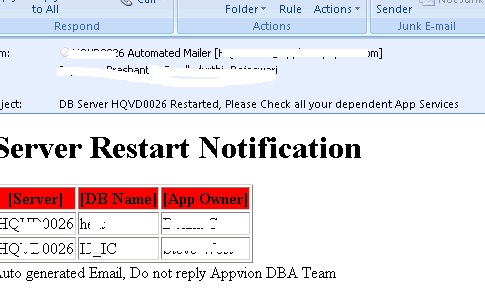
Output :-

ServerRestart

Posted in SQL, T-SQL | Tagged , , | 4 Comments

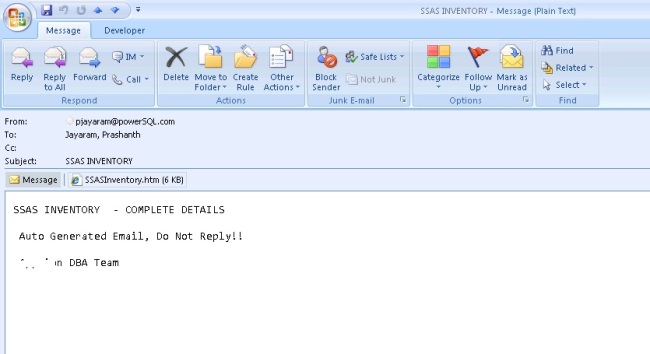
SSAS – Automatic Inventory Generation – 24 Columns – HTML Attachment

Inventory is a vital information,whether you’re a consultant or an in-house DBA, you need to have a reliable inventory of the servers you manage. This inventory can take any number of forms but, ideally, will allow some aggregation of information. When server hardware or software changes are taking place, it’s easy to forget that the inventory has to be updated as well. For this reason, I like to have a script that creates the inventory, rather than have to keep a manual log of changes as they occur. This can take into many forms, comments and suggestions are most welcome. 

PowerShell allows me to do just that. PowerShell makes it easy to issue WMI (Windows Management Instrumentation) and AMO’s to pull the required details.
For example, we can keep track of the Name, the operating system name, version, free physical memory, service pack information and other configuration details.
Powershell offers a simple way of gathering a complete inventory of your physical servers.

The included columns are as follows

1. Name
2. ConnectionString
3. Domain Name
4. OS
5. CPU
6. TotalRAM
7. FreeRAM
8. UsedRAM
9. Version
10.Edition
11.EditionID
12.ProductLEvel
13.ProductName
14.Isloaded
15.DataDir
16.Tempdir
17.LogDir
18.BackupDir
19.CubeDatabaseCount
20.CubeDatabaseList
21.CreatedTimestmp
22.LastSchemaUpdate
23.Uptime
24.IPAddress

 Copy and Paste the below code c:\PowerSQL\SSASInventory.PS1

******************************************************************************

#Change the First set of code as per your configuration details

$MailServer=’aqmail.powersql.com’

#Multiple email recipients can be added using , for eg :-#Emlst=”dheim@powersql.com,jayaram@powerSQL.com”

$Emlst=”jayaram@powersql.com”

$DirectoryToSaveTo=’C:\PowerSQL\’

$Filename=’SSASInventory’

#List of SSAS Server Instances here

$FilePath=”C:\PowerSQL\SSASList.txt”

# Before we do anything else, are we likely to be able to save the file?. if the directory doesn’t exist, then create it

if (!(Test-Path -path “$DirectoryToSaveTo”)) #create it if not existing

{

New-Item “$DirectoryToSaveTo” -type directory | out-null

}

$filename = “$DirectoryToSaveTo$filename.htm”

$ServerInventory = $filename

New-Item -ItemType file $ServerInventory -Force

Function writeHtmlHeader

{

param($fileName)

$date = ( get-date ).ToString(‘yyyy/MM/dd’)

Add-Content $fileName “<html>”

Add-Content $fileName “<head>”

Add-Content $fileName “<meta http-equiv=’Content-Type’ content=’text/html; charset=iso-8859-1′>”

Add-Content $fileName ‘<title>Server Inventory Report</title>’

add-content $fileName ‘<STYLE TYPE=”text/css”>’

add-content $fileName  “<!–”

add-content $fileName  “td {”

add-content $fileName  “font-family: Tahoma;”

add-content $fileName  “font-size: 11px;”

add-content $fileName  “border-top: 1px solid #999999;”

add-content $fileName  “border-right: 1px solid #999999;”

add-content $fileName  “border-bottom: 1px solid #999999;”

add-content $fileName  “border-left: 1px solid #999999;”

add-content $fileName  “padding-top: 0px;”

add-content $fileName  “padding-right: 0px;”

add-content $fileName  “padding-bottom: 0px;”

add-content $fileName  “padding-left: 0px;”

add-content $fileName  “}”

add-content $fileName  “body {”

add-content $fileName  “margin-left: 5px;”

add-content $fileName  “margin-top: 5px;”

add-content $fileName  “margin-right: 0px;”

add-content $fileName  “margin-bottom: 10px;”

add-content $fileName  “”

add-content $fileName  “table {”

add-content $fileName  “border: thin solid #000000;”

add-content $fileName  “table-layout:fixed;”

add-content $fileName  “}”

add-content $fileName  “–>”

add-content $fileName  “</style>”

Add-Content $fileName “</head>”

Add-Content $fileName “<body>”

}

# Function to write the HTML Header to the file

Function writeTableHeader

{

param($fileName)

Add-Content $fileName “<tr bgcolor=#CCCCCC>”

Add-Content $fileName “<td nowrap>Name</td>”

Add-Content $fileName “<td nowrap>ConnectionString</td>”

Add-Content $fileName “<td nowrap>Domain Name</td>”

Add-Content $fileName “<td nowrap>OS</td>”

Add-Content $fileName “<td nowrap>CPU</td>”

Add-Content $fileName “<td nowrap>TotalRAM</td>”

Add-Content $fileName “<td nowrap>FreeRAM</td>”

Add-Content $fileName “<td nowrap>UsedRAM</td>”

Add-Content $fileName “<td nowrap>SQLServer</td>”

Add-Content $fileName “<td nowrap>Edition</td>”

Add-Content $fileName “<td nowrap>EditionID</td>”

Add-Content $fileName “<td nowrap>ProductLEvel</td>”

Add-Content $fileName “<td nowrap>ProductName</td>”

Add-Content $fileName “<td nowrap>Isloaded</td>”

Add-Content $fileName “<td nowrap>DataDir</td>”

Add-Content $fileName “<td nowrap>Tempdir</td>”

Add-Content $fileName “<td nowrap>LogDir</td>”

Add-Content $fileName “<td nowrap>BackupDir</td>”

Add-Content $fileName “<td nowrap>CubeDatabaseCount</td>”

Add-Content $fileName “<td nowrap>CubeDatabaseList</td>”

Add-Content $fileName “<td nowrap>CreatedTimestmp</td>”

Add-Content $fileName “<td nowrap>LastSchemaUpdate</td>”

Add-Content $fileName “<td nowrap>Uptime</td>”

Add-Content $fileName “<td nowrap>IPAddress</td>”

Add-Content $fileName “</tr>”

}

Function writeHtmlFooter

{

param($fileName)

Add-Content $fileName “</body>”

Add-Content $fileName “</html>”

}

Function writeServerInfo

{

param($fileName,$name,$ConnectionString,$FQDN,$OS,$CPU,$TotalRAM,$FreeRAM,$UsedRAM,$SQLServer,$Edition,$EditionID,$ProductLEvel,$ProductName,$Isloaded,$DataDir,$tempdir,$LogDir,$BackupDirvalue,$a,$Result1,$CreatedTimestamp,$LastSchemaUpdate,$Uptime,$IPAddress)

Add-Content $fileName “<tr>”

Add-Content $fileName “<td nowrap>$name</td>”

Add-Content $fileName “<td nowrap>$ConnectionString</td>”

Add-Content $fileName “<td nowrap>$FQDN</td>”

Add-Content $fileName “<td nowrap>$OS</td>”

Add-Content $fileName “<td nowrap>$CPU</td>”

Add-Content $fileName “<td nowrap>$TotalRAM</td>”

Add-Content $fileName “<td nowrap>$FreeRAM</td>”

Add-Content $fileName “<td nowrap>$UsedRAM</td>”

Add-Content $fileName “<td nowrap>$SQLServer</td>”

Add-Content $fileName “<td nowrap>$Edition</td>”

Add-Content $fileName “<td nowrap>$EditionID</td>”

Add-Content $fileName “<td nowrap>$ProductLEvel</td>”

Add-Content $fileName “<td nowrap>$ProductName</td>”

Add-Content $fileName “<td nowrap>$Isloaded</td>”

Add-Content $fileName “<td nowrap>$DataDir</td>”

Add-Content $fileName “<td nowrap>$tempdir</td>”

Add-Content $fileName “<td nowrap>$LogDir</td>”

Add-Content $fileName “<td nowrap>$BackupDir</td>”

Add-Content $fileName “<td nowrap>$a</td>”

Add-Content $fileName “<td nowrap>$Result1</td>”

Add-Content $fileName “<td nowrap>$CreatedTimestamp</td>”

Add-Content $fileName “<td nowrap>$LastSchemaUpdate</td>”

Add-Content $fileName “<td nowrap>$Uptime</td>”

Add-Content $fileName “<td nowrap>$IPAddress</td>”

Add-Content $fileName “</tr>”

}

Function sendEmail

{

param($from,$to,$subject,$smtphost,$htmlFileName)

[string]$receipients=”$to”

$body = Get-Content $htmlFileName

$body = New-Object System.Net.Mail.MailMessage $from, $receipients, $subject, $body

$body.isBodyhtml = $true

$smtpServer = $MailServer

$smtp = new-object Net.Mail.SmtpClient($smtpServer)

$smtp.Send($body)

}

writeHtmlHeader $ServerInventory

Add-Content $ServerInventory “<table width=’100%’><tbody>”

Add-Content $ServerInventory “<tr bgcolor=’#CCCCCC’>”

Add-Content $ServerInventory “<td width=’100%’ height=’25’ align=’center’ colSpan=33><font face=’tahoma’ color=’#003399′ size=’2′><strong> Inventory Report</strong></font></td>”

Add-Content $ServerInventory “</tr>”

writeTableHeader $ServerInventory

foreach ($instanceName in Get-Content “$FilePath”)

{

#Test for unsuccessful Connection

if(!(Test-Connection -ComputerName $instanceName -Count 5 -ea 0))

{

Write-Warning ‘could not able to connect $instanceName’

}

else

{

$ServerName=$instanceName

#Load AMO

$loadInfo = [System.Reflection.Assembly]::LoadWithPartialName(“Microsoft.AnalysisServices”) | Out-Null

[Microsoft.AnalysisServices.Server]$server = New-Object Microsoft.AnalysisServices.Server

$server.connect($ServerName)

$s=$server|select name,ConnectionString,Version,Edition,EditionID,ProductLEvel,ProductName,Isloaded,CreatedTimestamp,LastSchemaUpdate

#String Cancatenation – Databases are listed in a concatenated in a single string

$db=$Server.databases

$db1=$db|select name

$result1=”

ForEach($db2 in $db1)

{

Increment $global:a

$result=”

$Result =$Result1+$db2.name+’,’

$Result1=$Result

}

#Use of Global Variable

$global:a=0

function increment {

$global:a++

}

$dataDir=$server.serverproperties|select name, value|where {$_.name -like “DataDir”}

$tempDir=$server.serverproperties|select name, value|where {$_.name -like “TempDir”}

$LogDir=$server.serverproperties|select name, value|where {$_.name -like “LogDir”}

$BackupDir=$server.serverproperties|select name, value|where {$_.name -like “BackupDir”}

if ($tempDir.value -eq ”)

{

$tempDir=’NA’

}

else

{

$tempdir=$tempDir.value

}

#Function to Find HostUpTime

Function Get-HostUptime {

param ([string]$ComputerName)

$Uptime = Get-WmiObject -Class Win32_OperatingSystem -ComputerName $ComputerName

$LastBootUpTime = $Uptime.ConvertToDateTime($Uptime.LastBootUpTime)

$Time = (Get-Date) – $LastBootUpTime

Return ‘{0:00} Days, {1:00} Hours, {2:00} Minutes, {3:00} Seconds’ -f $Time.Days, $Time.Hours, $Time.Minutes, $Time.Seconds

}

#Function to Find CPUs

Function Get-CPUs {

param ($server)

$processors = get-wmiobject -computername $server win32_processor

$cpuSpeed = ((get-wmiobject -computername $server Win32_Processor).MaxClockSpeed)/1000

$cores=0

if (@($processors)[0].NumberOfCores)

{

$cores = @($processors).count * @($processors)[0].NumberOfCores

}

else

{

$cores = @($processors).count

}

$sockets = @(@($processors) |

% {$_.SocketDesignation} |

select-object -unique).count;

“Cores: $cores, Sockets: $sockets Speed: $cpuSpeed”;

}

$OS = (Get-WmiObject Win32_OperatingSystem -computername $servername).caption

$SystemInfo = Get-WmiObject -Class Win32_OperatingSystem -computername $servername | Select-Object Name, TotalVisibleMemorySize, FreePhysicalMemory

$TotalRAM = $SystemInfo.TotalVisibleMemorySize/1MB

$FreeRAM = $SystemInfo.FreePhysicalMemory/1MB

$UsedRAM = $TotalRAM – $FreeRAM

$RAMPercentFree = ($FreeRAM / $TotalRAM) * 100

$TotalRAM = [Math]::Round($TotalRAM, 2)

$FreeRAM = [Math]::Round($FreeRAM, 2)

$UsedRAM = [Math]::Round($UsedRAM, 2)

$RAMPercentFree = [Math]::Round($RAMPercentFree, 2)

$name=$s.name

$ConnectionString=$s.ConnectionString

#$OS

$cpu=Get-CPUs $ServerName

#$CPU

#$TotalRAM

#$FreeRAM

#$UsedRAM

#$SQLServer

$Edition=$s.Edition

$EditionID=$s.EditionID

$ProductLEvel=$s.ProductLEvel

$ProductName=$s.ProductName

$Isloaded=$s.Isloaded

$DataDir=$DataDir.value

$DataDir=$DataDir

$LogDir=$LogDir.value

$BackupDir=$BackupDir.value

#$a

#$Result1

$CreatedTimestamp=$s.CreatedTimestamp

$LastSchemaUpdate=$s.LastSchemaUpdate

$Uptime=Get-HostUptime $ServerName

#Find DomainName & IPAddress

$FQDN=[System.DirectoryServices.ActiveDirectory.Domain]::GetCurrentDomain().Name

$IPAddress=(Get-WmiObject Win32_NetworkAdapterConfiguration -ComputerName $ServerName | ? {$_.IPEnabled}).ipaddress

if ($s.version -like ‘8*’)

{

$SQLServer=’SQL SERVER 2000′

}

elseif ($s.version -like ‘9*’)

{

$SQLServer=’SQL SERVER 2005′

}

elseif ($s.version -like ‘10.0*’)

{

$SQLServer=’SQL SERVER 2008′

}

elseif ($s.version -like ‘10.5*’)

{

$SQLServer=’SQL SERVER 2008 R2′

}

elseif ($s.version -like ’11*’)

{

$SQLServer=’SQL SERVER 2012′

}

else

{

$SQLServer=’Invalid’

}

write-host $name $ConnectionString $FQDN $OS $CPU $TotalRAM $FreeRAM $UsedRAM $SQLServer $Edition $EditionID $ProductLEvel $ProductName $Isloaded $DataDir $tempdir $LogDir $BackupDir $a $Result1 $CreatedTimestamp $LastSchemaUpdate $Uptime $IPAddress

writeServerInfo $ServerInventory $name $ConnectionString $FQDN $OS $CPU $TotalRAM $FreeRAM $UsedRAM $SQLServer $Edition $EditionID $ProductLEvel $ProductName $Isloaded $DataDir $tempdir $LogDir $BackupDir $a $Result1 $CreatedTimestamp $LastSchemaUpdate $Uptime $IPAddress

}

}

#Close of Else part

writeHtmlFooter $ServerInventory

# Function to Send Email Attachment

Function sendEmail([string]$emailFrom, [string]$emailTo, [string]$subject,[string]$body,[string]$smtpServer,[string]$filePath)

{

#initate message

$email = New-Object System.Net.Mail.MailMessage

$email.From = $emailFrom

$email.To.Add($emailTo)

$email.Subject = $subject

$email.Body = $body

# initiate email attachment

$emailAttach = New-Object System.Net.Mail.Attachment $filePath

$email.Attachments.Add($emailAttach)

#initiate sending email

$smtp = new-object Net.Mail.SmtpClient($smtpServer)

$smtp.Send($email)

}

#Prepare Body of an Email – Formatted

$str1=’SSAS INVENTORY – COMPLETE DETAILS’

$str2=’Auto Generated Email, Do Not Reply!!’

$str3=’Thanks, ‘

$str3=’DBA Team’

$subject=”$str1 `r`n`n $str2 `r`n $str4 `r`n $str3″

#Call Function

SendEmail “pjayaram@powerSQL.com” $emlst “SSAS INVENTORY” $Subject $MailServer $ServerInventory

********************************************************************************

You can download the code here Code- SSAS Inventory

Thanks for reading. More to come……………………

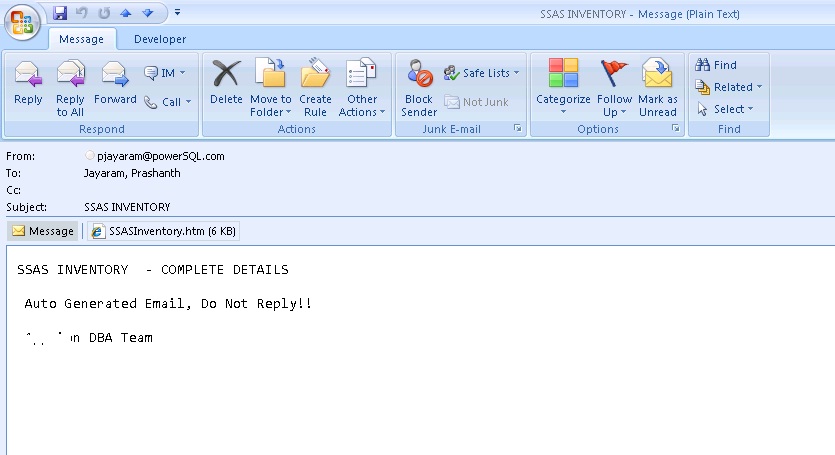
Output –
Image

Posted in SSAS | Tagged , , , , , , , , | 1 Comment

The scripting variables can be defined explicitly by using the setvar command or implicitly by using the sqlcmd -v option. Also, this is very helpful in Replication to check rowcount across publisher and subscriber articles.

Explicit Call-

SQLCMD can be enabled in Query Editor. Go to SSMS Menu -> Query ->Select SQLCMD.

:Connect hqvd0026
:SETVAR DB MyDB
CREATE DATABASE $(DB);
GO
:Connect hqvd0026
:SETVAR DB MyDB

USE $(DB)
CREATE TABLE dbo.MyTable(Col1 int);

Implict Call-

You can alternatively use SQLCMD variables in your script and pass the desired values at run time using command-line arguments.

Create a script file c:\blog\CreateDatabase.sql and paste below content

CREATE DATABASE $(DB);

Create a script file c:\blog\CreateObject.sql and paste the below content
USE $(DB)
CREATE TABLE dbo.MyTable(Col1 int);

You can then pass the database name like:Go to start -> run ->Type CMD

P:\>SQLCMD -i “c:\blog\CreateDatabase.sql” -v DatabaseName=DB -S AQDSPO8 -E

P:\>SQLCMD -i “c:\blog\CreateObject.sql” -v DatabaseName=DB -S AQDSPO8 -E

-v option to set a scripting variable that exists in a script
-S ServerName
-E Trusted Connection

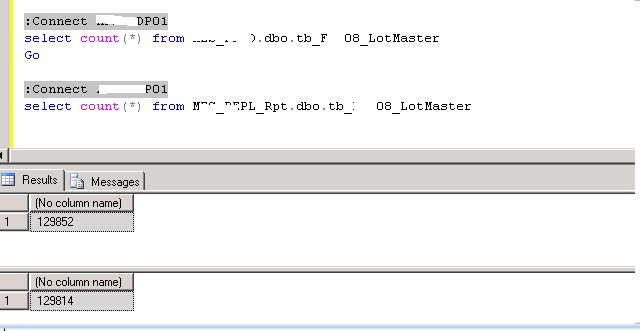
Replication – Record count across publisher and subscriber

:Connect AQMSDP01
select count(*) from MES_PROD.dbo.tb_F4108_LotMaster
Go

:Connect AQMSRP01
select count(*) from MES_REPL_Rpt.dbo.tb_F4108_LotMaster

Reolication Record Count

Replication Record Count

Posted on by Prashanth Jayaram | Leave a comment

PowerShell – Identify Service Account & Other Details of SQL Services – Multi Server Script

One of my friend requested me to give a mutli server script to pull SQL Service related details. Here is a quick PowerShell script to find Name, ServerName, Status, StartupMode, Service Account and other details of SQL Services across all listed SQL Instances. The output is shown in three different formats.

  • AutoSize
  • HTML
  • CSV

Copy and Paste the below code PowerShell-ISE and execute 

*******************************************************************************

#A PowerShell array holds a list of data items
$Result = @()
#Loop through all SQL Instances listed under F:\PowerSQL\List.txt
foreach($server in Get-Content F:\PowerSQL\List.txt)
{
#List only sql related services, gwmi is an alias of Get-WmiObject
$Services=gwmi win32_service -computername $server | where {$_.Name -like ‘*SQL*’}
#Test for unsuccesful connection
if(!(Test-Connection -Cn $server -BufferSize 16 -Count 1 -ea 0 -quiet))
{“Problem still exists in connecting to $server”}
ELSE {
$services | ForEach {
If ($_)
{ $Result += New-Object PSObject -Property @{
‘Service Display Name’ = $_.Displayname
‘Service Name’ = $_.Name
‘Start Mode’ = $_.Startmode
‘Service Account Name’ = $_.Startname
‘State’ = $_.State
‘Status’= $_.Status
‘System Name’ = $_.Systemname
}
}
}
}
}
$Result |Format-Table -AutoSize

*******************************************************************************

Output:

Image

OR

HTML Format – Change the last line of the code

$Result | ConvertTo-HTML | Out-File F:\PowerSQL\service.htm

OR

CSV File –  Change the last line of the code

$Result |Export-CSV F:\PowerSQL\service.csv

Posted in PowerShell, SQL | 5 Comments