PowerShell – SSRS Inventory – Automatic – Excel File – EMAIL

Inventory is a vital information,whether you’re a consultant or an in-house DBA, you need to have a reliable inventory of the servers you manage.

Download the file and save as SSRSInventory.PS1.

It has five mandatory parameters

  1. InputFileName – Text File contains a list of SQL Servers  -C:\Server.txt(Example)
  2. DirectoryToSave – Folder where you want to store the file
  3. ToID – to email Address
  4. FromID – From Email Address
  5. SMTP – SMTP Adress

Pre-requisites are –

  1. Windows PowerShell 2.0 must be installed
  2. Permission to access all SQL instances
  3. Permission to create a outputFile

Windows PowerShell 2.0 is installed by default on newer versions of the Windows operating systems.You must install a SQL Server feature that includes the SQL Server PowerShell (SQLPS) module and client libraries. The easiest way to do this is by installing SQL Server Management Studio, which includes the PowerShell feature and client libraries automatically. The SQL Server PowerShell (SQLPS) module contains the PowerShell providers and cmdlets for all SQL Server features.

Note: The code is tested on PowerShell 2.0 with 2005,2008, 2008 R2 SQL SSRS instances

The Excel sheet comprises following columns

  1. Name
  2. Domain Name
  3. OS
  4. DatabaseServerName
  5. CPU
  6. TotalRAM
  7. FreeRAM
  8. UsedRAM
  9. Version
  10. DatabaseName
  11. ExtendedProtectionLevel
  12. ExtendedProtectionScenario
  13. InstanceName
  14. SenderEmailAddress
  15. SendUsingSMTPServer
  16. ServiceName
  17. SMTPServer
  18. VirtualDirectoryReportManager
  19. VirtualDirectoryReportServer
  20. IsInitialized
  21. IsReportManagerEnabled
  22. IsSharePointIntegrated
  23. IsWebServiceEnabled
  24. IsWindowsServiceEnabled
  25. MachineAccountIdentity
  26. PathName
  27. SecureConnectionLevel
  28. WindowsServiceIdentityActual
  29. WindowsServiceIdentityConfigured
  30. ConnectionPoolSize
  31. DatabaseQueryTimeout
  32. Uptime
  33. IPAddress
Function Call:-
PS C:\Blog> .\SSRSInventory.ps1 -InputFileName C:\server.txt -DirectoryToSaveTo C:\ -To pram@abc.com -From pram@abc.com -SMTP mail.abc.com
 Download :- SSRSInventory
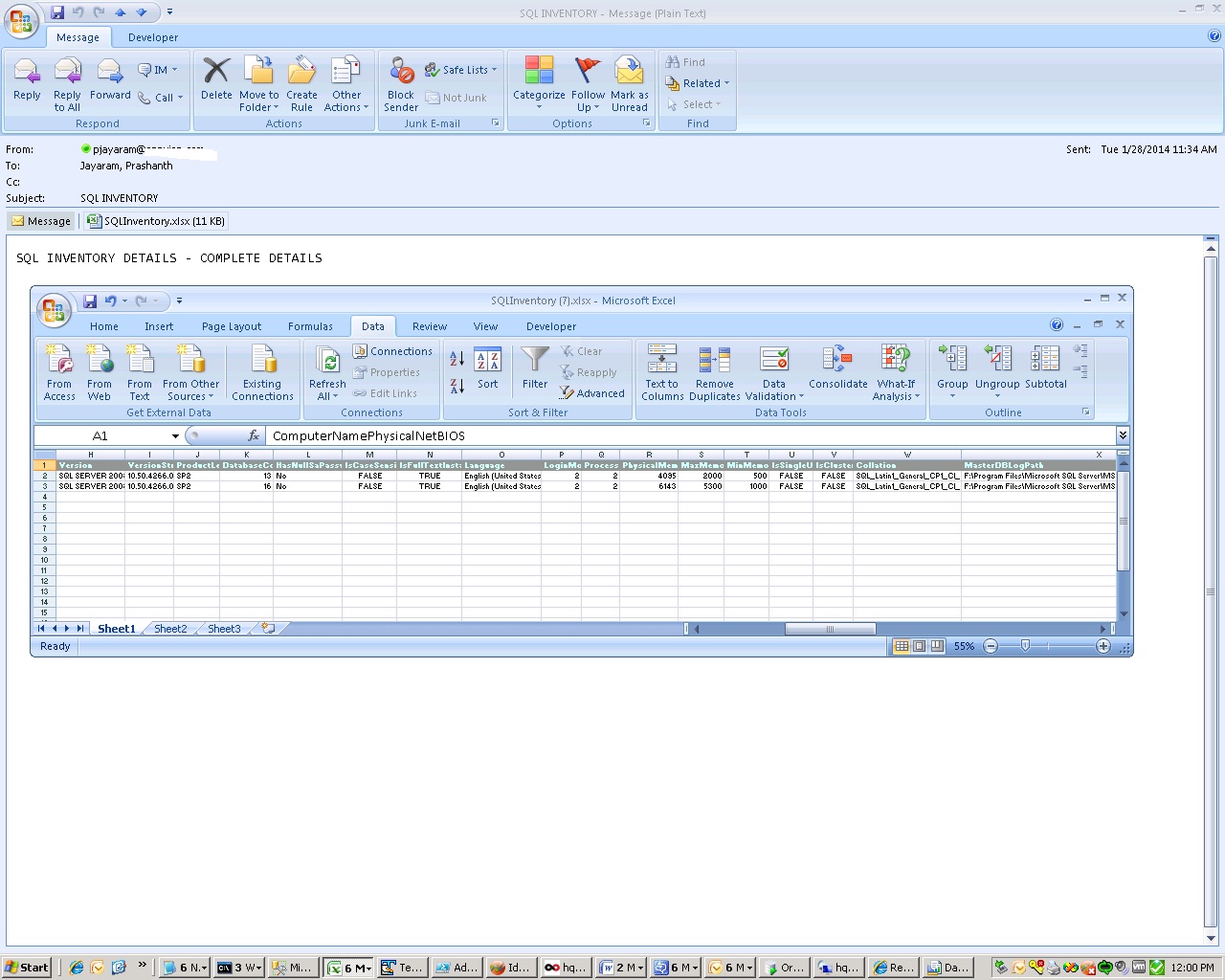
Output:-

Posted in PowerShell, SQL, SSRS | Tagged , , , | Leave a comment

PowerShell – Export SQL Data to Excel with Powershell

SQL Server  Export  to Excel with Powershell is very useful for all sorts of activities – ETL and reporting are some examples.
This post is to Export SQL Data to Excel with Powershell.In this example, a connection is made to a SQL server Instance using DSN and then SQL output is written to a Excel worksheet.
You can also do a Auto refresh of data, Open the Excel Sheet, Go to Data and click Refresh any new or updated data will reflected in the excel sheet.Pre-requisites

  1. PowerShell 2.0
  2. Excel Component
  3. Setup ODBC – User DSN –  SQL Server Driver – Source Server

Code:- Save the below content in a file ExportSQLDataToExcel.PS1 and Edit the first set of required parameters

or Download ExportSQLDataToExcel

#Just change the below parameters 

$DirectoryToSaveTo='C:\' 
$Filename='DatabaseDetails' 
$From ='pjayaram@test.com' 
$to = 'pjayaram@test.com' 
$SMTP= 'abcd.defg.com' 
$DSN='<DSNName>' 

# constants. 
$xlCenter=-4108 
$xlTop=-4160 
$xlOpenXMLWorkbook=[int]51 
# and we put the queries in here 

# You can replace the SQL 

$SQL=@" 
USE MASTER  
SELECT @@SERVERNAME Servername,  
CONVERT(VARCHAR(25), DB.name) AS dbName,  
CONVERT(VARCHAR(10), DATABASEPROPERTYEX(name, 'status')) AS [Status],  
(SELECT COUNT(1) FROM sysaltfiles WHERE DB_NAME(dbid) = DB.name AND groupid !=0 ) AS DataFiles,  
(SELECT SUM((size*8)/1024) FROM sysaltfiles WHERE DB_NAME(dbid) = DB.name AND groupid!=0) AS [Data MB],  
(SELECT COUNT(1) FROM sysaltfiles WHERE DB_NAME(dbid) = DB.name AND groupid=0) AS LogFiles,  
(SELECT SUM((size*8)/1024) FROM sysaltfiles WHERE DB_NAME(dbid) = DB.name AND groupid=0) AS [Log MB],  
(SELECT SUM((size*8)/1024) FROM sysaltfiles WHERE DB_NAME(dbid) = DB.name AND groupid!=0)+(SELECT SUM((size*8)/1024) FROM sysaltfiles WHERE DB_NAME(dbid) = DB.name AND groupid=0) TotalSizeMB,  
convert(sysname,DatabasePropertyEx(name,'Updateability'))  Updateability,  
convert(sysname,DatabasePropertyEx(name,'UserAccess')) UserAccess ,  
convert(sysname,DatabasePropertyEx(name,'Recovery')) RecoveryModel ,  
convert(sysname,DatabasePropertyEx(name,'Version')) Version ,  
CASE cmptlevel  
WHEN 60 THEN '60 (SQL Server 6.0)'  
WHEN 65 THEN '65 (SQL Server 6.5)'  
WHEN 70 THEN '70 (SQL Server 7.0)'  
WHEN 80 THEN '80 (SQL Server 2000)'  
WHEN 90 THEN '90 (SQL Server 2005)'  
WHEN 100 THEN '100 (SQL Server 2008)'  
END AS [compatibility level],  
CONVERT(VARCHAR(20), crdate, 103) + ' ' + CONVERT(VARCHAR(20), crdate, 108) AS [Creation date],  
ISNULL((SELECT TOP 1  
CASE TYPE WHEN 'D' THEN 'Full' WHEN 'I' THEN 'Differential' WHEN 'L' THEN 'Transaction log' END + ' – ' +  
LTRIM(ISNULL(STR(ABS(DATEDIFF(DAY, GETDATE(),Backup_finish_date))) + ' days ago', 'NEVER')) + ' – ' +  
CONVERT(VARCHAR(20), backup_start_date, 103) + ' ' + CONVERT(VARCHAR(20), backup_start_date, 108) + ' – ' +  
CONVERT(VARCHAR(20), backup_finish_date, 103) + ' ' + CONVERT(VARCHAR(20), backup_finish_date, 108) +  
' (' + CAST(DATEDIFF(second, BK.backup_start_date,  
BK.backup_finish_date) AS VARCHAR(4)) + ' '+ 'seconds)'  
FROM msdb.dbo.backupset BK WHERE BK.database_name = DB.name ORDER BY backup_set_id DESC),'-') AS [Last backup]  
FROM sysdatabases DB  
ORDER BY dbName, [Last backup] DESC, NAME 
"@ 

#Create a Excel file to save the data 
# if the directory doesn't exist, then create it 

if (!(Test-Path -path "$DirectoryToSave")) #create it if not existing 
  { 
  New-Item "$DirectoryToSave" -type directory | out-null 
  } 

$excel = New-Object -Com Excel.Application #open a new instance of Excel 
$excel.Visible = $True #make it visible (for debugging more than anything) 
$wb = $Excel.Workbooks.Add() #create a workbook 
$currentWorksheet=1 #there are three open worksheets you can fill up 
      if ($currentWorksheet-lt 4)  
      { 
        $ws = $wb.Worksheets.Item($currentWorksheet) 
      } 
      else   
      { 
        $ws = $wb.Worksheets.Add() 
      } #add if it doesn't exist 
      $currentWorksheet += 1 #keep a tally 

  # You can refresh it 

      $qt = $ws.QueryTables.Add("ODBC;DSN=$DSN", $ws.Range("A1"), $SQL) 
      # and execute it 
      if ($qt.Refresh()) #if the routine works OK 
            { 
            $ws.Activate() 
            $ws.Select() 
            $excel.Rows.Item(1).HorizontalAlignment = $xlCenter 
            $excel.Rows.Item(1).VerticalAlignment = $xlTop 
            $excel.Rows.Item("1:1").Font.Name = "Calibri" 
            $excel.Rows.Item("1:1").Font.Size = 11 
            $excel.Rows.Item("1:1").Font.Bold = $true 
            $Excel.Columns.Item(1).Font.Bold = $true 
            } 

$filename = "$DirectoryToSaveTo$filename.xlsx" #save it according to its title 
if (test-path $filename ) { rm $filename } #delete the file if it already exists 
$wb.SaveAs($filename,  $xlOpenXMLWorkbook) #save as an XML Workbook (xslx) 
$wb.Saved = $True #flag it as being saved 
$wb.Close() #close the document 
$Excel.Quit() #and the instance of Excel 
$wb = $Null #set all variables that point to Excel objects to null 
$ws = $Null #makes sure Excel deflates 
$Excel=$Null #let the air out 

#Function to send email with an attachment 

Function sendEmail([string]$emailFrom, [string]$emailTo, [string]$subject,[string]$body,[string]$smtpServer,[string]$filePath) 
{ 
#initate message 
$email = New-Object System.Net.Mail.MailMessage  
$email.From = $emailFrom 
$email.To.Add($emailTo) 
$email.Subject = $subject 
$email.Body = $body 
# initiate email attachment  
$emailAttach = New-Object System.Net.Mail.Attachment $filePath 
$email.Attachments.Add($emailAttach)  
#initiate sending email  
$smtp = new-object Net.Mail.SmtpClient($smtpServer) 
$smtp.Send($email) 
} 

#Call Function  
sendEmail -emailFrom $from -emailTo $to  -subject "Database Details" -body "Database Information" -smtpServer $SMTP -filePath $filename 

##################################################################

Output:-
For Testing, You can add a test database in the source server and follow the steps by opening Excel sheet. After refresh you can see the newly added database will be reflected in the worksheet.

Reference:-

https://www.simple-talk.com/content/article.aspx?article=1431

http://www.sqlserver-dba.com/2013/05/sql-server-export-to-excel-with-powershell.html

Posted in T-SQL | Tagged , , , , | 5 Comments

PowerShellGUI Tools – Disk,Memory and Process – Modules

I’ve created a script which gives details of Disk, Memory and Process and its represented graphically.

Here, the scripts are enclosed in module. At its simplest, a module is just a PowerShell script, contained in a file with a .PSM1 extension

A module is some chunk of code that you can import into PowerShell. Once imported, any cmdlets, scripts, or providers can be accessed.

Installation of a module is now very simple. download and save the file c:\PowerShellGUI.psm1

This PowerShellGUI module consists of

  1. Get-DiskSpaceGUI
  2. Get-MemoryGUI
  3. Get-ProcessGUI

Now we just need to import our module. The Scope is limited to session. If you want to load automatically then you need to create Profile (http://technet.microsoft.com/en-us/library/ff461033.aspx)

You can save the file in a default module path that can be identified using environmental variable.

PS:\>$ENV:PSMODULEPATH

There are many ways to load a module. The preferred way is to create folder and save the Module in that folder

To import and loading a module as follows.

  1. Download the module code
  2. Create a folder PowerShellGUI (Same name as that of a Module name) file at any of the below location %windir%\System32\WindowsPowerShell\v1.0\Modules OR %UserProfile%\Documents\WindowsPowerShell\Modules (preferred)
  3. Save the PowerShellGUI.psm1 %UserProfile%\Documents\WindowsPowerShell\Modules\PowerShellGUI\ (preferred)
  4. Import-Module PowershellGUI
  5. This will import the module and functions into powershell
    • Get-Module  -ListAvailable

    This will list down all available modules in powershell

    • Get-Command -Module PowerShellGUI
  6. Once you are done with step 1, 2 and 3 open a powershell window and run below commands.
  7. PS:\>Import-Module -Name PowershellGUI
  8.  This will import the module and functions into powershell
  9. PS:\>Get-Module  -ListAvailable
  10.  This will list down all available modules in powershell
  11. Get-Command -Module PowerShellGUI
OR

Save the module  to C:\PowershellGUI.psm1

  1. PS:\> Import-Module -Name C:\PowerShellGUI.psm1
  2.  PS:\>Get-Module PowerShellGUI

Download the code PowerShellGUI.PSM1 from the URL


PS:\>Get-Command -Module PowershellGUI

Ouptut:-

Remove Module:-

PS:\> Remove-Module -Name PowershellGUI

Copy and paste the below content in C:\PowerShellGUI.psm1

#########################################################################################################

Function Get-DiskSpaceGUI
{
#========================================================================
# Generated On: 01/31/2014
# Generated By: Prashanth Jayaram
# Version     : 1.1
# Change Desc : Tab Index fix and column names are changed, Form Size correction , Accept default machine name
#========================================================================

function OnApplicationLoad {

if([Reflection.Assembly]::LoadWithPartialName(“System.Windows.Forms.DataVisualization”) -eq $null)
{
#Microsoft Chart Controls are not installed
[void][reflection.assembly]::Load(“System.Windows.Forms, Version=2.0.0.0, Culture=neutral, PublicKeyToken=b77a5c561934e089”)
[void][System.Windows.Forms.MessageBox]::Show(“Microsoft Chart Controls for Microsoft .NET 3.5 Framework is required”,”Microsoft Chart Controls Required”)
#Open the URL
[System.Diagnostics.Process]::Start(“http://www.microsoft.com/downloads/en/details.aspx?familyid=130F7986-BF49-4FE5-9CA8-910AE6EA442C&displaylang=en&#8221;);
return $false
}

return $true #return true for success or false for failure
}

function OnApplicationExit {
#Note: This function is not called in Projects
#Note: This function runs after the form is closed
#TODO: Add custom code to clean up and unload snapins when the application exits

$script:ExitCode = 0 #Set the exit code for the Packager
}

#endregion Application Functions

#———————————————-
# Generated Form Function
#———————————————-
function Call-SystemInformation_pff {

#———————————————-
#region Import the Assemblies
#———————————————-
[void][reflection.assembly]::Load(“System, Version=2.0.0.0, Culture=neutral, PublicKeyToken=b77a5c561934e089”)
[void][reflection.assembly]::Load(“System.Windows.Forms, Version=2.0.0.0, Culture=neutral, PublicKeyToken=b77a5c561934e089”)
[void][reflection.assembly]::Load(“System.Data, Version=2.0.0.0, Culture=neutral, PublicKeyToken=b77a5c561934e089”)
[void][reflection.assembly]::Load(“System.Drawing, Version=2.0.0.0, Culture=neutral, PublicKeyToken=b03f5f7f11d50a3a”)
[void][reflection.assembly]::Load(“mscorlib, Version=2.0.0.0, Culture=neutral, PublicKeyToken=b77a5c561934e089”)
[void][reflection.assembly]::Load(“System.Windows.Forms.DataVisualization, Version=3.5.0.0, Culture=neutral, PublicKeyToken=31bf3856ad364e35”)
#endregion Import Assemblies

#———————————————-
#region Generated Form Objects
#———————————————-
[System.Windows.Forms.Application]::EnableVisualStyles()
$formDiskSpacePieChart = New-Object System.Windows.Forms.Form
$dataGrid1 = New-Object System.Windows.Forms.DataGrid
$chart1 = New-Object System.Windows.Forms.DataVisualization.Charting.Chart
$InitialFormWindowState = New-Object System.Windows.Forms.FormWindowState
$btnRefresh = New-Object System.Windows.Forms.Button
$btngetdata=New-Object System.Windows.Forms.Button
$rtbPerfData = New-Object System.Windows.Forms.RichTextBox
$lblServicePack = New-Object System.Windows.Forms.Label
$lblDBName= New-Object System.Windows.Forms.Label
$lblOS = New-Object System.Windows.Forms.Label
$statusBar1 = New-Object System.Windows.Forms.StatusBar
$btnClose = New-Object System.Windows.Forms.Button
$InitialFormWindowState = New-Object System.Windows.Forms.FormWindowState
$txtComputerName = New-Object System.Windows.Forms.TextBox
$dataGrid1 = New-Object System.Windows.Forms.DataGrid

function Load-Chart
{
Param( #$XPoints, $YPoints, $XTitle, $YTitle, $Title, $ChartStyle)
[Parameter(Position=1,Mandatory=$true)]
[System.Windows.Forms.DataVisualization.Charting.Chart]$ChartControl
,
[Parameter(Position=2,Mandatory=$true)]
$XPoints
,
[Parameter(Position=3,Mandatory=$true)]
$YPoints
,
[Parameter(Position=4,Mandatory=$false)]
[string]$XTitle
,
[Parameter(Position=5,Mandatory=$false)]
[string]$YTitle
,
[Parameter(Position=6,Mandatory=$false)]
[string]$Title
,
[Parameter(Position=7,Mandatory=$false)]
[System.Windows.Forms.DataVisualization.Charting.SeriesChartType]$ChartType
,
[Parameter(Position=8,Mandatory=$false)]
$SeriesIndex = 0
,
[Parameter(Position=9,Mandatory=$false)]
$TitleIndex = 0,
[switch]$Append)

$ChartAreaIndex = 0
if($Append)
{
$name = “ChartArea ” + ($ChartControl.ChartAreas.Count + 1).ToString();
$ChartArea = $ChartControl.ChartAreas.Add($name)
$ChartAreaIndex = $ChartControl.ChartAreas.Count – 1

$name = “Series ” + ($ChartControl.Series.Count + 1).ToString();
$Series = $ChartControl.Series.Add($name)
$SeriesIndex = $ChartControl.Series.Count – 1

$Series.ChartArea = $ChartArea.Name

if($Title)
{
$name = “Title ” + ($ChartControl.Titles.Count + 1).ToString();
$TitleObj = $ChartControl.Titles.Add($name)
$TitleIndex = $ChartControl.Titles.Count – 1
$TitleObj.DockedToChartArea = $ChartArea.Name
$TitleObj.IsDockedInsideChartArea = $false
}
}
else
{
if($ChartControl.ChartAreas.Count -eq  0)
{
$name = “ChartArea ” + ($ChartControl.ChartAreas.Count + 1).ToString();
[void]$ChartControl.ChartAreas.Add($name)
$ChartAreaIndex = $ChartControl.ChartAreas.Count – 1
}

if($ChartControl.Series.Count -eq 0)
{
$name = “Series ” + ($ChartControl.Series.Count + 1).ToString();
$Series = $ChartControl.Series.Add($name)
$SeriesIndex = $ChartControl.Series.Count – 1
$Series.ChartArea = $ChartControl.ChartAreas[0].Name
}
}

$Series = $ChartControl.Series[$SeriesIndex]
$ChartArea = $ChartControl.ChartAreas[$Series.ChartArea]

$Series.Points.Clear()

if($Title)
{
if($ChartControl.Titles.Count -eq 0)
{
$name = “Title ” + ($ChartControl.Titles.Count + 1).ToString();
[void]$ChartControl.Titles.Add($name)
$TitleIndex = $ChartControl.Titles.Count – 1
$TitleObj.DockedToChartArea = $ChartArea.Name
$TitleObj.IsDockedInsideChartArea = $false
}

$ChartControl.Titles[$TitleIndex].Text = $Title
}

if($ChartType)
{
$Series.ChartType = $ChartType
}

if($XTitle)
{
$ChartArea.AxisX.Title = $XTitle
}

if($YTitle)
{
$ChartArea.AxisY.Title = $YTitle
}

if($XPoints -isnot [Array] -or $XPoints -isnot [System.Collections.IEnumerable])
{
$array = New-Object System.Collections.ArrayList
$array.Add($XPoints)
$XPoints = $array
}

if($YPoints -isnot [Array] -or $YPoints -isnot [System.Collections.IEnumerable])
{
$array = New-Object System.Collections.ArrayList
$array.Add($YPoints)
$YPoints = $array
}

$Series.Points.DataBindXY($XPoints, $YPoints)

}

function Clear-Chart
{
Param (
[Parameter(Position=1,Mandatory=$true)]
[System.Windows.Forms.DataVisualization.Charting.Chart]$ChartControl
,
[Parameter(Position=2, Mandatory=$false)]
[Switch]$LeaveSingleChart
)

$count = 0
if($LeaveSingleChart)
{
$count = 1
}

while($ChartControl.Series.Count -gt $count)
{
$ChartControl.Series.RemoveAt($ChartControl.Series.Count – 1)
}

while($ChartControl.ChartAreas.Count -gt $count)
{
$ChartControl.ChartAreas.RemoveAt($ChartControl.ChartAreas.Count – 1)
}

while($ChartControl.Titles.Count -gt $count)
{
$ChartControl.Titles.RemoveAt($ChartControl.Titles.Count – 1)
}

if($ChartControl.Series.Count -gt 0)
{
$ChartControl.Series[0].Points.Clear()
}
}
#endregion

<#
$FormEvent_Load={
#TODO: Initialize Form Controls here
Load-PieChart
}
#>

function Load-PieChart
{
param(
[string[]]$servers = “$ENV:COMPUTERNAME”
)
foreach ($server in $servers) {
#Get Disk space using WMI and make sure it is an array
$Disks = @(Get-WMIObject -Namespace “root\cimv2” -class Win32_LogicalDisk -Impersonation 3 -ComputerName $server -filter “DriveType=3” )

#Remove all the current charts
Clear-Chart $chart1

#Loop through each drive
foreach($disk in $Disks)
{
$UsedSpace =(($disk.size – $disk.freespace)/1gb)
$FreeSpace = ($disk.freespace/1gb)

#Load a Chart for each Drive
Load-Chart $chart1 -XPoints (“Used ({0:N1} GB)” -f $UsedSpace), (“Free Space ({0:N1} GB)” -f $FreeSpace) -YPoints $UsedSpace, $FreeSpace -ChartType “Bar” -Title (“Volume: {0} ({1:N1} GB)” -f $disk.deviceID, ($disk.size/1gb) ) -Append
}

#Set Custom Style
foreach ($Series in $chart1.Series)
{
$Series.CustomProperties = “PieDrawingStyle=Concave”
}
}
}

function Get-DiskDetails
{
param(
[string[]]$ComputerName = $env:COMPUTERNAME
)
$Object =@()
$array = New-Object System.Collections.ArrayList
foreach ($Computer in $ComputerName) {
if(Test-Connection -ComputerName $Computer -Count 1 -ea 0) {
Write-Verbose “$Computer online”
$D=Get-WmiObject win32_logicalDisk -ComputerName $Computer  |where {$_.DriveType -eq 3}|select-object DeviceID, VolumeName,FreeSpace,Size
foreach($disk in $D)
{
$TotalSize = $Disk.Size /1Gb -as [int]
$InUseSize = ($Disk.Size /1Gb -as [int]) – ($Disk.Freespace / 1Gb -as [int])
$FreeSpaceGB = $Disk.Freespace / 1Gb -as [int]
$FreeSpacePer = ((($Disk.Freespace /1Gb -as [float]) / ($Disk.Size / 1Gb -as [float]))*100) -as [int]

$Object += New-Object PSObject -Property @{
Name= $Computer;
Drive= $Disk.DeviceID;
Label=$Disk.VolumeName;
SizeGB=$TotalSize;
UseGB=$InUseSize;
FreeGB=$FreeSpaceGB;
‘% Free’ =$FreeSpacePer;
}
}
}
}

$array.AddRange($Object)
$dataGrid1.DataSource = $array

}

$GetData={
if ($txtComputerName.text -eq ”)
{
$txtComputerName.text =$env:COMPUTERNAME
}
$statusBar1.text=”Getting Disk Space Details Data..please wait”
if(Test-Connection -ComputerName $txtComputerName.text -Count 1 -ea 0) {
$data=Get-DiskDetails -ComputerName $txtComputerName.text | Out-String
Load-PieChart -servers $txtComputerName.text
}
else
{
[Windows.Forms.MessageBox]::Show(“Not able connect to the server”, [Windows.Forms.MessageBoxIcon]::Information)
}
#$rtbPerfData.text=$data.Trim()
$errorActionPreference=”Continue”
$statusBar1.Text=”Ready”

}

$Close={
$formDiskSpacePieChart.close()

}
# –End User Generated Script–
#———————————————-
# Generated Events
#———————————————-

$Form_StateCorrection_Load=
{
#Correct the initial state of the form to prevent the .Net maximized form issue
$formDiskSpacePieChart.WindowState = $InitialFormWindowState
}

#———————————————-
#region Generated Form Code
#———————————————-
#
# formDiskSpacePieChart
#
$formDiskSpacePieChart.Controls.Add($buttonSave)
$formDiskSpacePieChart.Controls.Add($chart1)
$formDiskSpacePieChart.ClientSize = New-Object System.Drawing.Size(513,540)
$formDiskSpacePieChart.DataBindings.DefaultDataSourceUpdateMode = [System.Windows.Forms.DataSourceUpdateMode]::OnValidation
$formDiskSpacePieChart.MinimumSize = New-Object System.Drawing.Size(300,300)
$formDiskSpacePieChart.Name = “formDiskSpacePieChart”
$formDiskSpacePieChart.Text = “Disk Space Pie Chart”
$formDiskSpacePieChart.Controls.Add($btnRefresh)
$formDiskSpacePieChart.Controls.Add($lblServicePack)
$formDiskSpacePieChart.Controls.Add($lblOS)
$formDiskSpacePieChart.Controls.Add($lblDBName)
$formDiskSpacePieChart.Controls.Add($statusBar1)
$formDiskSpacePieChart.Controls.Add($btnClose)
$formDiskSpacePieChart.Controls.Add($txtComputerName)
$formDiskSpacePieChart.ClientSize = New-Object System.Drawing.Size(630,600)
$formDiskSpacePieChart.DataBindings.DefaultDataSourceUpdateMode = [System.Windows.Forms.DataSourceUpdateMode]::OnValidation
$formDiskSpacePieChart.Name = “form1”
$formDiskSpacePieChart.Text = “Disk Space Usage Information”
$formDiskSpacePieChart.add_Load($PopulateList)
$formDiskSpacePieChart.add_Load($FormEvent_Load)

$System_Drawing_Size = New-Object System.Drawing.Size
$System_Drawing_Size.Width = 600
$System_Drawing_Size.Height = 125
$dataGrid1.Size = $System_Drawing_Size
$dataGrid1.DataBindings.DefaultDataSourceUpdateMode = 0
$dataGrid1.HeaderForeColor = [System.Drawing.Color]::FromArgb(255,0,0,0)
$dataGrid1.Name = “dataGrid1”
$dataGrid1.DataMember = “”
$dataGrid1.TabIndex = 0
$System_Drawing_Point = New-Object System.Drawing.Point
$System_Drawing_Point.X =13
$System_Drawing_Point.Y = 62
$dataGrid1.Location = $System_Drawing_Point

$formDiskSpacePieChart.Controls.Add($dataGrid1)
$dataGrid1.CaptionText=’Disk Details’

#
# btnRefresh
#
$btnRefresh.DataBindings.DefaultDataSourceUpdateMode = [System.Windows.Forms.DataSourceUpdateMode]::OnValidation
$btnRefresh.Enabled = $TRUE
$btnRefresh.Location = New-Object System.Drawing.Point(230,35)
$btnRefresh.Name = “btnRefresh”
$btnRefresh.Size = New-Object System.Drawing.Size(95,20)
$btnRefresh.TabIndex = 2
$btnRefresh.Text = “GetDiskSpace”
$btnRefresh.UseVisualStyleBackColor = $True
$btnRefresh.add_Click($GetData)
#
#

# btnClose
#

$btnClose.DataBindings.DefaultDataSourceUpdateMode = [System.Windows.Forms.DataSourceUpdateMode]::OnValidation
$btngetdata.Enabled = $TRUE
$btnClose.Location = New-Object System.Drawing.Point(373,35)
$btnClose.Name = “btnClose”
$btnClose.Size = New-Object System.Drawing.Size(95,20)
$btnClose.TabIndex = 3
$btnClose.Text = “Close”
$btnClose.UseVisualStyleBackColor = $True
$btnClose.add_Click($Close)
#

# lblDBName
#
$lblDBName.DataBindings.DefaultDataSourceUpdateMode = [System.Windows.Forms.DataSourceUpdateMode]::OnValidation
$lblDBName.Font = New-Object System.Drawing.Font(“Lucida Console”,8.25,1,3,1)
$lblDBName.Location = New-Object System.Drawing.Point(13,10)
$lblDBName.Name = “lblDBName”
$lblDBName.Size = New-Object System.Drawing.Size(178,23)
$lblDBName.TabIndex = 0
$lblDBName.Text = “Enter Server Name ”
$lblDBName.Visible = $TRUE
#

#$txtComputerName.text
#txtComputerName
$txtComputerName.DataBindings.DefaultDataSourceUpdateMode = [System.Windows.Forms.DataSourceUpdateMode]::OnValidation
$txtComputerName.Location = New-Object System.Drawing.Point(13, 35)
$txtComputerName.Name = “txtComputerName”
$txtComputerName.TabIndex = 1
$txtComputerName.Size = New-Object System.Drawing.Size(200,70)
$txtComputerName.visible=$TRUE
#
# lblServicePack
#
$lblServicePack.DataBindings.DefaultDataSourceUpdateMode = [System.Windows.Forms.DataSourceUpdateMode]::OnValidation
$lblServicePack.Font = New-Object System.Drawing.Font(“Lucida Console”,8.25,1,3,1)
$lblServicePack.Location = New-Object System.Drawing.Point(13,100)
$lblServicePack.Name = “lblServicePack”
$lblServicePack.Size = New-Object System.Drawing.Size(278,23)
$lblServicePack.TabIndex = 0
$lblServicePack.Text = “ServicePack”
$lblServicePack.Visible = $False
#
# lblOS
#
$lblOS.DataBindings.DefaultDataSourceUpdateMode = [System.Windows.Forms.DataSourceUpdateMode]::OnValidation
$lblOS.Font = New-Object System.Drawing.Font(“Lucida Console”,8.25,1,3,1)
$lblOS.Location = New-Object System.Drawing.Point(12,77)
$lblOS.Name = “lblOS”
$lblOS.Size = New-Object System.Drawing.Size(278,23)
$lblOS.TabIndex = 2
$lblOS.Text = “Service Information”
$lblOS.Visible = $False
#
# statusBar1
#
$statusBar1.DataBindings.DefaultDataSourceUpdateMode = [System.Windows.Forms.DataSourceUpdateMode]::OnValidation
$statusBar1.Location = New-Object System.Drawing.Point(0,365)
$statusBar1.Name = “statusBar1”
$statusBar1.Size = New-Object System.Drawing.Size(390,22)
$statusBar1.TabIndex = 5
$statusBar1.Text = “statusBar1”

#
# chart1
#
$chart1.Anchor = [System.Windows.Forms.AnchorStyles]::Top -bor [System.Windows.Forms.AnchorStyles]::Bottom -bor [System.Windows.Forms.AnchorStyles]::Left -bor [System.Windows.Forms.AnchorStyles]::Right
$chart1.BackGradientStyle = [System.Windows.Forms.DataVisualization.Charting.GradientStyle]::TopBottom
$System_Windows_Forms_DataVisualization_Charting_ChartArea_1 = New-Object System.Windows.Forms.DataVisualization.Charting.ChartArea
$System_Windows_Forms_DataVisualization_Charting_ChartArea_1.Area3DStyle.Enable3D = $True
$System_Windows_Forms_DataVisualization_Charting_ChartArea_1.AxisX.Title = “Disk”
$System_Windows_Forms_DataVisualization_Charting_ChartArea_1.AxisY.Title = “Disk Space (MB)”
$System_Windows_Forms_DataVisualization_Charting_ChartArea_1.Name = “ChartArea1”

[void]$chart1.ChartAreas.Add($System_Windows_Forms_DataVisualization_Charting_ChartArea_1)
$chart1.DataBindings.DefaultDataSourceUpdateMode = [System.Windows.Forms.DataSourceUpdateMode]::OnValidation
$chart1.Location = New-Object System.Drawing.Point(13,200)
$chart1.Name = “chart1”
$System_Windows_Forms_DataVisualization_Charting_Series_2 = New-Object System.Windows.Forms.DataVisualization.Charting.Series
$System_Windows_Forms_DataVisualization_Charting_Series_2.ChartArea = “ChartArea1”
$System_Windows_Forms_DataVisualization_Charting_Series_2.ChartType = [System.Windows.Forms.DataVisualization.Charting.SeriesChartType]::Pie
$System_Windows_Forms_DataVisualization_Charting_Series_2.CustomProperties = “DrawingStyle=Cylinder, PieDrawingStyle=Concave”
$System_Windows_Forms_DataVisualization_Charting_Series_2.IsVisibleInLegend = $False
$System_Windows_Forms_DataVisualization_Charting_Series_2.Legend = “Legend1”
$System_Windows_Forms_DataVisualization_Charting_Series_2.Name = “Disk Space”

[void]$chart1.Series.Add($System_Windows_Forms_DataVisualization_Charting_Series_2)
$chart1.Size = New-Object System.Drawing.Size(600,350)
$chart1.TabIndex = 0
$chart1.Text = “chart1”
$System_Windows_Forms_DataVisualization_Charting_Title_3 = New-Object System.Windows.Forms.DataVisualization.Charting.Title
$System_Windows_Forms_DataVisualization_Charting_Title_3.Alignment = [System.Drawing.ContentAlignment]::TopCenter
$System_Windows_Forms_DataVisualization_Charting_Title_3.DockedToChartArea = “ChartArea1”
$System_Windows_Forms_DataVisualization_Charting_Title_3.IsDockedInsideChartArea = $False
$System_Windows_Forms_DataVisualization_Charting_Title_3.Name = “Title1”
$System_Windows_Forms_DataVisualization_Charting_Title_3.Text = “Disk Space”

[void]$chart1.Titles.Add($System_Windows_Forms_DataVisualization_Charting_Title_3)
#

#Save the initial state of the form
$InitialFormWindowState = $formDiskSpacePieChart.WindowState
#Init the OnLoad event to correct the initial state of the form
$formDiskSpacePieChart.add_Load($Form_StateCorrection_Load)
#Show the Form
return $formDiskSpacePieChart.ShowDialog()

} #End Function

if(OnApplicationLoad -eq $true)
{
#Create the form
#Call-SystemInformation_pff | Out-Null
#Call-Disk_Space_Chart_pff | Out-Null
Call-SystemInformation_pff | Out-Null
#Perform cleanup
OnApplicationExit
}
}
Function Get-MemoryGUI
{
function OnApplicationLoad {

if([Reflection.Assembly]::LoadWithPartialName(“System.Windows.Forms.DataVisualization”) -eq $null)
{
#Microsoft Chart Controls are not installed
[void][reflection.assembly]::Load(“System.Windows.Forms, Version=2.0.0.0, Culture=neutral, PublicKeyToken=b77a5c561934e089”)
[void][System.Windows.Forms.MessageBox]::Show(“Microsoft Chart Controls for Microsoft .NET 3.5 Framework is required”,”Microsoft Chart Controls Required”)
#Open the URL
[System.Diagnostics.Process]::Start(“http://www.microsoft.com/downloads/en/details.aspx?familyid=130F7986-BF49-4FE5-9CA8-910AE6EA442C&displaylang=en&#8221;);
return $false
}

return $true #return true for success or false for failure
}

function OnApplicationExit {
$script:ExitCode = 0 #Set the exit code for the Packager
}

#endregion Application Functions

#———————————————-
# Generated Form Function
#———————————————-
function Call-SystemInformation_pff {

#———————————————-
#region Import the Assemblies
#———————————————-
[void][reflection.assembly]::Load(“System, Version=2.0.0.0, Culture=neutral, PublicKeyToken=b77a5c561934e089”)
[void][reflection.assembly]::Load(“System.Windows.Forms, Version=2.0.0.0, Culture=neutral, PublicKeyToken=b77a5c561934e089”)
[void][reflection.assembly]::Load(“System.Data, Version=2.0.0.0, Culture=neutral, PublicKeyToken=b77a5c561934e089”)
[void][reflection.assembly]::Load(“System.Drawing, Version=2.0.0.0, Culture=neutral, PublicKeyToken=b03f5f7f11d50a3a”)
[void][reflection.assembly]::Load(“mscorlib, Version=2.0.0.0, Culture=neutral, PublicKeyToken=b77a5c561934e089”)
[void][reflection.assembly]::Load(“System.Windows.Forms.DataVisualization, Version=3.5.0.0, Culture=neutral, PublicKeyToken=31bf3856ad364e35”)
#endregion Import Assemblies

#———————————————-
#region Generated Form Objects
#———————————————-
[System.Windows.Forms.Application]::EnableVisualStyles()
$formMemoryPieChart = New-Object System.Windows.Forms.Form
$dataGrid1 = New-Object System.Windows.Forms.DataGrid
$chart1 = New-Object System.Windows.Forms.DataVisualization.Charting.Chart
$InitialFormWindowState = New-Object System.Windows.Forms.FormWindowState
$btnRefresh = New-Object System.Windows.Forms.Button
$btngetdata=New-Object System.Windows.Forms.Button
$rtbPerfData = New-Object System.Windows.Forms.RichTextBox
$lblServicePack = New-Object System.Windows.Forms.Label
$lblDBName= New-Object System.Windows.Forms.Label
$lblOS = New-Object System.Windows.Forms.Label
$statusBar1 = New-Object System.Windows.Forms.StatusBar
$btnClose = New-Object System.Windows.Forms.Button
$InitialFormWindowState = New-Object System.Windows.Forms.FormWindowState
$txtComputerName = New-Object System.Windows.Forms.TextBox
$dataGrid1 = New-Object System.Windows.Forms.DataGrid

function Load-Chart
{
Param( #$XPoints, $YPoints, $XTitle, $YTitle, $Title, $ChartStyle)
[Parameter(Position=1,Mandatory=$true)]
[System.Windows.Forms.DataVisualization.Charting.Chart]$ChartControl
,
[Parameter(Position=2,Mandatory=$true)]
$XPoints
,
[Parameter(Position=3,Mandatory=$true)]
$YPoints
,
[Parameter(Position=4,Mandatory=$false)]
[string]$XTitle
,
[Parameter(Position=5,Mandatory=$false)]
[string]$YTitle
,
[Parameter(Position=6,Mandatory=$false)]
[string]$Title
,
[Parameter(Position=7,Mandatory=$false)]
[System.Windows.Forms.DataVisualization.Charting.SeriesChartType]$ChartType
,
[Parameter(Position=8,Mandatory=$false)]
$SeriesIndex = 0
,
[Parameter(Position=9,Mandatory=$false)]
$TitleIndex = 0,
[switch]$Append)

$ChartAreaIndex = 0
if($Append)
{
$name = “ChartArea ” + ($ChartControl.ChartAreas.Count + 1).ToString();
$ChartArea = $ChartControl.ChartAreas.Add($name)
$ChartAreaIndex = $ChartControl.ChartAreas.Count – 1

$name = “Series ” + ($ChartControl.Series.Count + 1).ToString();
$Series = $ChartControl.Series.Add($name)
$SeriesIndex = $ChartControl.Series.Count – 1

$Series.ChartArea = $ChartArea.Name

if($Title)
{
$name = “Title ” + ($ChartControl.Titles.Count + 1).ToString();
$TitleObj = $ChartControl.Titles.Add($name)
$TitleIndex = $ChartControl.Titles.Count – 1
$TitleObj.DockedToChartArea = $ChartArea.Name
$TitleObj.IsDockedInsideChartArea = $false
}
}
else
{
if($ChartControl.ChartAreas.Count -eq  0)
{
$name = “ChartArea ” + ($ChartControl.ChartAreas.Count + 1).ToString();
[void]$ChartControl.ChartAreas.Add($name)
$ChartAreaIndex = $ChartControl.ChartAreas.Count – 1
}

if($ChartControl.Series.Count -eq 0)
{
$name = “Series ” + ($ChartControl.Series.Count + 1).ToString();
$Series = $ChartControl.Series.Add($name)
$SeriesIndex = $ChartControl.Series.Count – 1
$Series.ChartArea = $ChartControl.ChartAreas[0].Name
}
}

$Series = $ChartControl.Series[$SeriesIndex]
$ChartArea = $ChartControl.ChartAreas[$Series.ChartArea]

$Series.Points.Clear()

if($Title)
{
if($ChartControl.Titles.Count -eq 0)
{
$name = “Title ” + ($ChartControl.Titles.Count + 1).ToString();
[void]$ChartControl.Titles.Add($name)
$TitleIndex = $ChartControl.Titles.Count – 1
$TitleObj.DockedToChartArea = $ChartArea.Name
$TitleObj.IsDockedInsideChartArea = $false
}

$ChartControl.Titles[$TitleIndex].Text = $Title
}

if($ChartType)
{
$Series.ChartType = $ChartType
}

if($XTitle)
{
$ChartArea.AxisX.Title = $XTitle
}

if($YTitle)
{
$ChartArea.AxisY.Title = $YTitle
}

if($XPoints -isnot [Array] -or $XPoints -isnot [System.Collections.IEnumerable])
{
$array = New-Object System.Collections.ArrayList
$array.Add($XPoints)
$XPoints = $array
}

if($YPoints -isnot [Array] -or $YPoints -isnot [System.Collections.IEnumerable])
{
$array = New-Object System.Collections.ArrayList
$array.Add($YPoints)
$YPoints = $array
}

$Series.Points.DataBindXY($XPoints, $YPoints)

}

function Clear-Chart
{
Param (
[Parameter(Position=1,Mandatory=$true)]
[System.Windows.Forms.DataVisualization.Charting.Chart]$ChartControl
,
[Parameter(Position=2, Mandatory=$false)]
[Switch]$LeaveSingleChart
)

$count = 0
if($LeaveSingleChart)
{
$count = 1
}

while($ChartControl.Series.Count -gt $count)
{
$ChartControl.Series.RemoveAt($ChartControl.Series.Count – 1)
}

while($ChartControl.ChartAreas.Count -gt $count)
{
$ChartControl.ChartAreas.RemoveAt($ChartControl.ChartAreas.Count – 1)
}

while($ChartControl.Titles.Count -gt $count)
{
$ChartControl.Titles.RemoveAt($ChartControl.Titles.Count – 1)
}

if($ChartControl.Series.Count -gt 0)
{
$ChartControl.Series[0].Points.Clear()
}
}
#endregion

<#
$FormEvent_Load={
#TODO: Initialize Form Controls here
Load-PieChart
}
#>

function Load-PieChart
{
param(
[string[]]$servers = “$ENV:COMPUTERNAME”
)
foreach ($server in $servers) {
#Get Disk space using WMI and make sure it is an array
$Memory = @(Get-WmiObject -Class Win32_OperatingSystem -computername $servers | Select-Object Name, TotalVisibleMemorySize, FreePhysicalMemory,TotalVirtualMemorySize,FreeVirtualMemory,FreeSpaceInPagingFiles,NumberofProcesses,NumberOfUsers )

#Remove all the current charts
Clear-Chart $chart1

#Loop through each drive
foreach($m in $Memory)
{
$TotalRAM = $m.TotalVisibleMemorySize/1MB
$FreeRAM = $m.FreePhysicalMemory/1MB
$TotalVirtualMemorySize=[Math]::Round($m.TotalVirtualMemorySize/1MB, 3)
$FreeVirtualMemory=[Math]::Round($m.FreeVirtualMemory/1MB, 3)

#Load a Chart for each Drive
Load-Chart $chart1 -XPoints (“Physical Total RAM ({0:N1} GB)” -f $TotalRAM), (“Physical Free RAM ({0:N1} GB)” -f $FreeRAM) -YPoints $TotalRAM, $FreeRAM -ChartType “Bar” -Title (“Physical Memory Chart”) -Append
Load-Chart $chart1 -XPoints (“Virtual Total RAM ({0:N1} GB)” -f $TotalVirtualMemorySize), (“Virtual Free RAM ({0:N1} GB)” -f $FreeVirtualMemory) -YPoints $TotalVirtualMemorySize, $FreeVirtualMemory -ChartType “Bar” -Title (” Virtual Memory Chart”) -Append

}

#Set Custom Style
foreach ($Series in $chart1.Series)
{
$Series.CustomProperties = “PieDrawingStyle=Concave”
}
}
}

function Get-OSMemory
{
param(
[string]$Computer = “$ENV:COMPUTERNAME”
)
$script:Object =@()
$script:array = New-Object System.Collections.ArrayList
$Object =@()

if(Test-Connection -ComputerName $Computer -Count 1 -ea 0) {
$SystemInfo = Get-WmiObject -Class Win32_OperatingSystem -computername $Computer | Select-Object Name, TotalVisibleMemorySize, FreePhysicalMemory,TotalVirtualMemorySize,FreeVirtualMemory,FreeSpaceInPagingFiles,NumberofProcesses,NumberOfUsers
$TotalRAM = $SystemInfo.TotalVisibleMemorySize/1MB
$FreeRAM = $SystemInfo.FreePhysicalMemory/1MB
$UsedRAM = $TotalRAM – $FreeRAM
$RAMPercentFree = ($FreeRAM / $TotalRAM) * 100
$TotalRAM = [Math]::Round($TotalRAM, 2)
$FreeRAM = [Math]::Round($FreeRAM, 2)
$UsedRAM = [Math]::Round($UsedRAM, 2)
$RAMPercentFree = [Math]::Round($RAMPercentFree, 2)
$TotalVirtualMemorySize=[Math]::Round($SystemInfo.TotalVirtualMemorySize/1MB, 3)
$FreeVirtualMemory=[Math]::Round($SystemInfo.FreeVirtualMemory/1MB, 3)
$FreeSpaceInPagingFiles=[Math]::Round($SystemInfo.FreeSpaceInPagingFiles/1MB, 3)
$NP=$SystemInfo.NumberofProcesses
$NU=$SystemInfo.NumberOfUsers

$Object += New-Object PSObject -Property @{
ComputerName = $Computer.ToUpper();
#Architecture = $architecture;
#OperatingSystem = $OS;
TotalRAMGB = $TotalRAM;
FreeRAMGB = $FreeRAM;
UsedRAMGB = $UsedRAM;
FreeRAMPercentage =$RAMPercentFree;
TotalVMSizeGB=$TotalVirtualMemorySize;
FreeVMGB=$FreeVirtualMemory;
FreeSpaceInPageFileGB=$FreeSpaceInPagingFiles;
NoOfProcesses=$NP;
NoOfUsers=$NU
}
}

$array.AddRange($Object)
$dataGrid1.DataSource = $array

}

$GetData={
$statusBar1.text=”Getting Memory Details Data..please wait”
if ($txtComputerName.text -eq ”)
{
$txtComputerName.text=$ENV:COMPUTERNAME
}
if(Test-Connection -ComputerName $txtComputerName.text -Count 1 -ea 0) {
$data=Get-OSMemory -Computer $txtComputerName.text | Out-String
Load-PieChart -servers $txtComputerName.text
}
else
{
[Windows.Forms.MessageBox]::Show(“Unable to connect to the server!!”)
}

$errorActionPreference=”Continue”
$statusBar1.Text=”Ready”

}

$Close={
$formMemoryPieChart.close()

}
# –End User Generated Script–
#———————————————-
# Generated Events
#———————————————-

$Form_StateCorrection_Load=
{
#Correct the initial state of the form to prevent the .Net maximized form issue
$formMemoryPieChart.WindowState = $InitialFormWindowState
}

#———————————————-
#region Generated Form Code
#———————————————-
#
# formMemoryPieChart
#
$formMemoryPieChart.Controls.Add($buttonSave)
$formMemoryPieChart.Controls.Add($chart1)
$formMemoryPieChart.ClientSize = New-Object System.Drawing.Size(575,575)
$formMemoryPieChart.DataBindings.DefaultDataSourceUpdateMode = [System.Windows.Forms.DataSourceUpdateMode]::OnValidation
$formMemoryPieChart.MinimumSize = New-Object System.Drawing.Size(300,300)
$formMemoryPieChart.Name = “formMemoryPieChart”
$formMemoryPieChart.Text = “Disk Space Pie Chart”
$formMemoryPieChart.Controls.Add($btnRefresh)
$formMemoryPieChart.Controls.Add($lblServicePack)
$formMemoryPieChart.Controls.Add($lblOS)
$formMemoryPieChart.Controls.Add($lblDBName)
$formMemoryPieChart.Controls.Add($statusBar1)
$formMemoryPieChart.Controls.Add($btnClose)
$formMemoryPieChart.Controls.Add($txtComputerName)
$formMemoryPieChart.ClientSize = New-Object System.Drawing.Size(850,600)
$formMemoryPieChart.DataBindings.DefaultDataSourceUpdateMode = [System.Windows.Forms.DataSourceUpdateMode]::OnValidation
$formMemoryPieChart.Name = “form1”
$formMemoryPieChart.Text = “Physical and Virtual Memory Usage Information”
$formMemoryPieChart.add_Load($PopulateList)
$formMemoryPieChart.add_Load($FormEvent_Load)

$System_Drawing_Size = New-Object System.Drawing.Size
$System_Drawing_Size.Width = 825
$System_Drawing_Size.Height = 100
$dataGrid1.Size = $System_Drawing_Size
$dataGrid1.DataBindings.DefaultDataSourceUpdateMode = 0
$dataGrid1.HeaderForeColor = [System.Drawing.Color]::FromArgb(255,0,0,0)
$dataGrid1.Name = “dataGrid1”
$dataGrid1.DataMember = “”
$dataGrid1.TabIndex = 0
$System_Drawing_Point = New-Object System.Drawing.Point
$System_Drawing_Point.X =13
$System_Drawing_Point.Y = 62
$dataGrid1.Location = $System_Drawing_Point

$formMemoryPieChart.Controls.Add($dataGrid1)
$dataGrid1.CaptionText=’Physical and Virtual Memory Usage Information’

#
# btnRefresh
#
$btnRefresh.DataBindings.DefaultDataSourceUpdateMode = [System.Windows.Forms.DataSourceUpdateMode]::OnValidation
$btnRefresh.Enabled = $TRUE
$btnRefresh.Location = New-Object System.Drawing.Point(230,35)
$btnRefresh.Name = “btnRefresh”
$btnRefresh.Size = New-Object System.Drawing.Size(95,20)
$btnRefresh.TabIndex = 2
$btnRefresh.Text = “GetMemory”
$btnRefresh.UseVisualStyleBackColor = $True
$btnRefresh.add_Click($GetData)
#
#

# btnClose
#

$btnClose.DataBindings.DefaultDataSourceUpdateMode = [System.Windows.Forms.DataSourceUpdateMode]::OnValidation
$btngetdata.Enabled = $TRUE
$btnClose.Location = New-Object System.Drawing.Point(373,35)
$btnClose.Name = “btnClose”
$btnClose.Size = New-Object System.Drawing.Size(95,20)
$btnClose.TabIndex = 3
$btnClose.Text = “Close”
$btnClose.UseVisualStyleBackColor = $True
$btnClose.add_Click($Close)
#

# lblDBName
#
$lblDBName.DataBindings.DefaultDataSourceUpdateMode = [System.Windows.Forms.DataSourceUpdateMode]::OnValidation
$lblDBName.Font = New-Object System.Drawing.Font(“Lucida Console”,8.25,1,3,1)
$lblDBName.Location = New-Object System.Drawing.Point(13,10)
$lblDBName.Name = “lblDBName”
$lblDBName.Size = New-Object System.Drawing.Size(178,23)
$lblDBName.TabIndex = 0
$lblDBName.Text = “Enter Server Name ”
$lblDBName.Visible = $TRUE
#

#$txtComputerName.text
#txtComputerName
$txtComputerName.DataBindings.DefaultDataSourceUpdateMode = [System.Windows.Forms.DataSourceUpdateMode]::OnValidation
$txtComputerName.Location = New-Object System.Drawing.Point(13, 35)
$txtComputerName.Name = “txtComputerName”
$txtComputerName.TabIndex = 1
$txtComputerName.Size = New-Object System.Drawing.Size(200,70)
$txtComputerName.visible=$TRUE
#
# lblServicePack
#
$lblServicePack.DataBindings.DefaultDataSourceUpdateMode = [System.Windows.Forms.DataSourceUpdateMode]::OnValidation
$lblServicePack.Font = New-Object System.Drawing.Font(“Lucida Console”,8.25,1,3,1)
$lblServicePack.Location = New-Object System.Drawing.Point(13,100)
$lblServicePack.Name = “lblServicePack”
$lblServicePack.Size = New-Object System.Drawing.Size(278,23)
# $lblServicePack.TabIndex = 0
$lblServicePack.Text = “ServicePack”
$lblServicePack.Visible = $False
#
# lblOS
#
$lblOS.DataBindings.DefaultDataSourceUpdateMode = [System.Windows.Forms.DataSourceUpdateMode]::OnValidation
$lblOS.Font = New-Object System.Drawing.Font(“Lucida Console”,8.25,1,3,1)
$lblOS.Location = New-Object System.Drawing.Point(12,77)
$lblOS.Name = “lblOS”
$lblOS.Size = New-Object System.Drawing.Size(278,23)
#    $lblOS.TabIndex = 2
$lblOS.Text = “Service Information”
$lblOS.Visible = $False
#
# statusBar1
#
$statusBar1.DataBindings.DefaultDataSourceUpdateMode = [System.Windows.Forms.DataSourceUpdateMode]::OnValidation
$statusBar1.Location = New-Object System.Drawing.Point(0,365)
$statusBar1.Name = “statusBar1”
$statusBar1.Size = New-Object System.Drawing.Size(390,22)
$statusBar1.TabIndex = 5
$statusBar1.Text = “statusBar1”

#
# chart1
#
$chart1.Anchor = [System.Windows.Forms.AnchorStyles]::Top -bor [System.Windows.Forms.AnchorStyles]::Bottom -bor [System.Windows.Forms.AnchorStyles]::Left -bor [System.Windows.Forms.AnchorStyles]::Right
$chart1.BackGradientStyle = [System.Windows.Forms.DataVisualization.Charting.GradientStyle]::TopBottom
$System_Windows_Forms_DataVisualization_Charting_ChartArea_1 = New-Object System.Windows.Forms.DataVisualization.Charting.ChartArea
$System_Windows_Forms_DataVisualization_Charting_ChartArea_1.Area3DStyle.Enable3D = $True
$System_Windows_Forms_DataVisualization_Charting_ChartArea_1.AxisX.Title = “Disk”
$System_Windows_Forms_DataVisualization_Charting_ChartArea_1.AxisY.Title = “Disk Space (MB)”
$System_Windows_Forms_DataVisualization_Charting_ChartArea_1.Name = “ChartArea1”

[void]$chart1.ChartAreas.Add($System_Windows_Forms_DataVisualization_Charting_ChartArea_1)
$chart1.DataBindings.DefaultDataSourceUpdateMode = [System.Windows.Forms.DataSourceUpdateMode]::OnValidation
$chart1.Location = New-Object System.Drawing.Point(13,200)
$chart1.Name = “chart1”
$System_Windows_Forms_DataVisualization_Charting_Series_2 = New-Object System.Windows.Forms.DataVisualization.Charting.Series
$System_Windows_Forms_DataVisualization_Charting_Series_2.ChartArea = “ChartArea1”
$System_Windows_Forms_DataVisualization_Charting_Series_2.ChartType = [System.Windows.Forms.DataVisualization.Charting.SeriesChartType]::Pie
$System_Windows_Forms_DataVisualization_Charting_Series_2.CustomProperties = “DrawingStyle=Cylinder, PieDrawingStyle=Concave”
$System_Windows_Forms_DataVisualization_Charting_Series_2.IsVisibleInLegend = $False
$System_Windows_Forms_DataVisualization_Charting_Series_2.Legend = “Legend1”
$System_Windows_Forms_DataVisualization_Charting_Series_2.Name = “Memory Area”

[void]$chart1.Series.Add($System_Windows_Forms_DataVisualization_Charting_Series_2)
$chart1.Size = New-Object System.Drawing.Size(825,350)
$chart1.TabIndex = 0
$chart1.Text = “chart1”
$System_Windows_Forms_DataVisualization_Charting_Title_3 = New-Object System.Windows.Forms.DataVisualization.Charting.Title
$System_Windows_Forms_DataVisualization_Charting_Title_3.Alignment = [System.Drawing.ContentAlignment]::TopCenter
$System_Windows_Forms_DataVisualization_Charting_Title_3.DockedToChartArea = “ChartArea1”
$System_Windows_Forms_DataVisualization_Charting_Title_3.IsDockedInsideChartArea = $False
$System_Windows_Forms_DataVisualization_Charting_Title_3.Name = “Title1”
$System_Windows_Forms_DataVisualization_Charting_Title_3.Text = “Memory Area”

[void]$chart1.Titles.Add($System_Windows_Forms_DataVisualization_Charting_Title_3)
#

#Save the initial state of the form
$InitialFormWindowState = $formMemoryPieChart.WindowState
#Init the OnLoad event to correct the initial state of the form
$formMemoryPieChart.add_Load($Form_StateCorrection_Load)
#Show the Form
return $formMemoryPieChart.ShowDialog()

} #End Function

#Call OnApplicationLoad to initialize
if(OnApplicationLoad -eq $true)
{
#Create the form
Call-SystemInformation_pff | Out-Null
#Perform cleanup
OnApplicationExit
}
}

function Get-ProcessGUI
{
#========================================================================
# Generated On: 02/07/2014
# Generated By: Prashanth Jayaram
# Version     : 1.1
# Description : TOP 10 Process – Memory consumption Report – 3D Graph
#========================================================================

function OnApplicationLoad {

if([Reflection.Assembly]::LoadWithPartialName(“System.Windows.Forms.DataVisualization”) -eq $null)
{
#Microsoft Chart Controls are not installed
[void][reflection.assembly]::Load(“System.Windows.Forms, Version=2.0.0.0, Culture=neutral, PublicKeyToken=b77a5c561934e089”)
[void][System.Windows.Forms.MessageBox]::Show(“Microsoft Chart Controls for Microsoft .NET 3.5 Framework is required”,”Microsoft Chart Controls Required”)
#Open the URL
[System.Diagnostics.Process]::Start(“http://www.microsoft.com/downloads/en/details.aspx?familyid=130F7986-BF49-4FE5-9CA8-910AE6EA442C&displaylang=en&#8221;);
return $false
}

return $true #return true for success or false for failure
}

function OnApplicationExit {
#Note: This function is not called in Projects
#Note: This function runs after the form is closed
#TODO: Add custom code to clean up and unload snapins when the application exits

$script:ExitCode = 0 #Set the exit code for the Packager
}

#endregion Application Functions

#———————————————-
# Generated Form Function
#———————————————-
function Call-SystemInformation_pff {

#———————————————-
#region Import the Assemblies
#———————————————-
[void][reflection.assembly]::Load(“System, Version=2.0.0.0, Culture=neutral, PublicKeyToken=b77a5c561934e089”)
[void][reflection.assembly]::Load(“System.Windows.Forms, Version=2.0.0.0, Culture=neutral, PublicKeyToken=b77a5c561934e089”)
[void][reflection.assembly]::Load(“System.Data, Version=2.0.0.0, Culture=neutral, PublicKeyToken=b77a5c561934e089”)
[void][reflection.assembly]::Load(“System.Drawing, Version=2.0.0.0, Culture=neutral, PublicKeyToken=b03f5f7f11d50a3a”)
[void][reflection.assembly]::Load(“mscorlib, Version=2.0.0.0, Culture=neutral, PublicKeyToken=b77a5c561934e089”)
[void][reflection.assembly]::Load(“System.Windows.Forms.DataVisualization, Version=3.5.0.0, Culture=neutral, PublicKeyToken=31bf3856ad364e35”)
#endregion Import Assemblies

#———————————————-
#region Generated Form Objects
#———————————————-
[System.Windows.Forms.Application]::EnableVisualStyles()
$formProcessPieChart = New-Object System.Windows.Forms.Form
$dataGrid1 = New-Object System.Windows.Forms.DataGrid
$chart = New-Object System.Windows.Forms.DataVisualization.Charting.Chart
$InitialFormWindowState = New-Object System.Windows.Forms.FormWindowState
$btnRefresh = New-Object System.Windows.Forms.Button
$btnClear = New-Object System.Windows.Forms.Button
$btngetdata=New-Object System.Windows.Forms.Button
$rtbPerfData = New-Object System.Windows.Forms.RichTextBox
$lblServicePack = New-Object System.Windows.Forms.Label
$lblDBName= New-Object System.Windows.Forms.Label
$lblOS = New-Object System.Windows.Forms.Label
$statusBar1 = New-Object System.Windows.Forms.StatusBar
$btnClose = New-Object System.Windows.Forms.Button
$InitialFormWindowState = New-Object System.Windows.Forms.FormWindowState
$txtComputerName = New-Object System.Windows.Forms.TextBox
$dataGrid1 = New-Object System.Windows.Forms.DataGrid

function Load-Chart
{
Param( #$XPoints, $YPoints, $XTitle, $YTitle, $Title, $ChartStyle)
[Parameter(Position=1,Mandatory=$true)]
[System.Windows.Forms.DataVisualization.Charting.Chart]$ChartControl
,
[Parameter(Position=2,Mandatory=$true)]
$XPoints
,
[Parameter(Position=3,Mandatory=$true)]
$YPoints
,
[Parameter(Position=4,Mandatory=$false)]
[string]$XTitle
,
[Parameter(Position=5,Mandatory=$false)]
[string]$YTitle
,
[Parameter(Position=6,Mandatory=$false)]
[string]$Title
,
[Parameter(Position=7,Mandatory=$false)]
[System.Windows.Forms.DataVisualization.Charting.SeriesChartType]$ChartType
,
[Parameter(Position=8,Mandatory=$false)]
$SeriesIndex = 0
,
[Parameter(Position=9,Mandatory=$false)]
$TitleIndex = 0,
[switch]$Append)

$ChartAreaIndex = 0
if($Append)
{
$name = “ChartArea ” + ($ChartControl.ChartAreas.Count + 1).ToString();
$ChartArea = $ChartControl.ChartAreas.Add($name)
$ChartAreaIndex = $ChartControl.ChartAreas.Count – 1

$name = “Series ” + ($ChartControl.Series.Count + 1).ToString();
$Series = $ChartControl.Series.Add($name)
$SeriesIndex = $ChartControl.Series.Count – 1

$Series.ChartArea = $ChartArea.Name

if($Title)
{
$name = “Title ” + ($ChartControl.Titles.Count + 1).ToString();
$TitleObj = $ChartControl.Titles.Add($name)
$TitleIndex = $ChartControl.Titles.Count – 1
$TitleObj.DockedToChartArea = $ChartArea.Name
$TitleObj.IsDockedInsideChartArea = $false
}
}
else
{
if($ChartControl.ChartAreas.Count -eq  0)
{
$name = “ChartArea ” + ($ChartControl.ChartAreas.Count + 1).ToString();
[void]$ChartControl.ChartAreas.Add($name)
$ChartAreaIndex = $ChartControl.ChartAreas.Count – 1
}

if($ChartControl.Series.Count -eq 0)
{
$name = “Series ” + ($ChartControl.Series.Count + 1).ToString();
$Series = $ChartControl.Series.Add($name)
$SeriesIndex = $ChartControl.Series.Count – 1
$Series.ChartArea = $ChartControl.ChartAreas[0].Name
}
}

$Series = $ChartControl.Series[$SeriesIndex]
$ChartArea = $ChartControl.ChartAreas[$Series.ChartArea]

$Series.Points.Clear()

if($Title)
{
if($ChartControl.Titles.Count -eq 0)
{
$name = “Title ” + ($ChartControl.Titles.Count + 1).ToString();
[void]$ChartControl.Titles.Add($name)
$TitleIndex = $ChartControl.Titles.Count – 1
$TitleObj.DockedToChartArea = $ChartArea.Name
$TitleObj.IsDockedInsideChartArea = $false
}

$ChartControl.Titles[$TitleIndex].Text = $Title
}

if($ChartType)
{
$Series.ChartType = $ChartType
}

if($XTitle)
{
$ChartArea.AxisX.Title = $XTitle
}

if($YTitle)
{
$ChartArea.AxisY.Title = $YTitle
}

if($XPoints -isnot [Array] -or $XPoints -isnot [System.Collections.IEnumerable])
{
$array = New-Object System.Collections.ArrayList
$array.Add($XPoints)
$XPoints = $array
}

if($YPoints -isnot [Array] -or $YPoints -isnot [System.Collections.IEnumerable])
{
$array = New-Object System.Collections.ArrayList
$array.Add($YPoints)
$YPoints = $array
}

$Series.Points.DataBindXY($XPoints, $YPoints)

}

function Clear-Chart
{
Param (
[Parameter(Position=1,Mandatory=$true)]
[System.Windows.Forms.DataVisualization.Charting.Chart]$ChartControl
,
[Parameter(Position=2, Mandatory=$false)]
[Switch]$LeaveSingleChart
)

$count = 0
if($LeaveSingleChart)
{
$count = 1
}

while($ChartControl.Series.Count -gt $count)
{
$ChartControl.Series.RemoveAt($ChartControl.Series.Count – 1)
}

while($ChartControl.ChartAreas.Count -gt $count)
{
$ChartControl.ChartAreas.RemoveAt($ChartControl.ChartAreas.Count – 1)
}

while($ChartControl.Titles.Count -gt $count)
{
$ChartControl.Titles.RemoveAt($ChartControl.Titles.Count – 1)
}

if($ChartControl.Series.Count -gt 0)
{
$ChartControl.Series[0].Points.Clear()
}
}
#endregion

<#
$FormEvent_Load={
#TODO: Initialize Form Controls here
Load-PieChart
}
#>

Function  Load-PieChart {
Param([string]$computername)
$Chart.ChartAreas.Add($ChartArea)

$process = [System.Diagnostics.Process]

$Processes = $process::GetProcesses($computername)|Sort-Object WS -Descending|select Handles,
@{Label=”NPM(K)”;Expression={[int]($_.NPM/1024)}}, `
@{Label=”PM(K)”;Expression={[int]($_.PM/1024)}}, `
@{Label=”WS”;Expression={[int]($_.WS/1024)}}, `
@{Label=”VM(M)”;Expression={[int]($_.VM/1MB)}}, `
Id, ProcessName, MachineName -first 9

$ProcNames = @(foreach($Proc in $Processes){$Proc.ProcessName+ “_”+$Proc.ID})
$WS = @(foreach($Proc in $Processes){$Proc.WS/1KB})

$Chart.Series.Add(“Data”)
$Chart.Series[“Data”].Points.DataBindXY($ProcNames, $WS)

$ChartArea.AxisX.Title = “Process”
$ChartArea.AxisY.Title = “Working Set (KB)”

# Find point with max/min values and change their colour
$maxValuePoint = $Chart.Series[“Data”].Points.FindMaxByValue()
$maxValuePoint.Color = [System.Drawing.Color]::Red

$minValuePoint = $Chart.Series[“Data”].Points.FindMinByValue()
$minValuePoint.Color = [System.Drawing.Color]::Green

# make bars into 3d cylinders
#$Chart.Series[“Data”][“DrawingStyle”] = “Cylinder”
$chartArea.Area3DStyle = New-Object System.Windows.Forms.DataVisualization.Charting.ChartArea3DStyle  -Property @{Enable3D=$true; IsRightAngleAxes=$false; Rotation=10; Inclination=10;}

# display the chart on a form
$Chart.Anchor = [System.Windows.Forms.AnchorStyles]::Bottom -bor [System.Windows.Forms.AnchorStyles]::Right -bor
[System.Windows.Forms.AnchorStyles]::Top -bor [System.Windows.Forms.AnchorStyles]::Left

}

Function Get-ProcPerf {
Param([string]$computername)
$Object =@()
$array = New-Object System.Collections.ArrayList
# load the appropriate assemblies
# add data to chart
$process = [System.Diagnostics.Process]
#$process::GetProcesses($server)

$prc=$process::GetProcesses($computername)|Sort-Object WS -Descending|select Handles, `
@{Label=”NPM”;Expression={[int]($_.NPM/1024)}}, `
@{Label=”PM”;Expression={[int]($_.PM/1MB)}}, `
@{Label=”WS”;Expression={[int]($_.WS/1MB)}}, `
@{Label=”VM”;Expression={[int]($_.VM/1MB)}}, `
Id, ProcessName, MachineName -first 9

$Object =@()

foreach ($p in $prc)
{
$Object += New-Object PSObject -Property @{
Handles = $p.Handles;
NPM = $P.NPM;
PM = $P.PM;
WoringSet = $P.WS;
VM= $P.VM;
ID=$P.Id;
Name=$P.ProcessName;
SrvName=$P.MachineName

}
}

$column1 = @{expression=”MachineName”; width=20; label=”MachineName”; alignment=”left”}
$column2 = @{expression=”Handles”; width=10; label=”Handles”; alignment=”left”}
$column3 = @{expression=”NPM”; width=10; label=”NPM(K)”; alignment=”left”}
$column4 = @{expression=”PM”; width=10; label=”PM(K)”; alignment=”left”}
$column5 = @{expression=”WS”; width=10; label=”WS(K)”; alignment=”left”}
$column6 = @{expression=”VM”; width=10; label=”VM(MB)”; alignment=”left”}
$column7 = @{expression=”id”; width=10; label=”ProcessID”; alignment=”left”}
$column8 = @{expression=”Name”; width=15; label=”ProcessName”; alignment=”left”}

“#”*80
“Process Information”
“Generated $(get-date)”
“Generated from $(gc env:computername)”
“#”*80

#$Object
$Object |Format-Table  $column1,$column2,$column3,$column4,$column5,$column6,$column7,$column8

$array.AddRange($Object)
$dataGrid1.DataSource = $array

}

function Clear-Chart
{
Param (
[Parameter(Position=1,Mandatory=$true)]
[System.Windows.Forms.DataVisualization.Charting.Chart]$ChartControl
,
[Parameter(Position=2, Mandatory=$false)]
[Switch]$LeaveSingleChart
)

$count = 0
if($LeaveSingleChart)
{
$count = 1
}

while($ChartControl.Series.Count -gt $count)
{
$ChartControl.Series.RemoveAt($ChartControl.Series.Count – 1)
}

while($ChartControl.ChartAreas.Count -gt $count)
{
$ChartControl.ChartAreas.RemoveAt($ChartControl.ChartAreas.Count – 1)
}

while($ChartControl.Titles.Count -gt $count)
{
$ChartControl.Titles.RemoveAt($ChartControl.Titles.Count – 1)
}

if($ChartControl.Series.Count -gt 0)
{
$ChartControl.Series[0].Points.Clear()
}
}

$cleardata={
Clear-Chart $chart

}

$GetData={
Clear-Chart $chart

if ($txtComputerName.text -eq ”)
{
$txtComputerName.text =$env:COMPUTERNAME
}
$statusBar1.text=”Getting Process information ..please wait”
if(Test-Connection -ComputerName $txtComputerName.text -Count 1 -ea 0) {
$data=Get-ProcPerf -ComputerName $txtComputerName.text | Out-String

Load-PieChart -computername $txtComputerName.text

}
else
{
[Windows.Forms.MessageBox]::Show(“Not able connect to the server”, [Windows.Forms.MessageBoxIcon]::Information)
}
#$rtbPerfData.text=$data.Trim()
$errorActionPreference=”Continue”
$statusBar1.Text=”Ready”

}

$Close={
$formProcessPieChart.close()

}
# –End User Generated Script–
#———————————————-
# Generated Events
#———————————————-

$Form_StateCorrection_Load=
{
#Correct the initial state of the form to prevent the .Net maximized form issue
$formProcessPieChart.WindowState = $InitialFormWindowState
}

#———————————————-
#region Generated Form Code
#———————————————-
#
# formProcessPieChart
#
$formProcessPieChart.Controls.Add($buttonSave)
$formProcessPieChart.Controls.Add($chart)
$formProcessPieChart.ClientSize = New-Object System.Drawing.Size(513,640)
$formProcessPieChart.DataBindings.DefaultDataSourceUpdateMode = [System.Windows.Forms.DataSourceUpdateMode]::OnValidation
$formProcessPieChart.MinimumSize = New-Object System.Drawing.Size(300,300)
$formProcessPieChart.Name = “formProcessPieChart”
$formProcessPieChart.Text = “Disk Space Pie Chart”
$formProcessPieChart.Controls.Add($btnRefresh)
$formProcessPieChart.Controls.Add($lblServicePack)
$formProcessPieChart.Controls.Add($lblOS)
$formProcessPieChart.Controls.Add($lblDBName)
$formProcessPieChart.Controls.Add($statusBar1)
$formProcessPieChart.Controls.Add($btnClose)
$formProcessPieChart.Controls.Add($txtComputerName)
$formProcessPieChart.ClientSize = New-Object System.Drawing.Size(630,630)
$formProcessPieChart.DataBindings.DefaultDataSourceUpdateMode = [System.Windows.Forms.DataSourceUpdateMode]::OnValidation
$formProcessPieChart.Name = “form1”
$formProcessPieChart.Text = “Process Information”
$formProcessPieChart.add_Load($PopulateList)
$formProcessPieChart.add_Load($FormEvent_Load)

$System_Drawing_Size = New-Object System.Drawing.Size
$System_Drawing_Size.Width = 600
$System_Drawing_Size.Height = 225
$dataGrid1.Size = $System_Drawing_Size
$dataGrid1.DataBindings.DefaultDataSourceUpdateMode = 0
$dataGrid1.HeaderForeColor = [System.Drawing.Color]::FromArgb(255,0,0,0)
$dataGrid1.Name = “dataGrid1”
$dataGrid1.DataMember = “”
$dataGrid1.TabIndex = 0
$System_Drawing_Point = New-Object System.Drawing.Point
$System_Drawing_Point.X =13
$System_Drawing_Point.Y = 62
$dataGrid1.Location = $System_Drawing_Point

$formProcessPieChart.Controls.Add($dataGrid1)
$dataGrid1.CaptionText=’Process Details’

#
# btnRefresh
#
$btnRefresh.DataBindings.DefaultDataSourceUpdateMode = [System.Windows.Forms.DataSourceUpdateMode]::OnValidation
$btnRefresh.Enabled = $TRUE
$btnRefresh.Location = New-Object System.Drawing.Point(230,35)
$btnRefresh.Name = “btnRefresh”
$btnRefresh.Size = New-Object System.Drawing.Size(95,20)
$btnRefresh.TabIndex = 2
$btnRefresh.Text = “GetProcess”
$btnRefresh.UseVisualStyleBackColor = $True
$btnRefresh.add_Click($GetData)
#
#

$btnClose.DataBindings.DefaultDataSourceUpdateMode = [System.Windows.Forms.DataSourceUpdateMode]::OnValidation
$btngetdata.Enabled = $TRUE
$btnClose.Location = New-Object System.Drawing.Point(328,35)
$btnClose.Name = “btnClose”
$btnClose.Size = New-Object System.Drawing.Size(95,20)
$btnClose.TabIndex = 3
$btnClose.Text = “Close”
$btnClose.UseVisualStyleBackColor = $True
$btnClose.add_Click($Close)
#

# lblDBName
#
$lblDBName.DataBindings.DefaultDataSourceUpdateMode = [System.Windows.Forms.DataSourceUpdateMode]::OnValidation
$lblDBName.Font = New-Object System.Drawing.Font(“Lucida Console”,8.25,1,3,1)
$lblDBName.Location = New-Object System.Drawing.Point(13,10)
$lblDBName.Name = “lblDBName”
$lblDBName.Size = New-Object System.Drawing.Size(178,23)
$lblDBName.TabIndex = 0
$lblDBName.Text = “Enter Server Name ”
$lblDBName.Visible = $TRUE
#

#$txtComputerName.text
#txtComputerName
$txtComputerName.DataBindings.DefaultDataSourceUpdateMode = [System.Windows.Forms.DataSourceUpdateMode]::OnValidation
$txtComputerName.Location = New-Object System.Drawing.Point(13, 35)
$txtComputerName.Name = “txtComputerName”
$txtComputerName.TabIndex = 1
$txtComputerName.Size = New-Object System.Drawing.Size(200,70)
$txtComputerName.visible=$TRUE
#
# lblServicePack
#
$lblServicePack.DataBindings.DefaultDataSourceUpdateMode = [System.Windows.Forms.DataSourceUpdateMode]::OnValidation
$lblServicePack.Font = New-Object System.Drawing.Font(“Lucida Console”,8.25,1,3,1)
$lblServicePack.Location = New-Object System.Drawing.Point(13,100)
$lblServicePack.Name = “lblServicePack”
$lblServicePack.Size = New-Object System.Drawing.Size(278,23)
$lblServicePack.TabIndex = 0
$lblServicePack.Text = “ServicePack”
$lblServicePack.Visible = $False
#
# lblOS
#
$lblOS.DataBindings.DefaultDataSourceUpdateMode = [System.Windows.Forms.DataSourceUpdateMode]::OnValidation
$lblOS.Font = New-Object System.Drawing.Font(“Lucida Console”,8.25,1,3,1)
$lblOS.Location = New-Object System.Drawing.Point(12,77)
$lblOS.Name = “lblOS”
$lblOS.Size = New-Object System.Drawing.Size(278,23)
$lblOS.TabIndex = 2
$lblOS.Text = “Service Information”
$lblOS.Visible = $False
#
# statusBar1
#
$statusBar1.DataBindings.DefaultDataSourceUpdateMode = [System.Windows.Forms.DataSourceUpdateMode]::OnValidation
$statusBar1.Location = New-Object System.Drawing.Point(0,365)
$statusBar1.Name = “statusBar1”
$statusBar1.Size = New-Object System.Drawing.Size(390,22)
$statusBar1.TabIndex = 5
$statusBar1.Text = “statusBar1”

$Chart.Width = 600
$Chart.Height = 300
$Chart.Left = 10
$Chart.Top = 300
$ChartArea = New-Object System.Windows.Forms.DataVisualization.Charting.ChartArea

#Save the initial state of the form
$InitialFormWindowState = $formProcessPieChart.WindowState
#Init the OnLoad event to correct the initial state of the form
$formProcessPieChart.add_Load($Form_StateCorrection_Load)
#Show the Form
return $formProcessPieChart.ShowDialog()

} #End Function

if(OnApplicationLoad -eq $true)
{
#Create the form
#Call-SystemInformation_pff | Out-Null
#Call-Disk_Space_Chart_pff | Out-Null
Call-SystemInformation_pff | Out-Null
#Perform cleanup
OnApplicationExit
}
}

############################################################################################################

Reference:-

http://gallery.technet.microsoft.com/PowerShell-Disk-Space-cf5568f4
http://gallery.technet.microsoft.com/PowerShell-Memory-Details-b881196b
http://gallery.technet.microsoft.com/Top-10-Process-Listing-d638b0f1

The code is tested in all version of Powershell 2.0 onwards. You need to have .Net framework 3.0 or 3.5 as its pre-requisites for 3D Graph Display.

Posted in PowerShell | Tagged , , , , , , , | Leave a comment

Top 10 Process Listing By Memory Consumption – GUI Tool

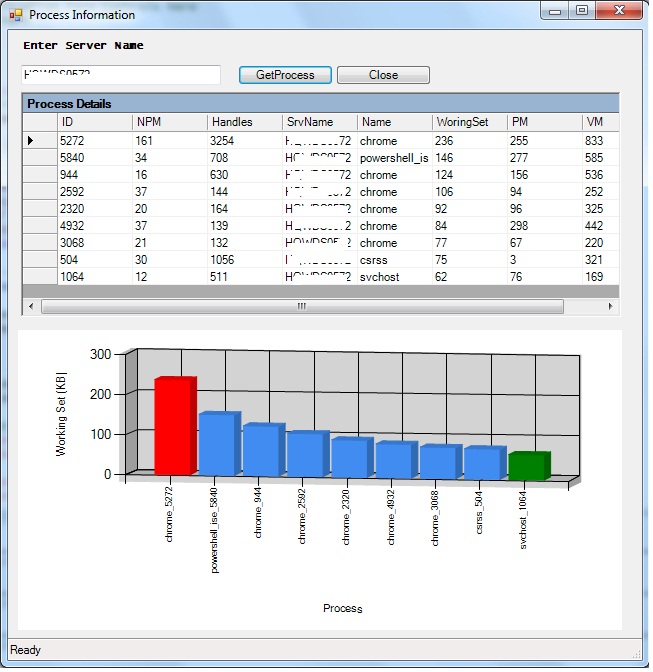
This Powershell GUI tool is used to list Top 10 memory consumption process of a given computer[local /Remote]. In the screen that follows, enter the computer name that you would like to get the top 10 processes and hit Get Process button.

This pulls out the memory consumed by top process of the given computer. If you don’t make an entry, then by default local machine details will be displayed.  If you give a wrong name then message box will be pop up stating its reason for not connecting.

The code is tested in all version of Powershell. You need to have .Net framework 3.0 or 3.5 as its pre-requisites for 3D Graph Display.

you can run the downloaded file from Powershell ISE or directly in Powershell console.

Download TOP 10 Process Memory Consumption

Image

CODE:

#======================================================================== 
# Generated On: 02/07/2014 
# Generated By: Prashanth Jayaram 
# Version     : 1.0 
# Description : TOP 10 Process - Memory consumption Report - 3D Graph 
#======================================================================== 

function OnApplicationLoad { 

 if([Reflection.Assembly]::LoadWithPartialName("System.Windows.Forms.DataVisualization") -eq $null) 
 { 
  #Microsoft Chart Controls are not installed 
  [void][reflection.assembly]::Load("System.Windows.Forms, Version=2.0.0.0, Culture=neutral, PublicKeyToken=b77a5c561934e089") 
  [void][System.Windows.Forms.MessageBox]::Show("Microsoft Chart Controls for Microsoft .NET 3.5 Framework is required","Microsoft Chart Controls Required") 
  #Open the URL 
  [System.Diagnostics.Process]::Start("http://www.microsoft.com/downloads/en/details.aspx?familyid=130F7986-BF49-4FE5-9CA8-910AE6EA442C&displaylang=en"); 
  return $false 
 } 

 return $true #return true for success or false for failure 
} 

function OnApplicationExit { 
 #Note: This function is not called in Projects 
 #Note: This function runs after the form is closed 
 #TODO: Add custom code to clean up and unload snapins when the application exits 

 $script:ExitCode = 0 #Set the exit code for the Packager 
} 

#endregion Application Functions 

#---------------------------------------------- 
# Generated Form Function 
#---------------------------------------------- 
function Call-SystemInformation_pff { 

 #---------------------------------------------- 
 #region Import the Assemblies 
 #---------------------------------------------- 
 [void][reflection.assembly]::Load("System, Version=2.0.0.0, Culture=neutral, PublicKeyToken=b77a5c561934e089") 
 [void][reflection.assembly]::Load("System.Windows.Forms, Version=2.0.0.0, Culture=neutral, PublicKeyToken=b77a5c561934e089") 
 [void][reflection.assembly]::Load("System.Data, Version=2.0.0.0, Culture=neutral, PublicKeyToken=b77a5c561934e089") 
 [void][reflection.assembly]::Load("System.Drawing, Version=2.0.0.0, Culture=neutral, PublicKeyToken=b03f5f7f11d50a3a") 
 [void][reflection.assembly]::Load("mscorlib, Version=2.0.0.0, Culture=neutral, PublicKeyToken=b77a5c561934e089") 
 [void][reflection.assembly]::Load("System.Windows.Forms.DataVisualization, Version=3.5.0.0, Culture=neutral, PublicKeyToken=31bf3856ad364e35") 
 #endregion Import Assemblies 

 #---------------------------------------------- 
 #region Generated Form Objects 
 #---------------------------------------------- 
    [System.Windows.Forms.Application]::EnableVisualStyles() 
    $formProcessPieChart = New-Object System.Windows.Forms.Form 
    $dataGrid1 = New-Object System.Windows.Forms.DataGrid  
    $chart = New-Object System.Windows.Forms.DataVisualization.Charting.Chart 
    $InitialFormWindowState = New-Object System.Windows.Forms.FormWindowState 
    $btnRefresh = New-Object System.Windows.Forms.Button 
    $btnClear = New-Object System.Windows.Forms.Button 
    $btngetdata=New-Object System.Windows.Forms.Button 
    $rtbPerfData = New-Object System.Windows.Forms.RichTextBox 
    $lblServicePack = New-Object System.Windows.Forms.Label 
    $lblDBName= New-Object System.Windows.Forms.Label 
    $lblOS = New-Object System.Windows.Forms.Label 
    $statusBar1 = New-Object System.Windows.Forms.StatusBar 
    $btnClose = New-Object System.Windows.Forms.Button 
    $InitialFormWindowState = New-Object System.Windows.Forms.FormWindowState 
    $txtComputerName = New-Object System.Windows.Forms.TextBox 
    $dataGrid1 = New-Object System.Windows.Forms.DataGrid  

 function Load-Chart 
 { 
  Param( #$XPoints, $YPoints, $XTitle, $YTitle, $Title, $ChartStyle) 
   [Parameter(Position=1,Mandatory=$true)] 
     [System.Windows.Forms.DataVisualization.Charting.Chart]$ChartControl 
   , 
   [Parameter(Position=2,Mandatory=$true)] 
     $XPoints 
   , 
   [Parameter(Position=3,Mandatory=$true)] 
     $YPoints 
   , 
   [Parameter(Position=4,Mandatory=$false)] 
     [string]$XTitle 
   , 
   [Parameter(Position=5,Mandatory=$false)] 
     [string]$YTitle 
   , 
   [Parameter(Position=6,Mandatory=$false)] 
     [string]$Title 
   , 
   [Parameter(Position=7,Mandatory=$false)] 
     [System.Windows.Forms.DataVisualization.Charting.SeriesChartType]$ChartType 
   , 
   [Parameter(Position=8,Mandatory=$false)] 
     $SeriesIndex = 0 
   , 
   [Parameter(Position=9,Mandatory=$false)] 
     $TitleIndex = 0, 
   [switch]$Append) 

  $ChartAreaIndex = 0 
  if($Append) 
  { 
   $name = "ChartArea " + ($ChartControl.ChartAreas.Count + 1).ToString(); 
   $ChartArea = $ChartControl.ChartAreas.Add($name) 
   $ChartAreaIndex = $ChartControl.ChartAreas.Count - 1 

   $name = "Series " + ($ChartControl.Series.Count + 1).ToString(); 
   $Series = $ChartControl.Series.Add($name)  
   $SeriesIndex = $ChartControl.Series.Count - 1 

   $Series.ChartArea = $ChartArea.Name 

   if($Title) 
   { 
    $name = "Title " + ($ChartControl.Titles.Count + 1).ToString(); 
    $TitleObj = $ChartControl.Titles.Add($name) 
    $TitleIndex = $ChartControl.Titles.Count - 1  
    $TitleObj.DockedToChartArea = $ChartArea.Name 
    $TitleObj.IsDockedInsideChartArea = $false 
   } 
  } 
  else 
  { 
   if($ChartControl.ChartAreas.Count -eq  0) 
   { 
    $name = "ChartArea " + ($ChartControl.ChartAreas.Count + 1).ToString(); 
    [void]$ChartControl.ChartAreas.Add($name) 
    $ChartAreaIndex = $ChartControl.ChartAreas.Count - 1 
   }  

   if($ChartControl.Series.Count -eq 0) 
   { 
    $name = "Series " + ($ChartControl.Series.Count + 1).ToString(); 
    $Series = $ChartControl.Series.Add($name)  
    $SeriesIndex = $ChartControl.Series.Count - 1 
    $Series.ChartArea = $ChartControl.ChartAreas[0].Name 
   } 
  } 

  $Series = $ChartControl.Series[$SeriesIndex] 
  $ChartArea = $ChartControl.ChartAreas[$Series.ChartArea] 

  $Series.Points.Clear() 

  if($Title) 
  { 
   if($ChartControl.Titles.Count -eq 0) 
   { 
    $name = "Title " + ($ChartControl.Titles.Count + 1).ToString(); 
    [void]$ChartControl.Titles.Add($name) 
    $TitleIndex = $ChartControl.Titles.Count - 1 
    $TitleObj.DockedToChartArea = $ChartArea.Name 
    $TitleObj.IsDockedInsideChartArea = $false 
   } 

   $ChartControl.Titles[$TitleIndex].Text = $Title 
  } 

  if($ChartType) 
  { 
   $Series.ChartType = $ChartType 
  } 

  if($XTitle) 
  { 
   $ChartArea.AxisX.Title = $XTitle 
  } 

  if($YTitle) 
  { 
   $ChartArea.AxisY.Title = $YTitle 
  } 

  if($XPoints -isnot [Array] -or $XPoints -isnot [System.Collections.IEnumerable]) 
  { 
   $array = New-Object System.Collections.ArrayList 
   $array.Add($XPoints) 
   $XPoints = $array 
  } 

  if($YPoints -isnot [Array] -or $YPoints -isnot [System.Collections.IEnumerable]) 
  { 
   $array = New-Object System.Collections.ArrayList 
   $array.Add($YPoints) 
   $YPoints = $array 
  } 

  $Series.Points.DataBindXY($XPoints, $YPoints) 

 } 

 function Clear-Chart 
 { 
  Param (   
  [Parameter(Position=1,Mandatory=$true)] 
    [System.Windows.Forms.DataVisualization.Charting.Chart]$ChartControl 
  , 
  [Parameter(Position=2, Mandatory=$false)] 
  [Switch]$LeaveSingleChart 
  ) 

  $count = 0  
  if($LeaveSingleChart) 
  { 
   $count = 1 
  } 

  while($ChartControl.Series.Count -gt $count) 
  { 
   $ChartControl.Series.RemoveAt($ChartControl.Series.Count - 1) 
  } 

  while($ChartControl.ChartAreas.Count -gt $count) 
  { 
   $ChartControl.ChartAreas.RemoveAt($ChartControl.ChartAreas.Count - 1) 
  } 

  while($ChartControl.Titles.Count -gt $count) 
  { 
   $ChartControl.Titles.RemoveAt($ChartControl.Titles.Count - 1) 
  } 

  if($ChartControl.Series.Count -gt 0) 
  { 
   $ChartControl.Series[0].Points.Clear() 
  } 
 } 
 #endregion 

<# 
 $FormEvent_Load={ 
  #TODO: Initialize Form Controls here 
  Load-PieChart  
 } 
 #> 

 Function  Load-PieChart { 
 Param([string]$computername) 
  $Chart.ChartAreas.Add($ChartArea) 

$process = [System.Diagnostics.Process] 

$Processes = $process::GetProcesses($computername)|Sort-Object WS -Descending|select Handles,  
@{Label="NPM(K)";Expression={[int]($_.NPM/1024)}}, ` 
@{Label="PM(K)";Expression={[int]($_.PM/1024)}}, ` 
@{Label="WS";Expression={[int]($_.WS/1024)}}, ` 
@{Label="VM(M)";Expression={[int]($_.VM/1MB)}}, ` 
Id, ProcessName, MachineName -first 9 

$ProcNames = @(foreach($Proc in $Processes){$Proc.ProcessName+ "_"+$Proc.ID})  
$WS = @(foreach($Proc in $Processes){$Proc.WS/1KB}) 

$Chart.Series.Add("Data")  
$Chart.Series["Data"].Points.DataBindXY($ProcNames, $WS) 

$ChartArea.AxisX.Title = "Process"  
$ChartArea.AxisY.Title = "Working Set (KB)" 

# Find point with max/min values and change their colour  
$maxValuePoint = $Chart.Series["Data"].Points.FindMaxByValue()  
$maxValuePoint.Color = [System.Drawing.Color]::Red 

$minValuePoint = $Chart.Series["Data"].Points.FindMinByValue()  
$minValuePoint.Color = [System.Drawing.Color]::Green 

# make bars into 3d cylinders  
#$Chart.Series["Data"]["DrawingStyle"] = "Cylinder" 
$chartArea.Area3DStyle = New-Object System.Windows.Forms.DataVisualization.Charting.ChartArea3DStyle  -Property @{Enable3D=$true; IsRightAngleAxes=$false; Rotation=10; Inclination=10;} 

# display the chart on a form  
$Chart.Anchor = [System.Windows.Forms.AnchorStyles]::Bottom -bor [System.Windows.Forms.AnchorStyles]::Right -bor  
                [System.Windows.Forms.AnchorStyles]::Top -bor [System.Windows.Forms.AnchorStyles]::Left  

 } 

 Function Get-ProcPerf { 
    Param([string]$computername) 
 $Object =@() 
$array = New-Object System.Collections.ArrayList       
    # load the appropriate assemblies  
# add data to chart  
$process = [System.Diagnostics.Process] 
#$process::GetProcesses($server) 

$prc=$process::GetProcesses($computername)|Sort-Object WS -Descending|select Handles, ` 
@{Label="NPM";Expression={[int]($_.NPM/1024)}}, ` 
@{Label="PM";Expression={[int]($_.PM/1MB)}}, ` 
@{Label="WS";Expression={[int]($_.WS/1MB)}}, ` 
@{Label="VM";Expression={[int]($_.VM/1MB)}}, ` 
Id, ProcessName, MachineName -first 9 

$Object =@() 

foreach ($p in $prc)  
{ 
$Object += New-Object PSObject -Property @{ 
            Handles = $p.Handles; 
            NPM = $P.NPM; 
            PM = $P.PM; 
            WoringSet = $P.WS; 
            VM= $P.VM; 
            ID=$P.Id; 
            Name=$P.ProcessName; 
            SrvName=$P.MachineName 

          } 
} 

$column1 = @{expression="MachineName"; width=20; label="MachineName"; alignment="left"} 
$column2 = @{expression="Handles"; width=10; label="Handles"; alignment="left"} 
$column3 = @{expression="NPM"; width=10; label="NPM(K)"; alignment="left"} 
$column4 = @{expression="PM"; width=10; label="PM(K)"; alignment="left"} 
$column5 = @{expression="WS"; width=10; label="WS(K)"; alignment="left"} 
$column6 = @{expression="VM"; width=10; label="VM(MB)"; alignment="left"} 
$column7 = @{expression="id"; width=10; label="ProcessID"; alignment="left"} 
$column8 = @{expression="Name"; width=15; label="ProcessName"; alignment="left"} 

"#"*80 
"Process Information" 
"Generated $(get-date)" 
"Generated from $(gc env:computername)" 
"#"*80 

#$Object  
$Object |Format-Table  $column1,$column2,$column3,$column4,$column5,$column6,$column7,$column8 

$array.AddRange($Object)  
$dataGrid1.DataSource = $array  

} 

function Clear-Chart 
 { 
  Param (   
  [Parameter(Position=1,Mandatory=$true)] 
    [System.Windows.Forms.DataVisualization.Charting.Chart]$ChartControl 
  , 
  [Parameter(Position=2, Mandatory=$false)] 
  [Switch]$LeaveSingleChart 
  ) 

  $count = 0  
  if($LeaveSingleChart) 
  { 
   $count = 1 
  } 

  while($ChartControl.Series.Count -gt $count) 
  { 
   $ChartControl.Series.RemoveAt($ChartControl.Series.Count - 1) 
  } 

  while($ChartControl.ChartAreas.Count -gt $count) 
  { 
   $ChartControl.ChartAreas.RemoveAt($ChartControl.ChartAreas.Count - 1) 
  } 

  while($ChartControl.Titles.Count -gt $count) 
  { 
   $ChartControl.Titles.RemoveAt($ChartControl.Titles.Count - 1) 
  } 

  if($ChartControl.Series.Count -gt 0) 
  { 
   $ChartControl.Series[0].Points.Clear() 
  } 
 } 

$cleardata={ 
Clear-Chart $chart 

} 

 $GetData={ 
      Clear-Chart $chart 

        if ($txtComputerName.text -eq '') 
        { 
        $txtComputerName.text =$env:COMPUTERNAME 
        } 
        $statusBar1.text="Getting Process information ..please wait" 
        if(Test-Connection -ComputerName $txtComputerName.text -Count 1 -ea 0) {  
        $data=Get-ProcPerf -ComputerName $txtComputerName.text | Out-String 

        Load-PieChart -computername $txtComputerName.text 

   } 
        else 
        { 
        [Windows.Forms.MessageBox]::Show(“Not able connect to the server", [Windows.Forms.MessageBoxIcon]::Information) 
        } 
        #$rtbPerfData.text=$data.Trim() 
        $errorActionPreference="Continue" 
        $statusBar1.Text="Ready" 

    } 

    $Close={ 
        $formProcessPieChart.close() 

    } 
 # --End User Generated Script-- 
 #---------------------------------------------- 
 # Generated Events 
 #---------------------------------------------- 

 $Form_StateCorrection_Load= 
 { 
  #Correct the initial state of the form to prevent the .Net maximized form issue 
  $formProcessPieChart.WindowState = $InitialFormWindowState 
 } 

 #---------------------------------------------- 
 #region Generated Form Code 
 #---------------------------------------------- 
 # 
 # formProcessPieChart 
 # 
 $formProcessPieChart.Controls.Add($buttonSave) 
 $formProcessPieChart.Controls.Add($chart) 
 $formProcessPieChart.ClientSize = New-Object System.Drawing.Size(513,640) 
 $formProcessPieChart.DataBindings.DefaultDataSourceUpdateMode = [System.Windows.Forms.DataSourceUpdateMode]::OnValidation  
 $formProcessPieChart.MinimumSize = New-Object System.Drawing.Size(300,300) 
 $formProcessPieChart.Name = "formProcessPieChart" 
 $formProcessPieChart.Text = "Disk Space Pie Chart" 
 $formProcessPieChart.Controls.Add($btnRefresh) 
 $formProcessPieChart.Controls.Add($lblServicePack) 
 $formProcessPieChart.Controls.Add($lblOS) 
 $formProcessPieChart.Controls.Add($lblDBName) 
 $formProcessPieChart.Controls.Add($statusBar1) 
 $formProcessPieChart.Controls.Add($btnClose) 
 $formProcessPieChart.Controls.Add($txtComputerName) 
 $formProcessPieChart.ClientSize = New-Object System.Drawing.Size(630,630) 
 $formProcessPieChart.DataBindings.DefaultDataSourceUpdateMode = [System.Windows.Forms.DataSourceUpdateMode]::OnValidation  
 $formProcessPieChart.Name = "form1" 
 $formProcessPieChart.Text = "Process Information" 
 $formProcessPieChart.add_Load($PopulateList) 
 $formProcessPieChart.add_Load($FormEvent_Load) 

$System_Drawing_Size = New-Object System.Drawing.Size  
$System_Drawing_Size.Width = 600  
$System_Drawing_Size.Height = 225 
$dataGrid1.Size = $System_Drawing_Size  
$dataGrid1.DataBindings.DefaultDataSourceUpdateMode = 0  
$dataGrid1.HeaderForeColor = [System.Drawing.Color]::FromArgb(255,0,0,0)  
$dataGrid1.Name = "dataGrid1"  
$dataGrid1.DataMember = ""  
$dataGrid1.TabIndex = 0  
$System_Drawing_Point = New-Object System.Drawing.Point  
$System_Drawing_Point.X =13  
$System_Drawing_Point.Y = 62 
$dataGrid1.Location = $System_Drawing_Point  

$formProcessPieChart.Controls.Add($dataGrid1)  
$dataGrid1.CaptionText='Process Details' 

    # 
    # btnRefresh 
    # 
    $btnRefresh.DataBindings.DefaultDataSourceUpdateMode = [System.Windows.Forms.DataSourceUpdateMode]::OnValidation  
    $btnRefresh.Enabled = $TRUE 
    $btnRefresh.Location = New-Object System.Drawing.Point(230,35) 
    $btnRefresh.Name = "btnRefresh" 
    $btnRefresh.Size = New-Object System.Drawing.Size(95,20) 
    $btnRefresh.TabIndex = 2 
    $btnRefresh.Text = "GetProcess" 
    $btnRefresh.UseVisualStyleBackColor = $True 
    $btnRefresh.add_Click($GetData) 
    # 
    # 

    $btnClose.DataBindings.DefaultDataSourceUpdateMode = [System.Windows.Forms.DataSourceUpdateMode]::OnValidation  
    $btngetdata.Enabled = $TRUE 
    $btnClose.Location = New-Object System.Drawing.Point(328,35) 
    $btnClose.Name = "btnClose" 
    $btnClose.Size = New-Object System.Drawing.Size(95,20) 
    $btnClose.TabIndex = 3 
    $btnClose.Text = "Close" 
    $btnClose.UseVisualStyleBackColor = $True 
    $btnClose.add_Click($Close) 
    # 

    # lblDBName 
    # 
    $lblDBName.DataBindings.DefaultDataSourceUpdateMode = [System.Windows.Forms.DataSourceUpdateMode]::OnValidation  
    $lblDBName.Font = New-Object System.Drawing.Font("Lucida Console",8.25,1,3,1) 
    $lblDBName.Location = New-Object System.Drawing.Point(13,10) 
    $lblDBName.Name = "lblDBName" 
    $lblDBName.Size = New-Object System.Drawing.Size(178,23) 
    $lblDBName.TabIndex = 0 
    $lblDBName.Text = "Enter Server Name " 
    $lblDBName.Visible = $TRUE 
    # 

    #$txtComputerName.text 
    #txtComputerName 
    $txtComputerName.DataBindings.DefaultDataSourceUpdateMode = [System.Windows.Forms.DataSourceUpdateMode]::OnValidation  
    $txtComputerName.Location = New-Object System.Drawing.Point(13, 35) 
    $txtComputerName.Name = "txtComputerName" 
    $txtComputerName.TabIndex = 1 
    $txtComputerName.Size = New-Object System.Drawing.Size(200,70) 
    $txtComputerName.visible=$TRUE 
    # 
    # lblServicePack 
    # 
    $lblServicePack.DataBindings.DefaultDataSourceUpdateMode = [System.Windows.Forms.DataSourceUpdateMode]::OnValidation  
    $lblServicePack.Font = New-Object System.Drawing.Font("Lucida Console",8.25,1,3,1) 
    $lblServicePack.Location = New-Object System.Drawing.Point(13,100) 
    $lblServicePack.Name = "lblServicePack" 
    $lblServicePack.Size = New-Object System.Drawing.Size(278,23) 
    $lblServicePack.TabIndex = 0 
    $lblServicePack.Text = "ServicePack" 
    $lblServicePack.Visible = $False 
    # 
    # lblOS 
    # 
    $lblOS.DataBindings.DefaultDataSourceUpdateMode = [System.Windows.Forms.DataSourceUpdateMode]::OnValidation  
    $lblOS.Font = New-Object System.Drawing.Font("Lucida Console",8.25,1,3,1) 
    $lblOS.Location = New-Object System.Drawing.Point(12,77) 
    $lblOS.Name = "lblOS" 
    $lblOS.Size = New-Object System.Drawing.Size(278,23) 
    $lblOS.TabIndex = 2 
    $lblOS.Text = "Service Information" 
    $lblOS.Visible = $False 
    # 
    # statusBar1 
    # 
    $statusBar1.DataBindings.DefaultDataSourceUpdateMode = [System.Windows.Forms.DataSourceUpdateMode]::OnValidation  
    $statusBar1.Location = New-Object System.Drawing.Point(0,365) 
    $statusBar1.Name = "statusBar1" 
    $statusBar1.Size = New-Object System.Drawing.Size(390,22) 
    $statusBar1.TabIndex = 5 
    $statusBar1.Text = "statusBar1" 

    $Chart.Width = 600  
    $Chart.Height = 300  
    $Chart.Left = 10  
    $Chart.Top = 300 
    $ChartArea = New-Object System.Windows.Forms.DataVisualization.Charting.ChartArea  

 #Save the initial state of the form 
 $InitialFormWindowState = $formProcessPieChart.WindowState 
 #Init the OnLoad event to correct the initial state of the form 
 $formProcessPieChart.add_Load($Form_StateCorrection_Load) 
 #Show the Form 
 return $formProcessPieChart.ShowDialog() 

} #End Function 

if(OnApplicationLoad -eq $true) 
{ 
    #Create the form 
    #Call-SystemInformation_pff | Out-Null 
    #Call-Disk_Space_Chart_pff | Out-Null 
    Call-SystemInformation_pff | Out-Null 
    #Perform cleanup 
    OnApplicationExit 
}
Posted in PowerShell | Tagged , , , | 2 Comments

PowerShell – SQL Inventory – Automatic – Excel File – EMAIL

Inventory is a vital information,whether you’re a consultant or an in-house DBA, you need to have a reliable inventory of the servers you manage.

Download the file and save as SQLInventoryExcel.PS1.

It has Five mandatory parameters

  1. InputFileName – Text File contains a list of SQL Servers -c:\Server.txt(Example)
  2. DirectoryToSave – Folder where you want to store the file
  3. ToID – to email Address
  4. FromID – From Email Address
  5. SMTP – SMTP Adress

Pre-requisites are –

  1. Windows PowerShell 2.0 must be installed
  2. Permission to access all SQL instances
  3. Permission to create a file in the given directory

Windows PowerShell 2.0 is installed by default on newer versions of the Windows operating systems.You must install a SQL Server feature that includes the SQL Server PowerShell (SQLPS) module and client libraries. The easiest way to do this is by installing SQL Server Management Studio, which includes the PowerShell feature and client libraries automatically. The SQL Server PowerShell (SQLPS) module contains the PowerShell providers and cmdlets for all SQL Server features.

Download or Save the file as SQLServerInventory.PS1

Call:

PS C:\Blog> .\SQLServerInventory.ps1 -InputFileName C:\server.txt -DirectoryToSaveTo C:\ -To pram@abc.com -From pram@abc.com -SMTP mail.abc.com

You can download :-SQLInventory

Output:-

Image

Code:-

<#================================= 
# Generated On: 02/04/2014  
# Generated By: Prashanth Jayaram  
# Version     : 1.0  
# Desc        : SQL Inventory Generation 
# EXAMPLE : 
PS:\>.\SQLServerInventory.ps1 -InputFileName c:\server.txt -DirectoryToSaveTo C:\  -To pram@app.com -From pram@app.com  
-SMTP mail.app.com 
#================================= 
#> 
[CmdletBinding()] 
Param( 
  [Parameter(Mandatory=$True,Position=1)] 
   [string]$InputFileName, 

   [Parameter(Mandatory=$True,Position=2)] 
   [string]$DirectoryToSaveTo, 

   [Parameter(Mandatory=$True,Position=3)] 
   [string]$To, 

   [Parameter(Mandatory=$True,Position=4)] 
   [string]$From, 

   [Parameter(Mandatory=$True,Position=5)] 
   [string]$SMTP 

) 

$Filename='SQLInventory' 

# before we do anything else, are we likely to be able to save the file? 
# if the directory doesn't exist, then create it 
if (!(Test-Path -path "$DirectoryToSaveTo")) #create it if not existing 
  { 
  New-Item "$DirectoryToSaveTo" -type directory | out-null 
  } 

#Create a new Excel object using COM  
$Excel = New-Object -ComObject Excel.Application 
$Excel.visible = $True 
$Excel = $Excel.Workbooks.Add() 
$Sheet = $Excel.Worksheets.Item(1) 

#Counter variable for rows 
$intRow = 1 
$xlOpenXMLWorkbook=[int]51 

#Read thru the contents of the SQL_Servers.txt file 

$Sheet.Cells.Item($intRow,1)  ="ComputerNamePhysicalNetBIOS" 
$Sheet.Cells.Item($intRow,2)  ="NetName" 
$Sheet.Cells.Item($intRow,3)  ="OS" 
$Sheet.Cells.Item($intRow,4)  ="OSVersion" 
$Sheet.Cells.Item($intRow,5)  ="Platform" 
$Sheet.Cells.Item($intRow,6)  ="Product" 
$Sheet.Cells.Item($intRow,7)  ="edition" 
$Sheet.Cells.Item($intRow,8)  ="Version" 
$Sheet.Cells.Item($intRow,9)  ="VersionString" 
$Sheet.Cells.Item($intRow,10) ="ProductLevel" 
$Sheet.Cells.Item($intRow,11) ="DatabaseCount" 
$Sheet.Cells.Item($intRow,12) ="HasNullSaPassword" 
$Sheet.Cells.Item($intRow,13) ="IsCaseSensitive" 
$Sheet.Cells.Item($intRow,14) ="IsFullTextInstalled" 
$Sheet.Cells.Item($intRow,15) ="Language" 
$Sheet.Cells.Item($intRow,16) ="LoginMode" 
$Sheet.Cells.Item($intRow,17) ="Processors" 
$Sheet.Cells.Item($intRow,18) ="PhysicalMemory" 
$Sheet.Cells.Item($intRow,19) ="MaxMemory" 
$Sheet.Cells.Item($intRow,20) ="MinMemory" 
$Sheet.Cells.Item($intRow,21) ="IsSingleUser" 
$Sheet.Cells.Item($intRow,22) ="IsClustered" 
$Sheet.Cells.Item($intRow,23) ="Collation" 
$Sheet.Cells.Item($intRow,24) ="MasterDBLogPath" 
$Sheet.Cells.Item($intRow,25) ="MasterDBPath" 
$Sheet.Cells.Item($intRow,26) ="ErrorLogPath" 
$Sheet.Cells.Item($intRow,27) ="BackupDirectory" 
$Sheet.Cells.Item($intRow,28) ="DefaultLog" 
$Sheet.Cells.Item($intRow,29) ="ResourceLastUpdatetime" 
$Sheet.Cells.Item($intRow,30) ="AuditLevel" 
$Sheet.Cells.Item($intRow,31) ="DefaultFile" 
$Sheet.Cells.Item($intRow,32) ="xp_cmdshell" 
$Sheet.Cells.Item($intRow,33) ="Domain" 
$Sheet.Cells.Item($intRow,34) ="IPAddress" 

  for ($col = 1; $col –le 34; $col++) 
     { 
          $Sheet.Cells.Item($intRow,$col).Font.Bold = $True 
          $Sheet.Cells.Item($intRow,$col).Interior.ColorIndex = 48 
          $Sheet.Cells.Item($intRow,$col).Font.ColorIndex = 34 
     } 

$intRow++ 

foreach ($instanceName in Get-Content $InputFileName) 
{ 
[System.Reflection.Assembly]::LoadWithPartialName('Microsoft.SqlServer.SMO') | out-null 
$server1 = New-Object -Type Microsoft.SqlServer.Management.Smo.Server -ArgumentList $instanceName 
$s=$server1.Information.Properties |Select Name, Value  
$st=$server1.Settings.Properties |Select Name, Value 
$CP=$server1.Configuration.Properties |Select DisplayName, Description, RunValue, ConfigValue 
$dbs=$server1.Databases.count 
$BuildNumber=$s | where {$_.name -eq "BuildNumber"}|select value 
$edition=$s | where {$_.name -eq "edition"}|select value 
$ErrorLogPath =$s | where {$_.name -eq "ErrorLogPath"}|select value 
$HasNullSaPassword =$s | where {$_.name -eq "HasNullSaPassword"}|select value 
$IsCaseSensitive =$s | where {$_.name -eq "IsCaseSensitive"}|select value 
$Platform =$s | where {$_.name -eq "Platform"}|select value 
$IsFullTextInstalled =$s | where {$_.name -eq "IsFullTextInstalled"}|select value 
$Language =$s | where {$_.name -eq "Language"}|select value 
$MasterDBLogPath =$s | where {$_.name -eq "MasterDBLogPath"}|select value 
$MasterDBPath =$s | where {$_.name -eq "MasterDBPath"}|select value 
$NetName =$s | where {$_.name -eq "NetName"}|select value 
$OSVersion =$s | where {$_.name -eq "OSVersion"}|select value 
$PhysicalMemory =$s | where {$_.name -eq "PhysicalMemory"}|select value 
$Processors =$s | where {$_.name -eq "Processors"}|select value 
$IsSingleUser =$s | where {$_.name -eq "IsSingleUser"}|select value 
$Product =$s | where {$_.name -eq "Product"}|select value 
$VersionString =$s | where {$_.name -eq "VersionString"}|select value 
$Collation =$s | where {$_.name -eq "Collation"}|select value 
$IsClustered =$s | where {$_.name -eq "IsClustered"}|select value 
$ProductLevel =$s | where {$_.name -eq "ProductLevel"}|select value 
$ComputerNamePhysicalNetBIOS =$s | where {$_.name -eq "ComputerNamePhysicalNetBIOS"}|select value 
$ResourceLastUpdateDateTime =$s | where {$_.name -eq "ResourceLastUpdateDateTime"}|select value 
$AuditLevel =$st | where {$_.name -eq "AuditLevel"}|select value 
$BackupDirectory =$st | where {$_.name -eq "BackupDirectory"}|select value 
$DefaultFile =$st | where {$_.name -eq "DefaultFile"}|select value 
$DefaultLog =$st | where {$_.name -eq "DefaultLog"}|select value 
$LoginMode =$st | where {$_.name -eq "LoginMode"}|select value 
$min=$CP | where {$_.Displayname -like "*min server memory*"}|select configValue 
$max=$CP | where {$_.Displayname -like "*max server memory*"}|select configValue 
$xp_cmdshell=$CP | where {$_.Displayname -like "*xp_cmdshell*"}|select configValue 
$FQDN=[System.DirectoryServices.ActiveDirectory.Domain]::GetCurrentDomain().Name 
$IPAddress=(Get-WmiObject Win32_NetworkAdapterConfiguration -ComputerName $instanceName | ? {$_.IPEnabled}).ipaddress 

if ($HasNullSaPassword.value -eq $NULL) 
{ 
    $HasNullSaPassword.value='No' 
} 
if($DefaultFile.value -eq '') 
{ 
    $DefaultFile.value='NA' 
} 
if ($VersionString.value -like '8*') 
{ 
    $SQLServer='SQL SERVER 2000' 
} 
elseif ($VersionString.value -like '9*') 
{ 
    $SQLServer='SQL SERVER 2005' 
} 
elseif ($VersionString.value -like '10.0*') 
{ 
    $SQLServer='SQL SERVER 2008' 
} 
elseif ($VersionString.value -like '10.5*') 
{ 
    $SQLServer='SQL SERVER 2008 R2' 
} 
elseif ($VersionString.value -like '11*') 
{ 
    $SQLServer='SQL SERVER 2012' 
} 
else 
{ 
    $SQLServer='Invalid' 
} 

if ($OSVersion.value -like '5.0*') 
{ 
    $OSVer='Windows 2000' 
} 
elseif ($OSVersion.value -like '5.1*') 
{ 
    $OSVer='Windows XP' 
} 
elseif ($OSVersion.value -like '5.2*') 
{ 
    $OSVer='Windows Server 2003' 
} 
elseif ($OSVersion.value -like '6.0*') 
{ 
    $OSVer='Windows Server 2008' 
} 
elseif ($OSVersion.value -like '6.1*') 
{ 
    $OSVer='Windows Server 2008 R2' 
} 
elseif ($OSVersion.value -like '6.2*') 
{ 
    $OSVer='Windows Server 2012' 
} 
else 
{ 
    $OSVer='NA' 
} 

        $Sheet.Cells.Item($intRow,1)  =$ComputerNamePhysicalNetBIOS.value 
        $Sheet.Cells.Item($intRow,2)  =$NetName.value 
        $Sheet.Cells.Item($intRow,3)  =$OSVer 
        $Sheet.Cells.Item($intRow,4)  =$OSVersion.value 
        $Sheet.Cells.Item($intRow,5)  = $Platform.value 
        $Sheet.Cells.Item($intRow,6)  = $Product.value 
        $Sheet.Cells.Item($intRow,7)  = $edition.value 
        $Sheet.Cells.Item($intRow,8)  = $SQLServer 
        $Sheet.Cells.Item($intRow,9)  = $VersionString.value 
        $Sheet.Cells.Item($intRow,10) = $ProductLevel.value 
        $Sheet.Cells.Item($intRow,11) = $Dbs 
        $Sheet.Cells.Item($intRow,12) = $HasNullSaPassword.value 
        $Sheet.Cells.Item($intRow,13) = $IsCaseSensitive.value 
        $Sheet.Cells.Item($intRow,14) = $IsFullTextInstalled.value 
        $Sheet.Cells.Item($intRow,15) = $Language.value 
        $Sheet.Cells.Item($intRow,16) = $LoginMode.value 
        $Sheet.Cells.Item($intRow,17) = $Processors.value 
        $Sheet.Cells.Item($intRow,18) = $PhysicalMemory.value 
        $Sheet.Cells.Item($intRow,19) = $Max.Configvalue 
        $Sheet.Cells.Item($intRow,20) = $Min.Configvalue 
        $Sheet.Cells.Item($intRow,21) = $IsSingleUser.value 
        $Sheet.Cells.Item($intRow,22) = $IsClustered.value 
        $Sheet.Cells.Item($intRow,23) = $Collation.value 
        $Sheet.Cells.Item($intRow,24) = $MasterDBLogPath.value 
        $Sheet.Cells.Item($intRow,25) = $MasterDBPath.value 
        $Sheet.Cells.Item($intRow,26) = $ErrorLogPath.value 
        $Sheet.Cells.Item($intRow,27) = $BackupDirectory.value 
        $Sheet.Cells.Item($intRow,28) = $DefaultLog.value 
        $Sheet.Cells.Item($intRow,29) = $ResourceLastUpdateDateTime.value 
        $Sheet.Cells.Item($intRow,30) = $AuditLevel.value 
        $Sheet.Cells.Item($intRow,31)= $DefaultFile.value 
        $Sheet.Cells.Item($intRow,32)= $xp_cmdshell.Configvalue 
        $Sheet.Cells.Item($intRow,33)= $FQDN 
        $Sheet.Cells.Item($intRow,34)= $IPAddress 

$intRow ++ 

} 

$filename = "$DirectoryToSaveTo$filename.xlsx" 
if (test-path $filename ) { rm $filename } #delete the file if it already exists 
$Sheet.UsedRange.EntireColumn.AutoFit() 
cls 
$Excel.SaveAs($filename, $xlOpenXMLWorkbook) #save as an XML Workbook (xslx) 
$Excel.Saved = $True 
$Excel.Close() 

Function sendEmail([string]$emailFrom, [string]$emailTo, [string]$subject,[string]$body,[string]$smtpServer,[string]$filePath) 
{ 
#initate message 
$email = New-Object System.Net.Mail.MailMessage  
$email.From = $emailFrom 
$email.To.Add($emailTo) 
$email.Subject = $subject 
$email.Body = $body 
# initiate email attachment  
$emailAttach = New-Object System.Net.Mail.Attachment $filePath 
$email.Attachments.Add($emailAttach)  
#initiate sending email  
$smtp = new-object Net.Mail.SmtpClient($smtpServer) 
$smtp.Send($email) 
} 

#Call Function  
sendEmail -emailFrom $from -emailTo $to "SQL INVENTORY" "SQL INVENTORY DETAILS - COMPLETE DETAILS" -smtpServer $SMTP -filePath $filename
Posted in PowerShell, SQL | Tagged , , , | 7 Comments

PowerShell – Memory Details GUI Tool

This Powershell Memory GUI tool is used to fetch memory information from a computer. In the screen that follows, enter the computer name that you would like to get the memory details for and click on Get Memory Button.
This pulls out the usage of memory of the listed computer. If you don’t make an entry, then by default local machine details will be displayed.  If you give a wrong name then message box will be pop up stating its reason for not connecting.
The code is tested in all version of Powershell. You need to have .Net framework 3.0 or 3.5 as its pre-requisites.

you can run the downloaded file from Powershell ISE or directly in Powershell console.

Download MemoryGUITool

Image

CODE

Function Get-MemoryGUI 
{ 
function OnApplicationLoad { 

 if([Reflection.Assembly]::LoadWithPartialName("System.Windows.Forms.DataVisualization") -eq $null) 
 { 
  #Microsoft Chart Controls are not installed 
  [void][reflection.assembly]::Load("System.Windows.Forms, Version=2.0.0.0, Culture=neutral, PublicKeyToken=b77a5c561934e089") 
  [void][System.Windows.Forms.MessageBox]::Show("Microsoft Chart Controls for Microsoft .NET 3.5 Framework is required","Microsoft Chart Controls Required") 
  #Open the URL 
  [System.Diagnostics.Process]::Start("http://www.microsoft.com/downloads/en/details.aspx?familyid=130F7986-BF49-4FE5-9CA8-910AE6EA442C&displaylang=en"); 
  return $false 
 } 

 return $true #return true for success or false for failure 
} 

function OnApplicationExit { 
 $script:ExitCode = 0 #Set the exit code for the Packager 
} 

#endregion Application Functions 

#---------------------------------------------- 
# Generated Form Function 
#---------------------------------------------- 
function Call-SystemInformation_pff { 

 #---------------------------------------------- 
 #region Import the Assemblies 
 #---------------------------------------------- 
 [void][reflection.assembly]::Load("System, Version=2.0.0.0, Culture=neutral, PublicKeyToken=b77a5c561934e089") 
 [void][reflection.assembly]::Load("System.Windows.Forms, Version=2.0.0.0, Culture=neutral, PublicKeyToken=b77a5c561934e089") 
 [void][reflection.assembly]::Load("System.Data, Version=2.0.0.0, Culture=neutral, PublicKeyToken=b77a5c561934e089") 
 [void][reflection.assembly]::Load("System.Drawing, Version=2.0.0.0, Culture=neutral, PublicKeyToken=b03f5f7f11d50a3a") 
 [void][reflection.assembly]::Load("mscorlib, Version=2.0.0.0, Culture=neutral, PublicKeyToken=b77a5c561934e089") 
 [void][reflection.assembly]::Load("System.Windows.Forms.DataVisualization, Version=3.5.0.0, Culture=neutral, PublicKeyToken=31bf3856ad364e35") 
 #endregion Import Assemblies 

 #---------------------------------------------- 
 #region Generated Form Objects 
 #---------------------------------------------- 
[System.Windows.Forms.Application]::EnableVisualStyles() 
$formMemoryPieChart = New-Object System.Windows.Forms.Form 
$dataGrid1 = New-Object System.Windows.Forms.DataGrid  
$chart1 = New-Object System.Windows.Forms.DataVisualization.Charting.Chart 
$InitialFormWindowState = New-Object System.Windows.Forms.FormWindowState 
$btnRefresh = New-Object System.Windows.Forms.Button 
$btngetdata=New-Object System.Windows.Forms.Button 
$rtbPerfData = New-Object System.Windows.Forms.RichTextBox 
$lblServicePack = New-Object System.Windows.Forms.Label 
$lblDBName= New-Object System.Windows.Forms.Label 
$lblOS = New-Object System.Windows.Forms.Label 
$statusBar1 = New-Object System.Windows.Forms.StatusBar 
$btnClose = New-Object System.Windows.Forms.Button 
$InitialFormWindowState = New-Object System.Windows.Forms.FormWindowState 
$txtComputerName = New-Object System.Windows.Forms.TextBox 
$dataGrid1 = New-Object System.Windows.Forms.DataGrid  

 function Load-Chart 
 { 
  Param( #$XPoints, $YPoints, $XTitle, $YTitle, $Title, $ChartStyle) 
   [Parameter(Position=1,Mandatory=$true)] 
     [System.Windows.Forms.DataVisualization.Charting.Chart]$ChartControl 
   , 
   [Parameter(Position=2,Mandatory=$true)] 
     $XPoints 
   , 
   [Parameter(Position=3,Mandatory=$true)] 
     $YPoints 
   , 
   [Parameter(Position=4,Mandatory=$false)] 
     [string]$XTitle 
   , 
   [Parameter(Position=5,Mandatory=$false)] 
     [string]$YTitle 
   , 
   [Parameter(Position=6,Mandatory=$false)] 
     [string]$Title 
   , 
   [Parameter(Position=7,Mandatory=$false)] 
     [System.Windows.Forms.DataVisualization.Charting.SeriesChartType]$ChartType 
   , 
   [Parameter(Position=8,Mandatory=$false)] 
     $SeriesIndex = 0 
   , 
   [Parameter(Position=9,Mandatory=$false)] 
     $TitleIndex = 0, 
   [switch]$Append) 

  $ChartAreaIndex = 0 
  if($Append) 
  { 
   $name = "ChartArea " + ($ChartControl.ChartAreas.Count + 1).ToString(); 
   $ChartArea = $ChartControl.ChartAreas.Add($name) 
   $ChartAreaIndex = $ChartControl.ChartAreas.Count - 1 

   $name = "Series " + ($ChartControl.Series.Count + 1).ToString(); 
   $Series = $ChartControl.Series.Add($name)  
   $SeriesIndex = $ChartControl.Series.Count - 1 

   $Series.ChartArea = $ChartArea.Name 

   if($Title) 
   { 
    $name = "Title " + ($ChartControl.Titles.Count + 1).ToString(); 
    $TitleObj = $ChartControl.Titles.Add($name) 
    $TitleIndex = $ChartControl.Titles.Count - 1  
    $TitleObj.DockedToChartArea = $ChartArea.Name 
    $TitleObj.IsDockedInsideChartArea = $false 
   } 
  } 
  else 
  { 
   if($ChartControl.ChartAreas.Count -eq  0) 
   { 
    $name = "ChartArea " + ($ChartControl.ChartAreas.Count + 1).ToString(); 
    [void]$ChartControl.ChartAreas.Add($name) 
    $ChartAreaIndex = $ChartControl.ChartAreas.Count - 1 
   }  

   if($ChartControl.Series.Count -eq 0) 
   { 
    $name = "Series " + ($ChartControl.Series.Count + 1).ToString(); 
    $Series = $ChartControl.Series.Add($name)  
    $SeriesIndex = $ChartControl.Series.Count - 1 
    $Series.ChartArea = $ChartControl.ChartAreas[0].Name 
   } 
  } 

  $Series = $ChartControl.Series[$SeriesIndex] 
  $ChartArea = $ChartControl.ChartAreas[$Series.ChartArea] 

  $Series.Points.Clear() 

  if($Title) 
  { 
   if($ChartControl.Titles.Count -eq 0) 
   { 
    $name = "Title " + ($ChartControl.Titles.Count + 1).ToString(); 
    [void]$ChartControl.Titles.Add($name) 
    $TitleIndex = $ChartControl.Titles.Count - 1 
    $TitleObj.DockedToChartArea = $ChartArea.Name 
    $TitleObj.IsDockedInsideChartArea = $false 
   } 

   $ChartControl.Titles[$TitleIndex].Text = $Title 
  } 

  if($ChartType) 
  { 
   $Series.ChartType = $ChartType 
  } 

  if($XTitle) 
  { 
   $ChartArea.AxisX.Title = $XTitle 
  } 

  if($YTitle) 
  { 
   $ChartArea.AxisY.Title = $YTitle 
  } 

  if($XPoints -isnot [Array] -or $XPoints -isnot [System.Collections.IEnumerable]) 
  { 
   $array = New-Object System.Collections.ArrayList 
   $array.Add($XPoints) 
   $XPoints = $array 
  } 

  if($YPoints -isnot [Array] -or $YPoints -isnot [System.Collections.IEnumerable]) 
  { 
   $array = New-Object System.Collections.ArrayList 
   $array.Add($YPoints) 
   $YPoints = $array 
  } 

  $Series.Points.DataBindXY($XPoints, $YPoints) 

 } 

 function Clear-Chart 
 { 
  Param (   
  [Parameter(Position=1,Mandatory=$true)] 
    [System.Windows.Forms.DataVisualization.Charting.Chart]$ChartControl 
  , 
  [Parameter(Position=2, Mandatory=$false)] 
  [Switch]$LeaveSingleChart 
  ) 

  $count = 0  
  if($LeaveSingleChart) 
  { 
   $count = 1 
  } 

  while($ChartControl.Series.Count -gt $count) 
  { 
   $ChartControl.Series.RemoveAt($ChartControl.Series.Count - 1) 
  } 

  while($ChartControl.ChartAreas.Count -gt $count) 
  { 
   $ChartControl.ChartAreas.RemoveAt($ChartControl.ChartAreas.Count - 1) 
  } 

  while($ChartControl.Titles.Count -gt $count) 
  { 
   $ChartControl.Titles.RemoveAt($ChartControl.Titles.Count - 1) 
  } 

  if($ChartControl.Series.Count -gt 0) 
  { 
   $ChartControl.Series[0].Points.Clear() 
  } 
 } 
 #endregion 

<# 
 $FormEvent_Load={ 
  #TODO: Initialize Form Controls here 
  Load-PieChart  
 } 
 #> 

 function Load-PieChart 
 { 
param( 
[string[]]$servers = "$ENV:COMPUTERNAME" 
) 
  foreach ($server in $servers) { 
  #Get Disk space using WMI and make sure it is an array 
  $Memory = @(Get-WmiObject -Class Win32_OperatingSystem -computername $servers | Select-Object Name, TotalVisibleMemorySize, FreePhysicalMemory,TotalVirtualMemorySize,FreeVirtualMemory,FreeSpaceInPagingFiles,NumberofProcesses,NumberOfUsers ) 

  #Remove all the current charts 
  Clear-Chart $chart1 

  #Loop through each drive 
  foreach($m in $Memory) 
  {  
    $TotalRAM = $m.TotalVisibleMemorySize/1MB 
    $FreeRAM = $m.FreePhysicalMemory/1MB 
    $TotalVirtualMemorySize=[Math]::Round($m.TotalVirtualMemorySize/1MB, 3) 
    $FreeVirtualMemory=[Math]::Round($m.FreeVirtualMemory/1MB, 3) 

   #Load a Chart for each Drive 
   Load-Chart $chart1 -XPoints ("Physical Total RAM ({0:N1} GB)" -f $TotalRAM), ("Physical Free RAM ({0:N1} GB)" -f $FreeRAM) -YPoints $TotalRAM, $FreeRAM -ChartType "Bar" -Title ("Physical Memory Chart") -Append  
   Load-Chart $chart1 -XPoints ("Virtual Total RAM ({0:N1} GB)" -f $TotalVirtualMemorySize), ("Virtual Free RAM ({0:N1} GB)" -f $FreeVirtualMemory) -YPoints $TotalVirtualMemorySize, $FreeVirtualMemory -ChartType "Bar" -Title (" Virtual Memory Chart") -Append  

  } 

  #Set Custom Style 
  foreach ($Series in $chart1.Series) 
  { 
   $Series.CustomProperties = "PieDrawingStyle=Concave" 
  } 
 } 
 } 

function Get-OSMemory 
{ 
param( 
[string]$Computer = "$ENV:COMPUTERNAME" 
) 
$script:Object =@() 
$script:array = New-Object System.Collections.ArrayList       
$Object =@() 

if(Test-Connection -ComputerName $Computer -Count 1 -ea 0) { 
$SystemInfo = Get-WmiObject -Class Win32_OperatingSystem -computername $Computer | Select-Object Name, TotalVisibleMemorySize, FreePhysicalMemory,TotalVirtualMemorySize,FreeVirtualMemory,FreeSpaceInPagingFiles,NumberofProcesses,NumberOfUsers 
$TotalRAM = $SystemInfo.TotalVisibleMemorySize/1MB 
$FreeRAM = $SystemInfo.FreePhysicalMemory/1MB 
$UsedRAM = $TotalRAM - $FreeRAM 
$RAMPercentFree = ($FreeRAM / $TotalRAM) * 100 
$TotalRAM = [Math]::Round($TotalRAM, 2) 
$FreeRAM = [Math]::Round($FreeRAM, 2) 
$UsedRAM = [Math]::Round($UsedRAM, 2) 
$RAMPercentFree = [Math]::Round($RAMPercentFree, 2) 
$TotalVirtualMemorySize=[Math]::Round($SystemInfo.TotalVirtualMemorySize/1MB, 3) 
$FreeVirtualMemory=[Math]::Round($SystemInfo.FreeVirtualMemory/1MB, 3) 
$FreeSpaceInPagingFiles=[Math]::Round($SystemInfo.FreeSpaceInPagingFiles/1MB, 3) 
$NP=$SystemInfo.NumberofProcesses 
$NU=$SystemInfo.NumberOfUsers 

$Object += New-Object PSObject -Property @{ 
ComputerName = $Computer.ToUpper(); 
#Architecture = $architecture; 
#OperatingSystem = $OS; 
TotalRAMGB = $TotalRAM; 
FreeRAMGB = $FreeRAM; 
UsedRAMGB = $UsedRAM; 
FreeRAMPercentage =$RAMPercentFree; 
TotalVMSizeGB=$TotalVirtualMemorySize; 
FreeVMGB=$FreeVirtualMemory; 
FreeSpaceInPageFileGB=$FreeSpaceInPagingFiles; 
NoOfProcesses=$NP; 
NoOfUsers=$NU 
} 
} 

$array.AddRange($Object)  
$dataGrid1.DataSource = $array  

} 

 $GetData={ 
        $statusBar1.text="Getting Memory Details Data..please wait" 
        if ($txtComputerName.text -eq '') 
        { 
        $txtComputerName.text=$ENV:COMPUTERNAME 
        } 
        if(Test-Connection -ComputerName $txtComputerName.text -Count 1 -ea 0) {  
        $data=Get-OSMemory -Computer $txtComputerName.text | Out-String 
        Load-PieChart -servers $txtComputerName.text  
        } 
        else 
        { 
        [Windows.Forms.MessageBox]::Show(“Unable to connect to the server!!") 
        } 

        $errorActionPreference="Continue" 
        $statusBar1.Text="Ready" 

    } 

    $Close={ 
        $formMemoryPieChart.close() 

    } 
 # --End User Generated Script-- 
 #---------------------------------------------- 
 # Generated Events 
 #---------------------------------------------- 

 $Form_StateCorrection_Load= 
 { 
  #Correct the initial state of the form to prevent the .Net maximized form issue 
  $formMemoryPieChart.WindowState = $InitialFormWindowState 
 } 

 #---------------------------------------------- 
 #region Generated Form Code 
 #---------------------------------------------- 
 # 
 # formMemoryPieChart 
 # 
 $formMemoryPieChart.Controls.Add($buttonSave) 
 $formMemoryPieChart.Controls.Add($chart1) 
 $formMemoryPieChart.ClientSize = New-Object System.Drawing.Size(575,575) 
 $formMemoryPieChart.DataBindings.DefaultDataSourceUpdateMode = [System.Windows.Forms.DataSourceUpdateMode]::OnValidation  
 $formMemoryPieChart.MinimumSize = New-Object System.Drawing.Size(300,300) 
 $formMemoryPieChart.Name = "formMemoryPieChart" 
 $formMemoryPieChart.Text = "Disk Space Pie Chart" 
 $formMemoryPieChart.Controls.Add($btnRefresh) 
 $formMemoryPieChart.Controls.Add($lblServicePack) 
 $formMemoryPieChart.Controls.Add($lblOS) 
 $formMemoryPieChart.Controls.Add($lblDBName) 
 $formMemoryPieChart.Controls.Add($statusBar1) 
 $formMemoryPieChart.Controls.Add($btnClose) 
 $formMemoryPieChart.Controls.Add($txtComputerName) 
 $formMemoryPieChart.ClientSize = New-Object System.Drawing.Size(850,600) 
 $formMemoryPieChart.DataBindings.DefaultDataSourceUpdateMode = [System.Windows.Forms.DataSourceUpdateMode]::OnValidation  
 $formMemoryPieChart.Name = "form1" 
 $formMemoryPieChart.Text = "Physical and Virtual Memory Usage Information" 
 $formMemoryPieChart.add_Load($PopulateList) 
 $formMemoryPieChart.add_Load($FormEvent_Load) 

$System_Drawing_Size = New-Object System.Drawing.Size  
$System_Drawing_Size.Width = 825 
$System_Drawing_Size.Height = 100 
$dataGrid1.Size = $System_Drawing_Size  
$dataGrid1.DataBindings.DefaultDataSourceUpdateMode = 0  
$dataGrid1.HeaderForeColor = [System.Drawing.Color]::FromArgb(255,0,0,0)  
$dataGrid1.Name = "dataGrid1"  
$dataGrid1.DataMember = ""  
$dataGrid1.TabIndex = 0  
$System_Drawing_Point = New-Object System.Drawing.Point  
$System_Drawing_Point.X =13  
$System_Drawing_Point.Y = 62 
$dataGrid1.Location = $System_Drawing_Point  

$formMemoryPieChart.Controls.Add($dataGrid1)  
$dataGrid1.CaptionText='Physical and Virtual Memory Usage Information' 

    # 
    # btnRefresh 
    # 
    $btnRefresh.DataBindings.DefaultDataSourceUpdateMode = [System.Windows.Forms.DataSourceUpdateMode]::OnValidation  
    $btnRefresh.Enabled = $TRUE 
    $btnRefresh.Location = New-Object System.Drawing.Point(230,35) 
    $btnRefresh.Name = "btnRefresh" 
    $btnRefresh.Size = New-Object System.Drawing.Size(95,20) 
    $btnRefresh.TabIndex = 2 
    $btnRefresh.Text = "GetMemory" 
    $btnRefresh.UseVisualStyleBackColor = $True 
    $btnRefresh.add_Click($GetData) 
    # 
    # 

    # btnClose 
    # 

    $btnClose.DataBindings.DefaultDataSourceUpdateMode = [System.Windows.Forms.DataSourceUpdateMode]::OnValidation  
    $btngetdata.Enabled = $TRUE 
    $btnClose.Location = New-Object System.Drawing.Point(373,35) 
    $btnClose.Name = "btnClose" 
    $btnClose.Size = New-Object System.Drawing.Size(95,20) 
    $btnClose.TabIndex = 3 
    $btnClose.Text = "Close" 
    $btnClose.UseVisualStyleBackColor = $True 
    $btnClose.add_Click($Close) 
    # 

    # lblDBName 
    # 
    $lblDBName.DataBindings.DefaultDataSourceUpdateMode = [System.Windows.Forms.DataSourceUpdateMode]::OnValidation  
    $lblDBName.Font = New-Object System.Drawing.Font("Lucida Console",8.25,1,3,1) 
    $lblDBName.Location = New-Object System.Drawing.Point(13,10) 
    $lblDBName.Name = "lblDBName" 
    $lblDBName.Size = New-Object System.Drawing.Size(178,23) 
    $lblDBName.TabIndex = 0 
    $lblDBName.Text = "Enter Server Name " 
    $lblDBName.Visible = $TRUE 
    # 

    #$txtComputerName.text 
    #txtComputerName 
    $txtComputerName.DataBindings.DefaultDataSourceUpdateMode = [System.Windows.Forms.DataSourceUpdateMode]::OnValidation  
    $txtComputerName.Location = New-Object System.Drawing.Point(13, 35) 
    $txtComputerName.Name = "txtComputerName" 
    $txtComputerName.TabIndex = 1 
    $txtComputerName.Size = New-Object System.Drawing.Size(200,70) 
    $txtComputerName.visible=$TRUE 
    # 
    # lblServicePack 
    # 
    $lblServicePack.DataBindings.DefaultDataSourceUpdateMode = [System.Windows.Forms.DataSourceUpdateMode]::OnValidation  
    $lblServicePack.Font = New-Object System.Drawing.Font("Lucida Console",8.25,1,3,1) 
    $lblServicePack.Location = New-Object System.Drawing.Point(13,100) 
    $lblServicePack.Name = "lblServicePack" 
    $lblServicePack.Size = New-Object System.Drawing.Size(278,23) 
#    $lblServicePack.TabIndex = 0 
    $lblServicePack.Text = "ServicePack" 
    $lblServicePack.Visible = $False 
    # 
    # lblOS 
    # 
    $lblOS.DataBindings.DefaultDataSourceUpdateMode = [System.Windows.Forms.DataSourceUpdateMode]::OnValidation  
    $lblOS.Font = New-Object System.Drawing.Font("Lucida Console",8.25,1,3,1) 
    $lblOS.Location = New-Object System.Drawing.Point(12,77) 
    $lblOS.Name = "lblOS" 
    $lblOS.Size = New-Object System.Drawing.Size(278,23) 
#    $lblOS.TabIndex = 2 
    $lblOS.Text = "Service Information" 
    $lblOS.Visible = $False 
    # 
    # statusBar1 
    # 
    $statusBar1.DataBindings.DefaultDataSourceUpdateMode = [System.Windows.Forms.DataSourceUpdateMode]::OnValidation  
    $statusBar1.Location = New-Object System.Drawing.Point(0,365) 
    $statusBar1.Name = "statusBar1" 
    $statusBar1.Size = New-Object System.Drawing.Size(390,22) 
    $statusBar1.TabIndex = 5 
    $statusBar1.Text = "statusBar1" 

 # 
 # chart1 
 # 
 $chart1.Anchor = [System.Windows.Forms.AnchorStyles]::Top -bor [System.Windows.Forms.AnchorStyles]::Bottom -bor [System.Windows.Forms.AnchorStyles]::Left -bor [System.Windows.Forms.AnchorStyles]::Right  
 $chart1.BackGradientStyle = [System.Windows.Forms.DataVisualization.Charting.GradientStyle]::TopBottom  
 $System_Windows_Forms_DataVisualization_Charting_ChartArea_1 = New-Object System.Windows.Forms.DataVisualization.Charting.ChartArea 
 $System_Windows_Forms_DataVisualization_Charting_ChartArea_1.Area3DStyle.Enable3D = $True 
 $System_Windows_Forms_DataVisualization_Charting_ChartArea_1.AxisX.Title = "Disk" 
 $System_Windows_Forms_DataVisualization_Charting_ChartArea_1.AxisY.Title = "Disk Space (MB)" 
 $System_Windows_Forms_DataVisualization_Charting_ChartArea_1.Name = "ChartArea1" 

 [void]$chart1.ChartAreas.Add($System_Windows_Forms_DataVisualization_Charting_ChartArea_1) 
 $chart1.DataBindings.DefaultDataSourceUpdateMode = [System.Windows.Forms.DataSourceUpdateMode]::OnValidation  
 $chart1.Location = New-Object System.Drawing.Point(13,200) 
 $chart1.Name = "chart1" 
 $System_Windows_Forms_DataVisualization_Charting_Series_2 = New-Object System.Windows.Forms.DataVisualization.Charting.Series 
 $System_Windows_Forms_DataVisualization_Charting_Series_2.ChartArea = "ChartArea1" 
 $System_Windows_Forms_DataVisualization_Charting_Series_2.ChartType = [System.Windows.Forms.DataVisualization.Charting.SeriesChartType]::Pie  
 $System_Windows_Forms_DataVisualization_Charting_Series_2.CustomProperties = "DrawingStyle=Cylinder, PieDrawingStyle=Concave" 
 $System_Windows_Forms_DataVisualization_Charting_Series_2.IsVisibleInLegend = $False 
 $System_Windows_Forms_DataVisualization_Charting_Series_2.Legend = "Legend1" 
 $System_Windows_Forms_DataVisualization_Charting_Series_2.Name = "Memory Area" 

 [void]$chart1.Series.Add($System_Windows_Forms_DataVisualization_Charting_Series_2) 
 $chart1.Size = New-Object System.Drawing.Size(825,350) 
 $chart1.TabIndex = 0 
 $chart1.Text = "chart1" 
 $System_Windows_Forms_DataVisualization_Charting_Title_3 = New-Object System.Windows.Forms.DataVisualization.Charting.Title 
 $System_Windows_Forms_DataVisualization_Charting_Title_3.Alignment = [System.Drawing.ContentAlignment]::TopCenter  
 $System_Windows_Forms_DataVisualization_Charting_Title_3.DockedToChartArea = "ChartArea1" 
 $System_Windows_Forms_DataVisualization_Charting_Title_3.IsDockedInsideChartArea = $False 
 $System_Windows_Forms_DataVisualization_Charting_Title_3.Name = "Title1" 
 $System_Windows_Forms_DataVisualization_Charting_Title_3.Text = "Memory Area" 

 [void]$chart1.Titles.Add($System_Windows_Forms_DataVisualization_Charting_Title_3) 
 # 

 #Save the initial state of the form 
 $InitialFormWindowState = $formMemoryPieChart.WindowState 
 #Init the OnLoad event to correct the initial state of the form 
 $formMemoryPieChart.add_Load($Form_StateCorrection_Load) 
 #Show the Form 
 return $formMemoryPieChart.ShowDialog() 

} #End Function 

#Call OnApplicationLoad to initialize 
if(OnApplicationLoad -eq $true) 
{ 
    #Create the form 
    Call-SystemInformation_pff | Out-Null 
    #Perform cleanup 
    OnApplicationExit 
} 
} 

Get-MemoryGUI
Posted in Uncategorized | Tagged , , , , | 1 Comment

PowerShell – Program List – 32/64 Bit – Local/Remote Machies

This Powershell script list all the installed application on both 32 and 64 bit applications, particularly useful for people managing both 32-bit and 64-bit applications.   This code also contains an exclusion array where you can exclude list of program that you don’t want to show.

  • The function allows -ComputerName parameter so you can connect to any machines
  • Application architecture detection (32-bit or 64-bit) using Win32_processor
  • Output is Powershell console and GridView

Function call:- The computer name is mandatory to retrive the software list.

Get-InstalledApplication -Computername <Computername>

Code:

Function Get-InstalledApplication
{ 
Param( 
[Parameter(Mandatory=$true)] 
[string[]]$Computername) 

#Registry Hives 

$Object =@() 

$excludeArray = ("Security Update for Windows", 
"Update for Windows", 
"Update for Microsoft .NET", 
"Security Update for Microsoft", 
"Hotfix for Windows", 
"Hotfix for Microsoft .NET Framework", 
"Hotfix for Microsoft Visual Studio 2007 Tools", 
"Hotfix") 

[long]$HIVE_HKROOT = 2147483648 
[long]$HIVE_HKCU = 2147483649 
[long]$HIVE_HKLM = 2147483650 
[long]$HIVE_HKU = 2147483651 
[long]$HIVE_HKCC = 2147483653 
[long]$HIVE_HKDD = 2147483654 

Foreach($EachServer in $Computername){ 
$Query = Get-WmiObject -ComputerName $Computername -query "Select AddressWidth, DataWidth,Architecture from Win32_Processor"  
foreach ($i in $Query) 
{ 
 If($i.AddressWidth -eq 64){             
 $OSArch='64-bit' 
 }             
Else{             
$OSArch='32-bit'             
} 
} 

Switch ($OSArch) 
{ 

 "64-bit"{ 
$RegProv = GWMI -Namespace "root\Default" -list -computername $EachServer| where{$_.Name -eq "StdRegProv"} 
$Hive = $HIVE_HKLM 
$RegKey_64BitApps_64BitOS = "Software\Microsoft\Windows\CurrentVersion\Uninstall" 
$RegKey_32BitApps_64BitOS = "Software\Wow6432Node\Microsoft\Windows\CurrentVersion\Uninstall" 
$RegKey_32BitApps_32BitOS = "Software\Microsoft\Windows\CurrentVersion\Uninstall" 

############################################################################# 

# Get SubKey names 

$SubKeys = $RegProv.EnumKey($HIVE, $RegKey_64BitApps_64BitOS) 

# Make Sure No Error when Reading Registry 

if ($SubKeys.ReturnValue -eq 0) 
{  # Loop Trhough All Returned SubKEys 
ForEach ($Name in $SubKeys.sNames) 
 { 
$SubKey = "$RegKey_64BitApps_64BitOS\$Name" 
$ValueName = "DisplayName" 
$ValuesReturned = $RegProv.GetStringValue($Hive, $SubKey, $ValueName) 
$AppName = $ValuesReturned.sValue 
$Version = ($RegProv.GetStringValue($Hive, $SubKey, "DisplayVersion")).sValue  
$Publisher = ($RegProv.GetStringValue($Hive, $SubKey, "Publisher")).sValue  
$donotwrite = $false 

if($AppName.length -gt "0"){ 

 Foreach($exclude in $excludeArray)  
                        { 
                        if($AppName.StartsWith($exclude) -eq $TRUE) 
                            { 
                            $donotwrite = $true 
                            break 
                            } 
                        } 
            if ($donotwrite -eq $false)  
                        {                         
            $Object += New-Object PSObject -Property @{ 
            Appication = $AppName; 
            Architecture  = "64-BIT"; 
            ServerName = $EachServer; 
            Version = $Version; 
            Publisher= $Publisher; 
           } 
                        } 

} 

  }} 

############################################################################# 

$SubKeys = $RegProv.EnumKey($HIVE, $RegKey_32BitApps_64BitOS) 

# Make Sure No Error when Reading Registry 

if ($SubKeys.ReturnValue -eq 0) 

{ 

  # Loop Through All Returned SubKEys 

  ForEach ($Name in $SubKeys.sNames) 

  { 

    $SubKey = "$RegKey_32BitApps_64BitOS\$Name" 

$ValueName = "DisplayName" 
$ValuesReturned = $RegProv.GetStringValue($Hive, $SubKey, $ValueName) 
$AppName = $ValuesReturned.sValue 
$Version = ($RegProv.GetStringValue($Hive, $SubKey, "DisplayVersion")).sValue  
$Publisher = ($RegProv.GetStringValue($Hive, $SubKey, "Publisher")).sValue  
 $donotwrite = $false 

if($AppName.length -gt "0"){ 
 Foreach($exclude in $excludeArray)  
                        { 
                        if($AppName.StartsWith($exclude) -eq $TRUE) 
                            { 
                            $donotwrite = $true 
                            break 
                            } 
                        } 
            if ($donotwrite -eq $false)  
                        {                         
            $Object += New-Object PSObject -Property @{ 
            Appication = $AppName; 
            Architecture  = "32-BIT"; 
            ServerName = $EachServer; 
            Version = $Version; 
            Publisher= $Publisher; 
           } 
                        } 
           } 

    } 

} 

} #End of 64 Bit 

###################################################################################### 

########################################################################################### 

"32-bit"{ 

$RegProv = GWMI -Namespace "root\Default" -list -computername $EachServer| where{$_.Name -eq "StdRegProv"} 

$Hive = $HIVE_HKLM 

$RegKey_32BitApps_32BitOS = "Software\Microsoft\Windows\CurrentVersion\Uninstall" 

############################################################################# 

# Get SubKey names 

$SubKeys = $RegProv.EnumKey($HIVE, $RegKey_32BitApps_32BitOS) 

# Make Sure No Error when Reading Registry 

if ($SubKeys.ReturnValue -eq 0) 

{  # Loop Through All Returned SubKEys 

  ForEach ($Name in $SubKeys.sNames) 

  { 
$SubKey = "$RegKey_32BitApps_32BitOS\$Name" 
$ValueName = "DisplayName" 
$ValuesReturned = $RegProv.GetStringValue($Hive, $SubKey, $ValueName) 
$AppName = $ValuesReturned.sValue 
$Version = ($RegProv.GetStringValue($Hive, $SubKey, "DisplayVersion")).sValue  
$Publisher = ($RegProv.GetStringValue($Hive, $SubKey, "Publisher")).sValue  

if($AppName.length -gt "0"){ 

$Object += New-Object PSObject -Property @{ 
            Appication = $AppName; 
            Architecture  = "32-BIT"; 
            ServerName = $EachServer; 
            Version = $Version; 
            Publisher= $Publisher; 
           } 
           } 

  }} 

}#End of 32 bit 

} # End of Switch 

} 

#$AppsReport 

$column1 = @{expression="ServerName"; width=15; label="Name"; alignment="left"} 
$column2 = @{expression="Architecture"; width=10; label="32/64 Bit"; alignment="left"} 
$column3 = @{expression="Appication"; width=80; label="Appication"; alignment="left"} 
$column4 = @{expression="Version"; width=15; label="Version"; alignment="left"} 
$column5 = @{expression="Publisher"; width=30; label="Publisher"; alignment="left"} 

"#"*80 
"Installed Software Application Report" 
"Numner of Installed Application count : $($object.count)" 
"Generated $(get-date)" 
"Generated from $(gc env:computername)" 
"#"*80 

$object |Format-Table $column1, $column2, $column3 ,$column4, $column5 
$object|Out-GridView  

}

Output:-

Image

Happy Learning

Posted in PowerShell | Tagged , , , | 25 Comments

T-SQL to check Data and Log Files are on same drive or not

The below query help us in finding the physical existence of data and log files are on same drive or not of all the database in a SQL Instance.

;WITH LogCTE AS 
( 
SELECT DISTINCT LD.Database_Name 
FROM 
( 
SELECT DB_NAME(database_id) AS [Database_Name], LEFT(Physical_Name, 1) AS [Drive_Letter] FROM sys.master_files WHERE type_desc = 'LOG' AND database_id > 4 
) AS LD 
 INNER JOIN 
  sys.master_files mf 
   ON LD.Drive_Letter = LEFT(mf.physical_name, 1) and mf.name=LD.Database_Name 
WHERE 
 mf.database_id > 4 
 AND mf.type_desc = 'ROWS' 
) 
SELECT Database_Name into #FailedDatabase FROM LogCTE 

IF ((SELECT COUNT(*) FROM #FailedDatabase) = 0) 
 BEGIN 
  SELECT 'Data And Log File Seperated' 
 END 
ELSE 
 BEGIN 
    SELECT Database_Name 'Data and Log Files are not Seperated' FROM #FAILEDDATABASE 
 END 

 DROP TABLE #FailedDatabase
Posted in T-SQL, Uncategorized | Tagged , , | Leave a comment

T-SQL – Monitoring DiskSpace of Multiple Servers

This post talks about step by step approach to capture the disk space using T-SQL. This is a request from one of SQL enthusiast. The requirement is to do with T-SQL to monitor disk space of remote servers.

Pre-requisites are

  1. Enable XP_CMDShell 
  2. Enable Ole automation on all servers

Step by Step procedures to be done on centralized server is as follows

  1. Enable XP_CMDShell 
  2. List all SQL Instances in c:\Server.txt
  3. Enable ole automation on listed servers
  4. Table Creation [TLOG_SpaceUsageDetails]
  5. Copy and Paste T-SQL script in C:\SpaceCheck.sql
  6. Execute dynamic sqlcmd from SSMS
  7. select the output by querying TLOG_SpaceUsageDetails

The details are as follows

Enable XP_CMDSHELL on Centralized Server

/************************* 
--Enable XP_CMDShell -SSMS 
*****************************/ 
 
sp_configure 'show advanced options', 1; 
GO 
RECONFIGURE; 
GO 
sp_configure 'xp_cmdShell', 1; 
GO 
RECONFIGURE; 
GO
 Enable Ole Automation in all the server from where you wanted to collected the data


/************************* 
--Enable Ole Automation on all the listed servers –SSMS. In this example ABC,DEF,EFG 
*****************************/ 
sp_configure 'show advanced options', 1; 
GO 
RECONFIGURE; 
GO 
sp_configure 'Ole Automation Procedures', 1; 
GO 
RECONFIGURE; 
GO 


/*************************  --List all SQL Instances in c:\Server.txt  *****************************/  ABC  DEF  EFG 
 
Centralized Server – Table Creation
 
/************************* 
--Table Creation --SSMS 
*****************************/ 
 
CREATE TABLE [dbo].[TLOG_SpaceUsageDetails]( 
    [space_id] [int] IDENTITY(1,1) NOT NULL, 
    [servername] [varchar](100) NULL, 
    [LogDate] [varchar](10) NULL, 
    [drive] [char](1) NULL, 
    [FreeSpaceMB] [int] NULL, 
    [TotalSizeMB] [int] NULL, 
    [percentageOfFreeSpace] [int] NULL 
) ON [PRIMARY] 
 
GO 
 
SET ANSI_PADDING OFF 
GO 
 
ALTER TABLE [dbo].[TLOG_SpaceUsageDetails] ADD  DEFAULT (CONVERT([varchar](10),getdate(),(112))) FOR [LogDate]
Centralized Server –  Create a file spacecheck.sql and copy and paste the below code
 
DECLARE @hr INT ,  
    @fso INT,  
    @drive CHAR(1),  
    @odrive INT,  
    @TotalSize VARCHAR(20),  
    @MB NUMERIC ,  
    @FreeSpace INT,  
    @free INT,  
    @RowId_1 INT,  
    @LoopStatus_1 SMALLINT,  
    @TotalSpace VARCHAR(10),  
    @Percentage VARCHAR(3), 
    @drive1 varchar(2), 
    @TotalSizeMB varchar(10), 
    @FreeSpaceMB varchar(10), 
    @percentageOfFreeSpace varchar(10), 
    @RowId_2 INT,  
    @LoopStatus_2 SMALLINT, 
    @DML nvarchar(4000)  
     
SET NOCOUNT ON 
-----------------------------------------------------------------------------------------------  
--Table to Store Drive related information  
-----------------------------------------------------------------------------------------------  
CREATE TABLE #drives  
 (  
     id INT IDENTITY(1,1) PRIMARY KEY,  
     drive CHAR(1),  
     FreeSpaceMB INT ,  
     TotalSizeMB INT NULL,  
     percentageOfFreeSpace INT  
 )  
  
  
-----------------------------------------------------------------------------------------------  
--Inserting the output of xp_fixeddrives to #SpaceSize Table  
-----------------------------------------------------------------------------------------------  
INSERT #drives(drive,FreeSpaceMB) EXEC master.dbo.xp_fixeddrives  
 
-----------------------------------------------------------------------------------------------  
--Using the sp_OACreate, sp_OAMethod and sp_OAGetProperty system stored procedures to create Ole Automation (ActiveX) applications that can do everything an ASP script can do*/  
--Creates an instance of the OLE object  
-----------------------------------------------------------------------------------------------  
EXEC @hr=sp_OACreate 'Scripting.FileSystemObject',@fso OUT  
  
 SET @MB = 1048576  
 SET @RowId_1 = 1  
 SET @LoopStatus_1 = 1  
  
-----------------------------------------------------------------------------------------------  
--To Get Drive total space  
-----------------------------------------------------------------------------------------------  
  
WHILE (@LoopStatus_1 <> 0) BEGIN  
  
SELECT  
 @drive=drive,  
 @FreeSpace=FreeSpaceMB  
 FROM  
 #drives  
 WHERE  
 ( ID = @RowId_1 )  
  
 IF ( @@ROWCOUNT = 0 )  
 BEGIN  
    SET @LoopStatus_1 = 0  
 END  
 ELSE  
BEGIN  
     EXEC @hr = sp_OAMethod @fso,'GetDrive', @odrive OUT, @drive  
     EXEC @hr =sp_OAGetProperty @odrive,'TotalSize', @TotalSize OUT  
 UPDATE #drives SET TotalSizeMB=@TotalSize/@MB  
 WHERE  
 drive=@drive  
 UPDATE #drives SET percentageOfFreeSpace=(@FreeSpace/(TotalSizeMB*1.0))*100.0  
 WHERE drive=@drive  
END  
 SET @RowId_1 = @RowId_1 + 1  
  
END  
 
 
SELECT  @RowId_2=1,@LoopStatus_2=1 
 
--SELECT @@servername,drive,TotalSizeMB,FreeSpaceMB,percentageOfFreeSpace FROM #drives 
 
WHILE (@LoopStatus_2 <> 0) BEGIN  
  
SET @DML='' 
SELECT  
 @drive1=drive,  
 @FreeSpace=FreeSpaceMB, 
 @TotalSizeMB=TotalSizeMB, 
 @FreeSpaceMB=FreeSpaceMB, 
 @percentageOfFreeSpace=percentageOfFreeSpace 
 FROM  
 #drives  
 WHERE  
 ( ID = @RowId_2 )  
  
 IF ( @@ROWCOUNT = 0 )  
 BEGIN  
    SET @LoopStatus_2 = 0  
 END  
 ELSE  
BEGIN  
     SET @DML=@DML+ 'insert into TLOG_SpaceUsageDetails(servername,drive,TotalSizeMB,FreeSpaceMB,percentageOfFreeSpace)values('+''''+@@servername+''''+','+''''+@drive1+''''+','+''''+@TotalSizeMB+''''+','+''''+@FreeSpaceMB+''''+','+''''+@percentageOfFreeSpace+'''' +')' 
END  
PRINT @DML 
 SET @RowId_2 = @RowId_2 + 1  
  
END  
 
 
drop table #drives 
 Centralized Server – Execute the below code in SSMS – replace below  code to valid centralized server name.
SQL
MASTER..XP_CMDSHELL 'for /f %j in (c:\server.txt ) do sqlcmd -S %j -i c:\SpaceCheck.sql -E > c:\SpaceDetails.sql' 
GO 
MASTER..XP_CMDSHELL 'sqlcmd -S <CentralizedServerName> -i c:\spacedetails.sql -E' 
Image
 
 
Ouptut:-
Image
 
Posted in Uncategorized | Tagged , , , | 3 Comments

SSRS – Identify a scheduled SSRS Report

Initiating subscription is a tedious task in SQL Server Reporting Services. Each subscription in Reporting Services is setup as a SQL Server Agent job, but the job names are Unique Identifier its hard to remember and re-call. Have complete information in single query makes one easy to validate and execute the report with ease

You can manually invoke the job using T-SQL

USE [msdb] EXEC sp_start_job @job_name = ‘4008B6C3-D588-4D31-A565-F9527015DE79’

In the below code change the <ReportServer> parameter to corresponding ReportServer database name.

USE <ReportServer> 
GO 
SELECT 
sj.[name] AS [Job Name], 
c.[Name] AS [Report Name], 
su.SubscriptionID, 
su.OwnerID, 
c.[Path], 
su.Description, 
su.EventType, 
su.LastStatus, 
su.LastRunTime, 
sjs.next_run_date, 
CASE ss.[enabled] 
        WHEN 1 THEN 'Yes' 
        WHEN 0 THEN 'No' 
      END AS [IsEnabled] 
    , CASE  
        WHEN [freq_type] = 64 THEN 'Start automatically when SQL Server Agent starts' 
        WHEN [freq_type] = 128 THEN 'Start whenever the CPUs become idle' 
        WHEN [freq_type] IN (4,8,16,32) THEN 'Recurring' 
        WHEN [freq_type] = 1 THEN 'One Time' 
      END [ScheduleType] 
    , CASE [freq_type] 
        WHEN 1 THEN 'One Time' 
        WHEN 4 THEN 'Daily' 
        WHEN 8 THEN 'Weekly' 
        WHEN 16 THEN 'Monthly' 
        WHEN 32 THEN 'Monthly - Relative to Frequency Interval' 
        WHEN 64 THEN 'Start automatically when SQL Server Agent starts' 
        WHEN 128 THEN 'Start whenever the CPUs become idle' 
      END [Occurrence] 
    , CASE [freq_type] 
        WHEN 4 THEN 'Occurs every ' + CAST([freq_interval] AS VARCHAR(3)) + ' day(s)' 
        WHEN 8 THEN 'Occurs every ' + CAST([freq_recurrence_factor] AS VARCHAR(3))  
                    + ' week(s) on ' 
                    + CASE WHEN [freq_interval] & 1 = 1 THEN 'Sunday' ELSE '' END 
                    + CASE WHEN [freq_interval] & 2 = 2 THEN ', Monday' ELSE '' END 
                    + CASE WHEN [freq_interval] & 4 = 4 THEN ', Tuesday' ELSE '' END 
                    + CASE WHEN [freq_interval] & 8 = 8 THEN ', Wednesday' ELSE '' END 
                    + CASE WHEN [freq_interval] & 16 = 16 THEN ', Thursday' ELSE '' END 
                    + CASE WHEN [freq_interval] & 32 = 32 THEN ', Friday' ELSE '' END 
                    + CASE WHEN [freq_interval] & 64 = 64 THEN ', Saturday' ELSE '' END 
        WHEN 16 THEN 'Occurs on Day ' + CAST([freq_interval] AS VARCHAR(3))  
                     + ' of every ' 
                     + CAST([freq_recurrence_factor] AS VARCHAR(3)) + ' month(s)' 
        WHEN 32 THEN 'Occurs on ' 
                     + CASE [freq_relative_interval] 
                        WHEN 1 THEN 'First' 
                        WHEN 2 THEN 'Second' 
                        WHEN 4 THEN 'Third' 
                        WHEN 8 THEN 'Fourth' 
                        WHEN 16 THEN 'Last' 
                       END 
                     + ' '  
                     + CASE [freq_interval] 
                        WHEN 1 THEN 'Sunday' 
                        WHEN 2 THEN 'Monday' 
                        WHEN 3 THEN 'Tuesday' 
                        WHEN 4 THEN 'Wednesday' 
                        WHEN 5 THEN 'Thursday' 
                        WHEN 6 THEN 'Friday' 
                        WHEN 7 THEN 'Saturday' 
                        WHEN 8 THEN 'Day' 
                        WHEN 9 THEN 'Weekday' 
                        WHEN 10 THEN 'Weekend day' 
                       END 
                     + ' of every ' + CAST([freq_recurrence_factor] AS VARCHAR(3))  
                     + ' month(s)' 
      END AS [Recurrence] 
    , CASE [freq_subday_type] 
        WHEN 1 THEN 'Occurs once at '  
                    + STUFF( 
                 STUFF(RIGHT('000000' + CAST([active_start_time] AS VARCHAR(6)), 6) 
                                , 3, 0, ':') 
                            , 6, 0, ':') 
        WHEN 2 THEN 'Occurs every '  
                    + CAST([freq_subday_interval] AS VARCHAR(3)) + ' Second(s) between '  
                    + STUFF( 
                   STUFF(RIGHT('000000' + CAST([active_start_time] AS VARCHAR(6)), 6) 
                                , 3, 0, ':') 
                            , 6, 0, ':') 
                    + ' & '  
                    + STUFF( 
                    STUFF(RIGHT('000000' + CAST([active_end_time] AS VARCHAR(6)), 6) 
                                , 3, 0, ':') 
                            , 6, 0, ':') 
        WHEN 4 THEN 'Occurs every '  
                    + CAST([freq_subday_interval] AS VARCHAR(3)) + ' Minute(s) between '  
                    + STUFF( 
                   STUFF(RIGHT('000000' + CAST([active_start_time] AS VARCHAR(6)), 6) 
                                , 3, 0, ':') 
                            , 6, 0, ':') 
                    + ' & '  
                    + STUFF( 
                    STUFF(RIGHT('000000' + CAST([active_end_time] AS VARCHAR(6)), 6) 
                                , 3, 0, ':') 
                            , 6, 0, ':') 
        WHEN 8 THEN 'Occurs every '  
                    + CAST([freq_subday_interval] AS VARCHAR(3)) + ' Hour(s) between '  
                    + STUFF( 
                    STUFF(RIGHT('000000' + CAST([active_start_time] AS VARCHAR(6)), 6) 
                                , 3, 0, ':') 
                            , 6, 0, ':') 
                    + ' & '  
                    + STUFF( 
                    STUFF(RIGHT('000000' + CAST([active_end_time] AS VARCHAR(6)), 6) 
                                , 3, 0, ':') 
                            , 6, 0, ':') 
      END [Frequency] 
    , STUFF( 
            STUFF(CAST([active_start_date] AS VARCHAR(8)), 5, 0, '-') 
                , 8, 0, '-') AS [ScheduleUsageStartDate] 
    , STUFF( 
            STUFF(CAST([active_end_date] AS VARCHAR(8)), 5, 0, '-') 
                , 8, 0, '-') AS [ScheduleUsageEndDate] 
    , [ss].[date_created] AS [ScheduleCreatedOn] 
    , ss.[date_modified] AS [ScheduleLastModifiedOn] 
FROM msdb.dbo.sysjobs AS sj  
INNER JOIN dbo.ReportSchedule AS rs 
ON sj.[name] = CAST(rs.ScheduleID AS NVARCHAR(128))  
INNER JOIN msdb.dbo.sysjobschedules sjs on sj.job_id=sjs.job_id 
INNER JOIN msdb.dbo.sysschedules ss on ss.schedule_id=sjs.schedule_id 
INNER JOIN dbo.Subscriptions AS su ON rs.SubscriptionID = su.SubscriptionID  
INNER JOIN dbo.[Catalog] c ON su.Report_OID = c.ItemID 
order by [Report Name]
Posted in SSRS | Tagged , , | 1 Comment