MongoDB -Calculating Collection Size

Calculating Collection Size

We can get the size of a collections by using the shell’s functions

  • db.collection.dataSize() : Returns data size in bytes for the collection.
  • db.collection.storageSize() : Returns allocation size in bytes, including unused space.
  • db.collection.totalSize() : Returns the data size plus the index size in bytes.

CollectionSize

Calculating Size of All Collections


>cols = db.getCollectionNames();

// Iterate through each collection.

> cols.forEach(function(col) {

print (col +’-‘+ db[col].totalSize());

});

AllCollectionSize


Posted in MongoDB | Tagged , , , , | Leave a comment

MongoDB – Calculating Document Size

  • We can get the size of a document is by using the shell’s Object.bsonsize() function.
  • We pass the object_id of the document to get the size

For example in the foo collection, we can find the size of the document using any document id.

documentSize

Posted in MongoDB | Tagged | Leave a comment

Simple Methods to Recover master.mdf File Password

Overview

MS SQL Server is the relational database management system used to store information in form of tables, views, indexes, triggers, constraints and stored procedures. Master Database File (MDF) is the main database file with the file extension .mdf used in SQL Server. These MDF files are protected with password in order to avoid unauthorized access. Sometimes, users forgot their password and they are unable to access their own database. The blog will be discussing ways to recover MDF file password to access the data stored in SQL Server database.

What If I Lost My master.mdf File Password?

The default user who created the database Server is SQL Administrator (SA). Administrator has right to create several other users and SQL Server stores their password in the Master MDF file. If any user forgets their SQL password, then they can ask SA, which can reset the user’s password. There are manual methods through which the user’s password can be changed i.e. by using SQL Server Agent Service or by using SQL Server Configuration Manager. Now, what will happen if we lost the password of MDF file that contains all the information of the users? We cannot reset the password since MDF file is the main file managed by the SQL Administrator. In this case, where the Password of MDF file is compromised or forgotten, we will not be able to access the SQL Server Database.

How to Recover master.mdf File Password?

First, we need to stop the SQL Server Service to prevent from blocking the Master data File (MDF) database of the SQL Server. Some manual methods that can help in recovering Password of MDF File, which are stated below:

1. Using SSMS Management Console

Steps for this method are as follows

  • To launch SSMS Management Console, go to Start > All Programs > Microsoft SQL Server(with version you are using) > SQL Server Management Studio Express
  • Login into SQL Server using Windows Authentication
  • In Object Explorer, Go to Server Name > Security > Logins. Right-click after selecting SA Account and go to Properties
    Using ssms
  • Login Properties window will be opened. Enter desired password in the ‘Password’ and ‘Confirm Password’ box and click OK.
    Enter Desired Password

2. Using SQL Script

Steps are as follows:

  • Launch SQL Server Management Studio
  • Open a new query and Type the command below:

ALTER LOGIN [sa] WITH DEFAULT_DATABASE=[master]
GO
USE [master]
GO
ALTER LOGIN [sa] WITH PASSWORD=N’NewPassword’ MUST_CHANGE
GO

Execute the query

3. Using Command Prompt

Method using Command Prompt involves following steps:

  • Go to Windows button and type cmd to launch Command Prompt
  • Type osql –L on the command prompt
  • Copy the full name of the SQL Server and type OSQL -S -E
  • Execute the following query: sp_password NULL, ‘’,’sa’
  • Then GO

Method with SA disabled

Method when you have SA disabled involves the steps that are as follows:

  • Start SQL Server as single user using –m flag using command line
  • Run as Administrator
  • Go to ServerRoles page and select sysadmin to reset password
  • Conclusion

    The blog discusses about the SQL Server Database that contains main storage file called MDF file. The master.mdf file is managed by SQL Server Administrator that contains all the users’ details and their passwords. Users protect the master.mdf files using password to protect it from unauthorized access. The blog gives possible solutions that would help users to recover master.mdf File password in case of lost or forgotten password. If the user is still not able to access the database after using these methods, the free SQL Server password recovery tool can be used to recover the password of the Master database file (MDF).

    Posted in Security, SQL, T-SQL | 1 Comment

    Different ways to find Data, log and DB Size

    Different ways to get the size of the data , log files and Databases

    • Using Counters
    • Querying sysaltfiles & sys.databases
    • Querying sys.master_files


    SELECT instance_name AS DatabaseName,
     [Data File(s) Size (KB)]/1024.00 [DataInMB],
     [LOG File(s) Size (KB)]/1024.00 [LogInMB],
     [Data File(s) Size (KB)]/1024.00 + [LOG File(s) Size (KB)]/1024.00 [TotalSize]
    FROM
    (
     SELECT *
     FROM sys.dm_os_performance_counters
     WHERE counter_name IN ('Data File(s) Size (KB)', 'Log File(s) Size (KB)' )
     AND instance_name != '_Total'
    ) AS Src
    PIVOT
    (
     MAX(cntr_value)
     FOR counter_name IN
     ( [Data File(s) Size (KB)], [LOG File(s) Size (KB)] )
     )AS pvt

    USE MASTER
    Go
    
    SELECT CONVERT(VARCHAR(25), DB.name) AS DatabaseName,
    (SELECT SUM((size*8)/1024.00) FROM sysaltfiles WHERE DB_NAME(dbid) = DB.name AND groupid!=0) AS [Data MB],
    (SELECT SUM((size*8)/1024.00) FROM sysaltfiles WHERE DB_NAME(dbid) = DB.name AND groupid=0) AS [Log MB],
    (SELECT SUM((size*8)/1024.00) FROM sysaltfiles WHERE DB_NAME(dbid) = DB.name AND groupid!=0)+(SELECT SUM((size*8)/1024.00) FROM sysaltfiles WHERE DB_NAME(dbid) = DB.name AND groupid=0) TotalSizeMB
    FROM sys.databases DB
    ORDER BY DatabaseName


    SELECT 
     DatabaseName = DB_NAME(database_id)
     ,[Data MB] = CAST(SUM(CASE WHEN type_desc = 'ROWS' THEN size END) * 8. / 1024 AS DECIMAL(8,2))
     ,[Log MB] = CAST(SUM(CASE WHEN type_desc = 'LOG' THEN size END) * 8. / 1024 AS DECIMAL(8,2))
     , [TotalSizeMB] = CAST(SUM(size) * 8. / 1024 AS DECIMAL(8,2))
    FROM sys.master_files 
    GROUP BY database_id
    ORDER BY DatabaseName


    Data and Log file
    
    
    Posted in SQL, sysfiles | Tagged , , | 4 Comments

    Get the Total Item Size for an Exchange database

    Hey there!

    This one is for those Exchange admins who think it is a sin to use hands for something that a computer can do—those Exchange admins love their PowerShell console more than the Exchange Management Console.

    There are some instances where we need to get the total item size (the sum of all the mailbox sizes). For example, in one of the environments we support, we use that information and compare it with the database size to see what amount of space can be reclaimed. I’d call it pretty useful.

    $Date = Get-Date -UFormat %Y%m%d
    $FileName = "TotalItemSizeReport" + $Date + ".csv"
    $DbList = (Get-MailboxDatabase | select Name -ExpandProperty Name | Sort-Object) #Query a list of all databases and sort it.
    $SizeTable = @{} #Define an empty hash table.
    Foreach ($Db In $DbList)
    {
    	$TotalItemSize = (Get-MailboxStatistics -Database HQMB1DB1 | ForEach-Object {$_.TotalItemSize.Value.ToBytes()} | Measure-Object -Sum).Sum/1GB
    	$SizeTable.Add($DB,$TotalItemSize) #Add content to the hash table.
    }
    $SizeTable.GetEnumerator() | Sort-Object -Property Name | Export-Csv "\\Server\Path\$FileName"
    Send-MailMessage `
    	-From "sender@domain.com" `
    	-To "recipient@domain.com" `
    	-SmtpServer "smtpserver.domain.com" `
    	-Subject "Exchange DB Total Item Size Report" `
    	-Body "Please find the total item size report for all the Exchange databases attached." `
    	-Attachments "\\Server\Path\$FileName"
    

    Until the next time, take care!

    Posted in Exchange | Leave a comment

    Find failed SQL Job in last 24 Hours using Powershell

    This post is based on the request to get failed SQL jobs in last 24 hours and output should be displayed in a HTML format.

    The verification of SQL job steps code is taken from the below blog.

    http://www.sqlservercentral.com/blogs/sqlsandwiches/2012/01/29/find-failed-sql-jobs-with-powershell/

    The only difference is that the output, it’s formatted HTML output.

    #let's get our list of servers. For this, create a .txt files with all the server names you want to check. 
    $sqlservers = Get-Content "f:\powersql\server.txt"; 
    $FailedJobFileName= "f:\PowerSQL\FailedSQLJob.htm"  
    New-Item -ItemType file $FailedJobFileName -Force 
     
    #we'll get the long date and toss that in a variable 
    $datefull = Get-Date 
    #and shorten it 
    $today = $datefull.ToShortDateString() 
     
    #let's set up the email stuff 
    $from="pjayaram@appvion.com" 
    $to="pjayaram@appvion.com" 
    $smtp_address = "valid SMTP Address" 
     
    #Formatting a message body 
     
    Function writeHtmlHeader 
    { 
    param($fileName) 
    $date = ( get-date ).ToString('yyyy/MM/dd') 
    Add-Content $fileName "<html>" 
    Add-Content $fileName "<head>" 
    Add-Content $fileName "<meta http-equiv='Content-Type' content='text/html; charset=iso-8859-1'>" 
    Add-Content $fileName '<title>SQL Job Failure Report </title>' 
    add-content $fileName '<STYLE TYPE="text/css">' 
    add-content $fileName "<!--" 
    add-content $fileName "td {" 
    add-content $fileName "font-family: Tahoma;" 
    add-content $fileName "font-size: 11px;" 
    add-content $fileName "border-top: 1px solid #999999;" 
    add-content $fileName "border-right: 1px solid #999999;" 
    add-content $fileName "border-bottom: 1px solid #999999;" 
    add-content $fileName "border-left: 1px solid #999999;" 
    add-content $fileName "padding-top: 0px;" 
    add-content $fileName "padding-right: 0px;" 
    add-content $fileName "padding-bottom: 0px;" 
    add-content $fileName "padding-left: 0px;" 
    add-content $fileName "}" 
    add-content $fileName "body {" 
    add-content $fileName "margin-left: 5px;" 
    add-content $fileName "margin-top: 5px;" 
    add-content $fileName "margin-right: 0px;" 
    add-content $fileName "margin-bottom: 10px;" 
    add-content $fileName "" 
    add-content $fileName "table {" 
    add-content $fileName "border: thin solid #000000;" 
    add-content $fileName "}" 
    add-content $fileName "-->" 
    add-content $fileName "</style>" 
    Add-Content $fileName "</head>" 
    Add-Content $fileName "<body>" 
     
    add-content $fileName "<table width='100%'>" 
    add-content $fileName "<tr bgcolor='#CCCCCC'>" 
    add-content $fileName "<td colspan='4' height='25' align='center'>" 
    add-content $fileName "<font face='tahoma' color='#003399' size='4'><strong>SQL Job Stauts Report - $date</strong></font>" 
    add-content $fileName "</td>" 
    add-content $fileName "</tr>" 
    add-content $fileName "</table>" 
     
    } 
     
    # Function to write the HTML Header to the file 
    Function writeTableHeader 
    { 
    param($fileName) 
     
    Add-Content $fileName "<tr bgcolor=#CCCCCC>" 
    Add-Content $fileName "<td width='10%' align='LEFT'>ServerName</td>" 
    Add-Content $fileName "<td width='50%' align='left'>JobName</td>" 
    Add-Content $fileName "<td width='10%' align='left'>JobLastRun Outcome</td>" 
    Add-Content $fileName "<td width='10%' align='left'>JobLastRunStatus</td>" 
    Add-Content $fileName "</tr>" 
    } 
     
    Function writeHtmlFooter 
    { 
    param($fileName) 
     
    Add-Content $fileName "</body>" 
    Add-Content $fileName "</html>" 
    } 
     
    Function writeInfo 
    { 
    param($filename,$Servername,$name,$outcome,$Status) 
     
    Add-Content $fileName "<tr>" 
    Add-Content $fileName "<td align=left ><b>$servername</td>" 
    Add-Content $fileName "<td align=left ><b>$name</td>" 
    Add-Content $fileName "<td align=left ><b>$Outcome</td>" 
    Add-Content $fileName "<td align=left ><b>$Status</td>" 
    Add-Content $fileName "</tr>" 
     
    } 
     
    writeHtmlHeader $FailedJobFileName 
    Add-Content $FailedJobFileName "<table width='100%'><tbody>" 
    Add-Content $FailedJobFileName "<tr bgcolor='#CCCCCC'>" 
    Add-Content $FailedJobFileName "<td width='100%' align='center' colSpan=4><font face='tahoma' color='#003399' size='2'><strong> SQL Job Details</strong></font></td>" 
    Add-Content $FailedJobFileName "</tr>" 
     
    writeTableHeader $FailedJobFileName 
     
    #here, we will begin with a foreach loop. We'll be checking all servers in the .txt referenced above. 
    foreach($sqlserver in $sqlservers) 
    { 
     
    #here we need to set which server we are going to check in this loop 
     
    $srv = New-Object “Microsoft.SqlServer.Management.Smo.Server” $sqlserver; 
     
    #now let’s loop through all the jobs 
    foreach ($job in $srv.Jobserver.Jobs) 
    { 
    #now we are going to set up some variables. 
     
    #These values come from the information in $srv.Jobserver.Jobs 
    $jobName = $job.Name; 
    $jobEnabled = $job.IsEnabled; 
    $jobLastRunOutcome = $job.LastRunOutcome; 
    $jobLastRun = $job.LastRunDate; 
     
    #we are only concerned about jos that are enabled and have run before. 
     
    #POSH is weird with nulls so you check by just calling the var 
     
    #if we wanted to check isnull() we would use !$jobLastRun 
    if($jobEnabled = “true” -and $jobLastRun) 
    { 
    # we need to find out how many days ago that job ran 
    $datediff = New-TimeSpan $jobLastRun $today 
    #now we need to take the value of days in $datediff 
    $days = $datediff.days 
    #gotta check to make sure the job ran in the last 24 hours 
    if($days -lt 1 ) 
    { 
    #and make sure the job failed 
    IF($jobLastRunOutcome -eq “Failed”) 
    { 
    #now we add the job info to our email body. use `n for a new line 
    Write-Host $sqlserver $jobName $jobLastRunOutcome $JobLastRun 
    writeInfo $FailedJobFileName $sqlserver $jobName $jobLastRunOutcome $JobLastRun 
     
    } 
    } 
    } 
     
    } 
    } 
     
     
    Add-Content $FailedJobFileName "</table>"  
    writeHtmlFooter $FailedJobFileName 
    $date = ( get-date ).ToString('yyyy/MM/dd')    $body = Get-Content $FailedJobFileName  $body = New-Object System.Net.Mail.MailMessage $from,$to, "Job Status - $Date", $body  $body.isBodyhtml = $true  $smtp = new-object Net.Mail.SmtpClient($smtp_address)  $smtp.Send($body)


    OutptutFailedJobs


    Posted in PowerShell, SQL, T-SQL | Tagged , | 12 Comments

    PowerShell – Backup Individual database and delete all it’s respective files by keeping a recent file

    Problem Statement

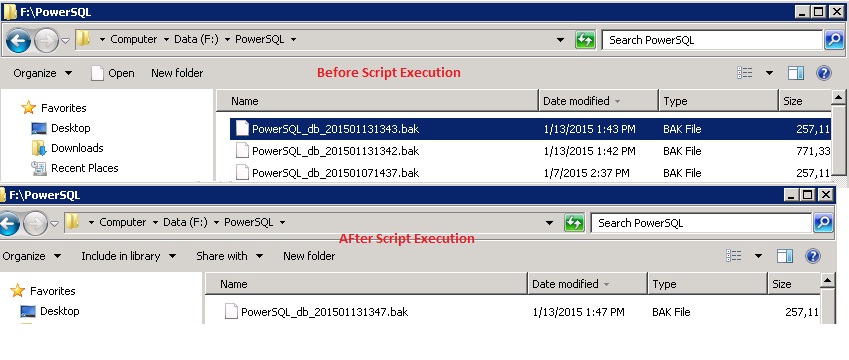
    The requirement is to backup individual database and after successful backup the script should retain the most recent file and delete the rest from a directory for that specific database.

    The below Powershell script is used to backup a specific database on a given directory

    [System.Reflection.Assembly]::LoadWithPartialName("Microsoft.SqlServer.SMO") | Out-Null
    [System.Reflection.Assembly]::LoadWithPartialName("Microsoft.SqlServer.SmoExtended") | Out-Null
    [System.Reflection.Assembly]::LoadWithPartialName("Microsoft.SqlServer.ConnectionInfo") | Out-Null
    [System.Reflection.Assembly]::LoadWithPartialName("Microsoft.SqlServer.SmoEnum") | Out-Null
    #Define the SQL Instancet
    $InstanceName='DBSP18001'
    #We define the folder path as a variable
    $bkdir = 'F:\PowerSQL'  
    #Name of the database, the search is based on this parameter
    $dbName='PowerSQL'
    $s = New-Object ('Microsoft.SqlServer.Management.Smo.Server') $InstanceName
    $dt = get-date -format yyyyMMddHHmm
    #Create a Backup object instance with the Microsoft.SqlServer.Management.Smo.Backup namespace 
    $dbBackup = new-object ("Microsoft.SqlServer.Management.Smo.Backup")
    #Set the Database property to Northwind 
    $dbBackup.Database = $dbname
    #Add the backup file to the Devices collection and specify File as the backup type 
    $dbBackup.Devices.AddDevice($bkdir + "\" + $dbname + "_db_" + $dt + ".bak", "File")
    #Specify the Action property to generate a FULL backup 
    $dbBackup.Action="Database"
    #Call the SqlBackup method to generate the backup 
    $dbBackup.SqlBackup($s)

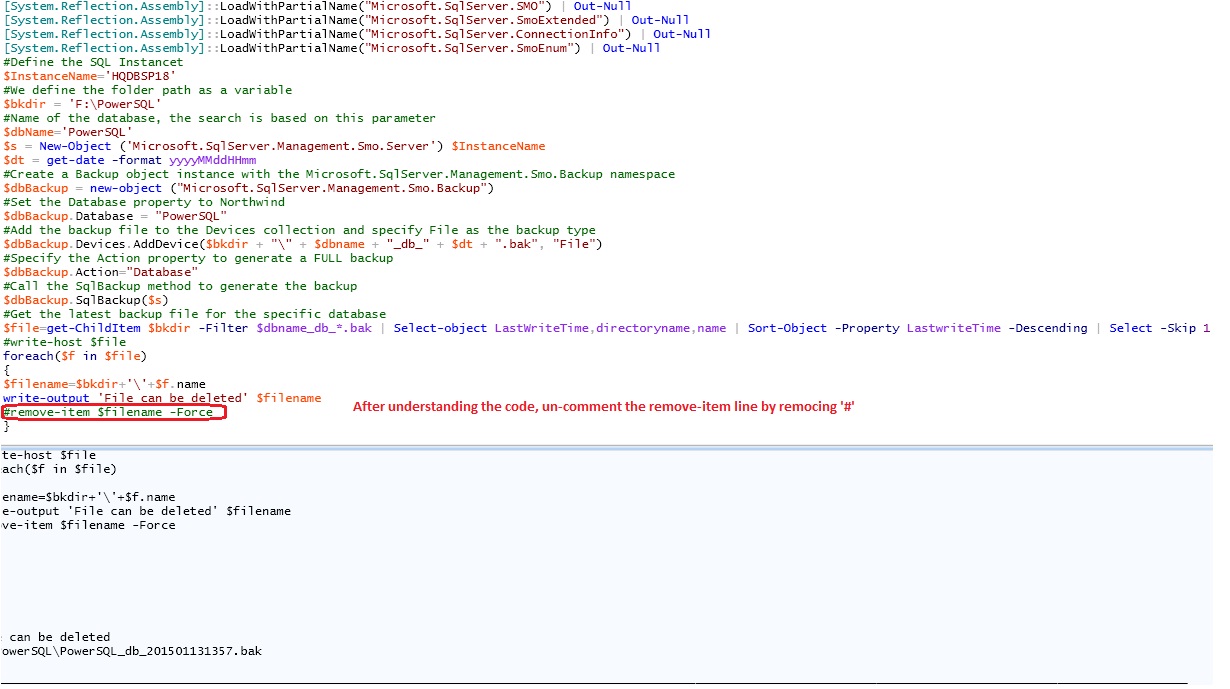
    To retain a most recent file and delete the rest by sorting the files on LastwriteTime then skip a first one.

    #Get the latest backup file for the specific database
    $file=get-ChildItem $bkdir -Filter $dbname_db_*.bak | Select-object LastWriteTime,directoryname,name | Sort-Object -Property LastwriteTime -Descending | Select -Skip 1
    #write-host $file
    foreach($f in $file)
    {
    $filename=$bkdir+'\'+$f.name
    write-output 'File can be deleted' $filename
    remove-item $filename -Force
    }
    

    The full transcript which initiates backup for specific database , retains the most recent file and deletes the rest is given below. In the script the remove-item is commented. Please be sure of what you are doing before un-commenting the remove-item line.

    [System.Reflection.Assembly]::LoadWithPartialName("Microsoft.SqlServer.SMO") | Out-Null
    [System.Reflection.Assembly]::LoadWithPartialName("Microsoft.SqlServer.SmoExtended") | Out-Null
    [System.Reflection.Assembly]::LoadWithPartialName("Microsoft.SqlServer.ConnectionInfo") | Out-Null
    [System.Reflection.Assembly]::LoadWithPartialName("Microsoft.SqlServer.SmoEnum") | Out-Null
    #Define the SQL Instancet
    $InstanceName='DBSP18001'
    #We define the folder path as a variable
    $bkdir = 'F:\PowerSQL'  
    #Name of the database, the search is based on this parameter
    $dbName='PowerSQL'
    $s = New-Object ('Microsoft.SqlServer.Management.Smo.Server') $InstanceName
    $dt = get-date -format yyyyMMddHHmm
    #Create a Backup object instance with the Microsoft.SqlServer.Management.Smo.Backup namespace 
    $dbBackup = new-object ("Microsoft.SqlServer.Management.Smo.Backup")
    #Set the Database property to Northwind 
    $dbBackup.Database = $dbname
    #Add the backup file to the Devices collection and specify File as the backup type 
    $dbBackup.Devices.AddDevice($bkdir + "\" + $dbname + "_db_" + $dt + ".bak", "File")
    #Specify the Action property to generate a FULL backup 
    $dbBackup.Action="Database"
    #Call the SqlBackup method to generate the backup 
    $dbBackup.SqlBackup($s)
    #Get the latest backup file for the specific database
    $file=get-ChildItem $bkdir -Filter $dbname_db_*.bak | Select-object LastWriteTime,directoryname,name | Sort-Object -Property LastwriteTime -Descending | Select -Skip 1
    #write-host $file
    foreach($f in $file)
    {
    $filename=$bkdir+'\'+$f.name
    write-output 'File can be deleted' $filename
    remove-item $filename -Force
    }


    Script Execution From PowerShell-ISE

    PowerShell-Database-Backup1

    Output

     PowerShell-Database-Backup


    Posted in PowerShell, SQL | Tagged , , | 4 Comments

    Database Level Permission

    DECLARE @DBuser_sql VARCHAR(4000)
    DECLARE @DBuser_table TABLE
    (
    DBName VARCHAR(200),
    UserName VARCHAR(250),
    LoginType VARCHAR(500),
    AssociatedDatabaseRole VARCHAR(200)
    )
    SET @DBuser_sql='
    SELECT "[?]" AS DBName,a.name AS Name,
    a.type_desc AS LoginType,
    USER_NAME(b.role_principal_id) AS AssociatedDatabaseRole
    FROM [?].sys.database_principals a
    LEFT OUTER JOIN [?].sys.database_role_members b ON a.principal_id=b.member_principal_id
    LEFT OUTER JOIN [?].sys.server_role_members c ON a.principal_id=c.member_principal_id and a.principal_id=c.member_principal_id
    WHERE a.sid NOT IN (0x01,0x00) AND a.sid IS NOT NULL AND a.type NOT IN ("C")
    AND a.is_fixed_role <> 1 AND a.name NOT LIKE "##%" AND "?" NOT IN ("master","msdb","model","tempdb")
    ORDER BY Name'
    INSERT @DBuser_table
    EXEC sp_MSforeachdb @command1=@dbuser_sql
    SELECT DBName,UserName,LoginType,
    max(case when AssociatedDatabaseRole ='db_owner' then '1' else '0' end )'db_owner',
    max(case when AssociatedDatabaseRole ='db_securityadmin' then '1' else '0' end )'db_securityadmin',
    max(case when AssociatedDatabaseRole ='db_accessadmin' then '1' else '0' end )'db_accessadmin',
    max(case when AssociatedDatabaseRole ='db_backupoperator' then '1' else '0' end )'db_backupoperator',
    max(case when AssociatedDatabaseRole ='db_ddladmin' then '1' else '0' end )'db_ddladmin',
    max(case when AssociatedDatabaseRole ='db_datareader' then '1' else '0' end)'db_datareader',
    max(case when AssociatedDatabaseRole ='db_datawriter' then '1' else '0' end) 'db_datawriter',
    max(case when AssociatedDatabaseRole ='db_denydatawriter' then '1' else '0' end )'db_denydatawriter',
    max(case when AssociatedDatabaseRole ='db_denydatareader' then '1' else '0' end )'db_denydatareader',
    max(case when AssociatedDatabaseRole is NULL then '1' else '0' end )'No Roles'
    FROM @DBuser_table
    group by DBName,UserName,LoginType


    Server Level Permission

    SELECT sp.name AS LoginName,sp.type_desc AS LoginType, sp.default_database_name AS DefaultDBName,slog.sysadmin AS SysAdmin,slog.securityadmin AS SecurityAdmin,slog.serveradmin AS ServerAdmin, slog.setupadmin AS SetupAdmin, slog.processadmin AS ProcessAdmin, slog.diskadmin AS DiskAdmin, slog.dbcreator AS DBCreator,slog.bulkadmin AS BulkAdmin
    FROM sys.server_principals sp JOIN master..syslogins slog
    ON sp.sid=slog.sid
    WHERE sp.type <> 'R' AND sp.name NOT LIKE '##%'


    Find Logins With VIEW SERVER STATE Permissions

    SELECT @@SERVERNAME,SPRIN.[name],SPER.[permission_name] FROM sys.[server_permissions] SPER 
     INNER JOIN sys.[server_principals] SPRIN
     ON SPER.[grantee_principal_id] = SPRIN.[principal_id] WHERE SPER.[permission_name] = 'VIEW SERVER STATE'
     AND (SPER.[state] = 'G' OR SPER.[state] = 'W')AND SPRIN.[name] NOT LIKE '##%'
    ORDER BY SPRIN.[name]
    
    
    Permission
    Posted on by Prashanth Jayaram | 1 Comment

    PowerShell- Monitoring Multiple Services On Multiple Servers Using WMI Class -Win32_Service

    The requirement is to check only those services where startup mode set to Auto and services that stopped. In my previous post have used Get-Service cmdlet which do not bind any such information hence I’m querying Win32_Service. This class has StartMode and State attributes.

    Function Get-ServiceStatusReport  
    {  
    param(  
    [String]$ComputerList,[String[]]$includeService,[String]$To,[String]$From,[string]$SMTPMail  
    )  
    $script:list = $ComputerList   
    $ServiceFileName= "c:\ServiceFileName.htm"  
    New-Item -ItemType file $ServiceFilename -Force  
    # Function to write the HTML Header to the file  
    Function writeHtmlHeader  
    {  
    param($fileName)  
    $date = ( get-date ).ToString('yyyy/MM/dd')  
    Add-Content $fileName "<html>"  
    Add-Content $fileName "<head>"  
    Add-Content $fileName "<meta http-equiv='Content-Type' content='text/html; charset=iso-8859-1'>"  
    Add-Content $fileName '<title>Service Status Report </title>'  
    add-content $fileName '<STYLE TYPE="text/css">'  
    add-content $fileName  "<!--"  
    add-content $fileName  "td {"  
    add-content $fileName  "font-family: Tahoma;"  
    add-content $fileName  "font-size: 11px;"  
    add-content $fileName  "border-top: 1px solid #999999;"  
    add-content $fileName  "border-right: 1px solid #999999;"  
    add-content $fileName  "border-bottom: 1px solid #999999;"  
    add-content $fileName  "border-left: 1px solid #999999;"  
    add-content $fileName  "padding-top: 0px;"  
    add-content $fileName  "padding-right: 0px;"  
    add-content $fileName  "padding-bottom: 0px;"  
    add-content $fileName  "padding-left: 0px;"  
    add-content $fileName  "}"  
    add-content $fileName  "body {"  
    add-content $fileName  "margin-left: 5px;"  
    add-content $fileName  "margin-top: 5px;"  
    add-content $fileName  "margin-right: 0px;"  
    add-content $fileName  "margin-bottom: 10px;"  
    add-content $fileName  ""  
    add-content $fileName  "table {"  
    add-content $fileName  "border: thin solid #000000;"  
    add-content $fileName  "}"  
    add-content $fileName  "-->"  
    add-content $fileName  "</style>"  
    Add-Content $fileName "</head>"  
    Add-Content $fileName "<body>"  
     
    add-content $fileName  "<table width='100%'>"  
    add-content $fileName  "<tr bgcolor='#CCCCCC'>"  
    add-content $fileName  "<td colspan='4' height='25' align='center'>"  
    add-content $fileName  "<font face='tahoma' color='#003399' size='4'><strong>Service Stauts Report - $date</strong></font>"  
    add-content $fileName  "</td>"  
    add-content $fileName  "</tr>"  
    add-content $fileName  "</table>"  
     
    }  
     
    # Function to write the HTML Header to the file  
    Function writeTableHeader  
    {  
    param($fileName)  
     
    Add-Content $fileName "<tr bgcolor=#CCCCCC>"  
    Add-Content $fileName "<td width='10%' align='center'>ServerName</td>"  
    Add-Content $fileName "<td width='50%' align='center'>Service Name</td>"  
    Add-Content $fileName "<td width='10%' align='center'>status</td>"  
    Add-Content $fileName "</tr>"  
    }  
     
    Function writeHtmlFooter  
    {  
    param($fileName)  
     
    Add-Content $fileName "</body>"  
    Add-Content $fileName "</html>"  
    }  
     
    Function writeDiskInfo  
    {  
    param($filename,$Servername,$name,$Status)  
    if( $status -eq "Stopped")  
    {  
     Add-Content $fileName "<tr>"  
     Add-Content $fileName "<td bgcolor='#FF0000' align=left ><b>$servername</td>"  
     Add-Content $fileName "<td bgcolor='#FF0000' align=left ><b>$name</td>"  
     Add-Content $fileName "<td bgcolor='#FF0000' align=left ><b>$Status</td>"  
     Add-Content $fileName "</tr>"  
    }  
    else  
    {  
    Add-Content $fileName "<tr>"  
     Add-Content $fileName "<td >$servername</td>"  
     Add-Content $fileName "<td >$name</td>"  
     Add-Content $fileName "<td >$Status</td>"  
    Add-Content $fileName "</tr>"  
    }  
     
    }  
     
    writeHtmlHeader $ServiceFileName  
     Add-Content $ServiceFileName "<table width='100%'><tbody>"  
     Add-Content $ServiceFileName "<tr bgcolor='#CCCCCC'>"  
     Add-Content $ServiceFileName "<td width='100%' align='center' colSpan=3><font face='tahoma' color='#003399' size='2'><strong> Service Details</strong></font></td>"  
     Add-Content $ServiceFileName "</tr>"  
     
     writeTableHeader $ServiceFileName  
     
    #Change value of the following parameter as needed  
     
    $InlcudeArray=@()  
     
    #List of programs to exclude  
    #$InlcudeArray = $inlcudeService  
     
    Foreach($ServerName in (Get-Content $script:list))  
    {  
    $service = Get-WmiObject Win32_Service -ComputerName $servername |Where-Object { $_.StartMode -eq 'Auto' -and $_.state -eq 'Stopped'} 
    if ($Service -ne $NULL)  
    {  
    foreach ($item in $service)  
     {  
     #$item.DisplayName  
     Foreach($include in $includeService)   
         {                         
     write-host $inlcude                                      
     if(($item.name).Contains($include) -eq $TRUE)  
        {  
        Write-Host  $servername $item.name $item.Status   
        writeDiskInfo $ServiceFileName $servername $item.name $item.Status   
        }  
        }  
     }  
    }  
    }  
     
    Add-Content $ServiceFileName "</table>"   
     
    writeHtmlFooter $ServiceFileName  
     
    function Validate-IsEmail ([string]$Email)  
    {  
     
                    return $Email -match "^(?("")("".+?""@)|(([0-9a-zA-Z]((\.(?!\.))|[-!#\$%&'\*\+/=\?\^`\{\}\|~\w])*)(?<=[0-9a-zA-Z])@))(?(\[)(\[(\d{1,3}\.){3}\d{1,3}\])|(([0-9a-zA-Z][-\w]*[0-9a-zA-Z]\.)+[a-zA-Z]{2,6}))$"  
    }  
     
    Function sendEmail    
    {   
    param($from,$to,$subject,$smtphost,$htmlFileName)    
    [string]$receipients="$to"  
    $body = Get-Content $htmlFileName   
    $body = New-Object System.Net.Mail.MailMessage $from, $receipients, $subject, $body   
    $body.isBodyhtml = $true  
    $smtpServer = $MailServer  
    $smtp = new-object Net.Mail.SmtpClient($smtphost)  
    $validfrom= Validate-IsEmail $from  
    if($validfrom -eq $TRUE)  
    {  
    $validTo= Validate-IsEmail $to  
    if($validTo -eq $TRUE)  
    {  
    $smtp.Send($body)  
    write-output "Email Sent!!"  
     
    }  
    }  
    else  
    {  
    write-output "Invalid entries, Try again!!"  
    }  
    }  
     
    $date = ( get-date ).ToString('yyyy/MM/dd')  
     
    sendEmail -from $From -to $to -subject "Service Status - $Date" -smtphost $SMTPMail -htmlfilename $ServiceFilename  
     
    }


    The Function Get-ServiceStatusReport contains five parameters

      1. ComputerList – List of Servers


    • ServiceName – Name of Services separated by comma


    • SMTPMail – SMTP mail address


    • FromID – Valid Email ID


    • ToID – Valid Email ID


    Function call –

    Get-ServiceStatusReport -ComputerList C:\server.txt -includeService  "MySQL","MpsSvc","W32Time" -To pjayaram@app.com -From pjayaram@ app.com -SMTPMail  app01. app.com

    OR

    Get-ServiceStatusReport -ComputerList C:\server.txt -includeService  MySQL,MpsSvc,W32Time -To pjayaram@app.com -From pjayaram@ app.com -SMTPMail  app01. app.com


    Posted in PowerShell | Tagged , , , | Leave a comment

    Mailbox Statistics report with Email addresses

    Script to collect and export the mailbox properties from Get-Mailbox and Get-MailboxStatistics cmdlets to a CSV file

    This script can be extended based on the required attributes

    Get-Mailbox -ResultSize Unlimited  | 
    Select-Object DisplayName, 
    SamAccountName,servername,database,
    RecipientTypeDetails,PrimarySmtpAddress,
    HiddenFromAddressListsEnabled,
    @{label="ItemCount";expression={(Get-MailboxStatistics $_).ItemCount}},
    @{label="TotalItemSize";expression={(Get-MailboxStatistics $_).TotalItemSize}},  
    @{label="DeletedItemCount";expression={(Get-MailboxStatistics $_).DeletedItemCount}},
    @{label="TotalDeletedItemSize";expression={(Get-MailboxStatistics $_).TotalDeletedItemSize}},
    @{label="MailboxGuid";expression={(Get-MailboxStatistics $_).MailboxGuid}},
    @{label="LastLogoffTime";expression={(Get-MailboxStatistics $_).LastLogoffTime}}, 
    @{label="LastLogonTime";expression={(Get-MailboxStatistics $_).LastLogonTime}},IssueWarningQuota, ProhibitSendQuota 
     Export-Csv "Path to the output file " -NoTypeInformation
    Posted in Exchange, PowerShell | Tagged , , , , , | Leave a comment